What Is Kling 2.6 Pro Motion Control? Advanced AI Video with Motion Transfer
Kling 2.6 Pro Motion Control offers advanced motion transfer for AI video. Learn how motion control works and what creative projects it enables.
Understanding Kling 2.6 Pro Motion Control
Kling 2.6 Pro Motion Control is an advanced AI video generation system that transfers motion from reference videos onto static character images. Unlike traditional text-to-video models that interpret vague prompts, this technology uses actual video footage as a blueprint for movement, combining it with your character image to produce seamless animated output.
The system was developed by Kuaishou, a major Chinese technology company, and represents a significant step forward in AI-powered video creation. Instead of describing motion through text prompts—which rarely produces precise results—you show the AI exactly what you want by uploading a reference video.
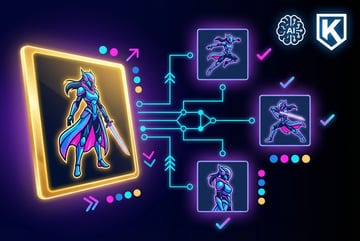
Think of it this way: you provide two inputs. First, a static image of your character (a portrait, illustration, or 3D render). Second, a video showing the motion you want (someone dancing, walking, gesturing, or performing any action). The AI extracts the motion pattern from the reference video and applies it to your static image, generating a new video where your character performs those exact movements.
This approach solves a fundamental problem with AI video generation. Describing complex motion through text is difficult and unreliable. Words like “gracefully” or “dynamically” mean different things to different people. By using reference videos, you get precise, repeatable control over how your character moves.
How Motion Transfer Technology Works
Remy is new. The platform isn't.
Remy is the latest expression of years of platform work. Not a hastily wrapped LLM.

The technical foundation of Kling 2.6 Pro Motion Control involves sophisticated neural networks trained on motion capture data. The system analyzes reference videos at a skeletal level, identifying body positions, limb articulation, posture transitions, and timing.
When you upload a reference video, the AI doesn’t just copy pixels. It understands the underlying motion structure—the way joints move, how weight shifts, where momentum carries through the body. This skeletal understanding allows the system to transfer motion onto characters with different proportions or styles while maintaining natural movement.
The process works in several stages. First, the system extracts motion patterns from your reference video, capturing everything from major body movements to subtle hand gestures. Second, it analyzes your character image to understand the body structure and visual style. Third, it synthesizes new frames that apply the extracted motion to your character while preserving their visual identity.
What makes this physics-aware is the model’s understanding of mass, gravity, impact, and momentum. When a character jumps, they land with believable force. When they run, clothing reacts naturally to movement. This grounded approach produces motion that feels intentional rather than floaty, which was a common problem in earlier AI video systems.
Key Features and Capabilities
Kling 2.6 Pro Motion Control generates videos up to 30 seconds long in a single continuous sequence. This extended duration capability sets it apart from earlier systems that could only produce short clips before losing coherence.
The system maintains character identity throughout the entire video. This consistency is difficult to achieve in AI video generation—many models start drifting after just a few seconds, with characters’ faces or clothing subtly changing. Kling 2.6 Pro uses advanced techniques to lock in visual identity from start to finish.
Full-body motion transfer is another major capability. The system doesn’t just capture gross body movements—it preserves intricate hand movements, facial expressions, and even lip synchronization. If your reference video shows someone speaking, the AI will attempt to match mouth movements to the audio timing.
Resolution options provide flexibility for different use cases. You can generate at 480p for quick previews (10 credits per second), 580p for balanced quality (16 credits per second), or 720p for high-quality output (21 credits per second). The credit system allows you to scale spending based on project requirements.
Two orientation modes give you control over framing. “Match video” mode replicates the exact camera framing from your reference video, useful when you want to preserve a specific composition. “Match image” mode preserves your character’s pose from the input image while enabling dynamic camera movement during the sequence.
The text prompt system works alongside motion transfer to refine scene details. While the reference video controls motion, your text prompt can adjust background elements, lighting conditions, atmospheric effects, and visual styling. This separation of concerns—motion from video, environment from text—provides clean control over different aspects of generation.
Comparing Kling 2.6 Pro to Competitors
The AI video motion control market has several players, each with different strengths. Understanding how Kling 2.6 Pro compares helps you choose the right tool for your workflow.
Remy doesn't write the code. It manages the agents who do.
Remy runs the project. The specialists do the work. You work with the PM, not the implementers.
Runway Act-Two focuses on facial performance transfer, particularly for dialogue and emotional expression. It excels at capturing subtle facial movements but doesn’t offer the same full-body motion control that Kling provides. Kling’s internal benchmarks show a 1667% win-to-loss ratio compared to Runway Act-Two across six evaluation dimensions.
Wan 2.2-Animate is an open-source alternative that provides basic motion transfer capabilities. While it offers flexibility for developers who want to customize the underlying model, it lacks the polish and consistency of commercial systems. Kling’s testing showed a 404% performance advantage over Wan 2.2-Animate in overall quality metrics.
DreamActor 1.5 targets similar use cases as Kling but with different technical approaches. Kling’s comparative testing indicated a 343% win-to-loss score against DreamActor across multiple evaluation dimensions including facial dynamic consistency, motion quality, and image relevance.
What differentiates Kling is the combination of extended duration (30 seconds versus 10-15 seconds for most competitors), physics-aware motion simulation, and the ability to maintain character identity across the full sequence. The system handles complex choreography—martial arts, dance routines, athletic movements—with smooth, coherent motion that other systems struggle to replicate.
For teams building AI-powered video workflows, platforms like MindStudio provide integrated access to multiple video generation models including Kling, allowing you to compare results across different systems without managing separate API keys or subscriptions.
Practical Applications Across Industries
Motion transfer technology opens up new possibilities across multiple sectors. Understanding these applications helps you identify opportunities for your specific use case.
Content Creation and Social Media
Creators use Kling 2.6 Pro to produce viral dance videos, challenge recreations, and character animations without expensive motion capture equipment. Upload a trending dance video as reference, apply it to your character, and generate content ready for TikTok, Instagram Reels, or YouTube Shorts.
The technology particularly shines for character consistency across multiple videos. If you’re building a recurring character for a content series, Kling maintains visual identity across different motion sequences, solving the continuity problems that plagued earlier AI video tools.
Marketing and Advertising
Marketing teams leverage motion transfer for product demonstrations where human actors perform with products, then the characters are swapped to match brand mascots or stylized representatives. This approach provides the natural movement of real actors with the visual consistency of illustrated characters.
The cost efficiency is substantial. Traditional motion capture and animation pipelines for a 30-second clip can cost $10,000-$30,000 and take weeks. Kling-based workflows reduce this to hundreds of dollars and days, making high-quality motion content accessible to mid-market companies.
Filmmaking and Pre-visualization
Directors use Kling for pre-visualization of complex stunt sequences or action scenes. Upload stunt reference footage, apply it to character models, and generate previsualization clips that communicate your vision to the production team without expensive pre-production shooting.
The safety implications are significant. Instead of putting stunt performers at risk during planning stages, filmmakers can test dangerous sequences virtually, refining choreography and camera angles before anyone steps onto a physical set.
Character Animation
Animation studios employ motion transfer to accelerate character animation workflows. Traditional hand-animation of complex motion is time-intensive. Kling allows animators to capture real human performance and apply it to stylized characters, then refine the output rather than building from scratch.
Other agents start typing. Remy starts asking.
Scoping, trade-offs, edge cases — the real work. Before a line of code.
This hybrid approach—AI-generated base motion with human refinement—produces results faster than pure hand-animation while maintaining more artistic control than fully automated systems.
Education and Training
Educational content creators use motion transfer to generate instructional videos showing proper form for physical activities—sports techniques, exercise movements, dance instruction. The ability to show motion from multiple angles by generating different camera positions from the same reference video enhances learning effectiveness.
Technical Requirements and Workflow
Using Kling 2.6 Pro Motion Control effectively requires understanding the technical requirements and optimal workflow practices.
Input Requirements
Reference videos should be 3-30 seconds in length. The system works best with clear, well-lit footage where the subject is clearly visible. Supported formats include MP4, MOV, and MKV.
Character images should be high-resolution (JPEG, PNG, or WebP format) with the subject clearly visible against a clean background. The quality of your input image directly affects output quality—use the highest resolution source material available.
For best results, ensure the reference video subject and character image are similar in type. If your character image shows a human, use a reference video of a human performing the motion. Transferring animal motion to human characters or vice versa produces unreliable results.
Processing Time and Costs
Generation time varies based on video length and current server load, typically ranging from 1-5 minutes for a full sequence. During peak usage periods, you may experience longer queue times.
The credit-based pricing model charges per second of generated video. At 720p resolution (21 credits per second), a 10-second video costs 210 credits. A 30-second video at the same resolution costs 630 credits. Standard mode offers faster generation at lower quality, while Pro mode delivers higher fidelity at the cost of longer processing time.
Optimal Workflow Steps
Start by selecting your reference video carefully. Clean, clear footage with good lighting produces better results than low-quality shaky-cam videos. The subject should be clearly visible throughout the entire sequence.
Prepare your character image with attention to composition. If using “match image” mode, position your character in the frame where you want them to appear. If using “match video” mode, the system will override your image composition to match the reference video framing.
Write your text prompt to describe environmental and stylistic elements, not motion. Since motion comes from the reference video, focus your prompt on background details, lighting conditions, color grading, and atmospheric effects. For example: “cinematic lighting, warm sunset tones, shallow depth of field, professional color grading.”
Generate at 480p first for quick iteration. Once you’re satisfied with the motion transfer and composition, regenerate at 720p for final output. This approach saves credits during the experimental phase.
Review output carefully for artifacts or inconsistencies. While Kling 2.6 Pro maintains high quality, occasional glitches can occur—particularly in complex motion sequences or when the reference video quality is poor.
Limitations and Known Issues
No AI system is perfect. Understanding Kling 2.6 Pro’s limitations helps set realistic expectations and avoid frustration.
Complex Camera Transformations
Remy doesn't build the plumbing. It inherits it.
Other agents wire up auth, databases, models, and integrations from scratch every time you ask them to build something.
Remy ships with all of it from MindStudio — so every cycle goes into the app you actually want.
The system can struggle with reference videos that include dramatic camera movements—rapid zooms, extreme angle changes, or complex tracking shots. In these cases, the AI sometimes prioritizes either the character motion or the camera motion, leading to distorted output.
Best practice is using reference videos with relatively stable camera work. If you need complex camera motion, generate the character motion first with a static camera, then apply camera movement in post-production using traditional video editing tools.
Character-Motion Mismatch
When the reference video and character image are too different in type or style, results degrade. Trying to apply human motion to a four-legged animal character, or vice versa, produces unnatural output.
The system works best when maintaining reasonable similarity between reference and target. Human-to-human transfers work reliably. Human-to-humanoid-robot can work if the proportions are similar. Human-to-dog typically fails.
Audio Generation Limitations
While Kling 2.6 offers audio generation capabilities, the integration with motion control is imperfect. Audio doesn’t always sync precisely with lip movements, particularly for complex dialogue sequences.
For professional work requiring tight audio synchronization, generate the video with Kling’s motion control, then add audio in post-production using specialized tools designed for lip-sync and audio mixing.
Language Support
The system primarily supports English and Chinese text prompts. Other languages may work but with less reliable interpretation of your instructions. If working in other languages, consider using English prompts for environmental descriptions to ensure consistent results.
Resolution Ceiling
Maximum resolution is currently 720p. For projects requiring 1080p or 4K output, you’ll need to upscale generated videos using separate AI upscaling tools. This additional step adds time and cost to your workflow.
Integration with Production Workflows
Kling 2.6 Pro Motion Control works best as part of a larger production pipeline rather than a standalone solution. Understanding how it fits into professional workflows maximizes its value.
Pre-Production Phase
Use Kling during concept development to test different motion ideas quickly. Generate multiple variations with different reference videos to explore creative directions before committing to expensive production.
The low cost and fast turnaround make it ideal for iterative exploration. Try ten different motion approaches in an afternoon rather than shooting ten different reference videos with talent.
Asset Preparation
Create a library of reusable reference videos for common motions—walking, running, talking, gesturing. This library becomes a valuable resource for consistent motion across multiple projects.
Similarly, maintain high-quality character images for recurring subjects. The better your input assets, the more reliable your output quality.
Post-Production Integration
Generated videos typically require some post-production work. Common adjustments include color correction, audio synchronization, compositing with other elements, and cleanup of occasional artifacts.
Budget time for these refinements. While Kling produces impressive raw output, professional work almost always benefits from final touches in traditional editing software.
Quality Control
Implement systematic quality checks before using generated content in final deliverables. Review for character consistency, motion naturalness, background coherence, and absence of visual artifacts.
For critical projects, generate multiple versions and select the best output. The stochastic nature of AI generation means quality varies between runs even with identical inputs.
Cost Analysis and Value Proposition
Understanding the economics of Kling 2.6 Pro helps determine if it fits your budget and use case.
Direct Costs
Built like a system. Not vibe-coded.
Remy manages the project — every layer architected, not stitched together at the last second.
The credit-based pricing means costs scale linearly with usage. A typical workflow might involve:
- Initial low-resolution tests (480p): 100-200 credits
- Mid-quality iterations (580p): 200-400 credits
- Final high-quality output (720p): 400-630 credits for a 30-second video
Total project cost depends on how many iterations you need and final duration requirements. A polished 30-second clip might cost $5-15 in credits after accounting for testing and iterations.
Alternative Cost Comparison
Compare this to traditional production methods. Professional motion capture equipment rental costs $500-2,000 per day. Animator time for hand-animating 30 seconds of character motion might cost $1,000-5,000 depending on complexity.
Even accounting for the time spent preparing inputs and refining output, Kling typically costs 10-20% of traditional production methods while taking a fraction of the time.
Hidden Costs
Don’t overlook indirect costs. Learning the system takes time. Preparing high-quality input assets requires effort. Post-production refinement adds labor hours.
Factor in these workflow costs when evaluating total cost of ownership. For small-scale projects, the overhead might exceed the direct credit costs.
Value Beyond Cost
The real value often comes from capabilities that weren’t previously accessible. Small teams can now produce motion content that previously required large studios. Iterative experimentation becomes feasible where it was once prohibitively expensive.
This democratization of motion capture and animation technology represents a fundamental shift in who can create professional-quality motion content.
Best Practices for High-Quality Results
Achieving consistently good output requires understanding what works and what doesn’t. These practices come from extensive testing and community experience.
Reference Video Selection
Choose reference videos with clear, unobstructed views of the subject. Avoid videos where the person is frequently occluded by objects or where lighting changes dramatically mid-sequence.
Single-subject videos work better than multi-person scenes. The AI can get confused trying to extract motion from multiple subjects simultaneously.
Higher frame rate reference videos (60fps) generally produce smoother output than low frame rate sources (24fps or lower). If shooting your own reference footage, capture at high frame rates when possible.
Character Image Optimization
Use high-resolution source images. While the output is limited to 720p, starting with 2K or 4K source images gives the AI more detail to work with during generation.
Clean backgrounds work better than cluttered ones. If your character image has a complex background, consider isolating the subject first using background removal tools.
Front-facing or three-quarter view character images produce more reliable results than profile views. The AI has more training data for frontal poses, leading to better quality output.
Prompt Engineering
Keep prompts focused on environmental and stylistic elements rather than motion descriptions. The reference video handles motion—your prompt should describe everything else.
Be specific about lighting: “soft window light from camera left,” “dramatic rim lighting,” “flat overcast lighting.” Lighting has enormous impact on visual quality.
Include style descriptors: “photorealistic,” “hand-drawn animation style,” “3D rendered,” “cinematographic.” These help guide the overall aesthetic.
Use negative prompts to exclude unwanted elements: “no distortion, no artifacts, no blur, no extra limbs.” This helps the AI avoid common failure modes.
Testing and Iteration
Other agents ship a demo. Remy ships an app.
Real backend. Real database. Real auth. Real plumbing. Remy has it all.
Always test at low resolution first. Don’t waste credits on high-resolution generations until you’ve confirmed the motion transfer works as intended.
Try small variations to find optimal settings. Change one variable at a time—reference video, character image, prompt—to understand what affects output quality.
Keep notes on what works. Build a personal knowledge base of successful combinations so you can replicate good results in future projects.
Advanced Techniques
Once you’ve mastered basic workflows, these advanced techniques unlock additional creative possibilities.
Multi-Stage Processing
Generate motion in one pass, then use that output as reference for a second pass with different character styling. This layered approach can achieve effects that single-pass generation can’t produce.
For example, generate realistic human motion first, then apply that motion to a stylized illustrated character in a second pass. The intermediate realistic version helps guide more successful stylization.
Hybrid Workflows
Combine Kling with other AI tools for enhanced results. Generate the motion with Kling, upscale resolution with AI upscaling tools, add effects with AI compositing systems, and refine details with traditional editing software.
This multi-tool approach plays to each system’s strengths rather than expecting one tool to handle everything perfectly.
Reference Video Creation
Shoot your own reference videos to get exactly the motion you need. This gives you complete control over the input rather than hunting for existing footage that’s close enough.
A smartphone on a tripod is sufficient for most purposes. Focus on clear lighting and unobstructed views rather than production value—remember, this footage is just a motion reference, not final output.
Batch Processing
For projects requiring multiple similar videos, set up batch workflows that process multiple inputs systematically. This is particularly useful for series content or template-based production.
Document your successful settings so batch jobs produce consistent results without manual intervention for each generation.
Ethical Considerations and Responsible Use
Motion transfer technology raises important ethical questions that users should consider carefully.
Consent and Likeness Rights
Using someone’s likeness as a character image requires their permission, particularly for commercial use. Just because you can transfer motion onto a photo of someone doesn’t mean you should without consent.
When using reference videos of people, ensure you have appropriate rights to use that footage. Publicly available videos aren’t necessarily licensed for AI training or motion extraction.
Deepfake Concerns
Motion transfer technology shares technical similarities with deepfake systems. While Kling focuses on creative applications, the same technology could potentially be misused for deceptive purposes.
Users have a responsibility to clearly label AI-generated content, particularly when it might be mistaken for authentic footage. Transparency about synthetic content helps maintain trust and prevents misuse.
Attribution and Disclosure
Kling’s terms of service require branding AI-generated content with appropriate attribution. This isn’t just a legal requirement—it’s good practice for maintaining trust with your audience.
When sharing AI-generated videos, clearly indicate they were created using AI tools. This transparency helps audiences understand what they’re viewing and sets appropriate expectations.
Impact on Creative Industries
Plans first. Then code.
Remy writes the spec, manages the build, and ships the app.
Motion capture specialists, animators, and stunt performers may see their roles change as AI motion transfer becomes more capable. While the technology creates new opportunities, it also disrupts established workflows and career paths.
The responsible approach is finding ways to use AI as an augmentation tool that enhances human creativity rather than simply replacing human workers. Hybrid workflows that combine AI efficiency with human refinement often produce the best results while maintaining meaningful human involvement.
Future Development and Roadmap
AI video generation technology is advancing rapidly. Understanding likely future developments helps you plan for long-term workflows.
Resolution Improvements
Expect native 1080p and potentially 4K output in future versions. The current 720p ceiling is a technical limitation that will likely be overcome as models become more efficient and hardware improves.
Higher resolution output reduces the need for separate upscaling steps, simplifying workflows and improving final quality.
Extended Duration
Current 30-second maximum duration may expand to 60 seconds or more. Longer continuous sequences reduce the need for stitching multiple clips together, improving temporal coherence across extended videos.
Improved Camera Control
Better handling of complex camera movements in reference videos will expand creative possibilities. The ability to transfer both subject motion and camera motion reliably would eliminate a major current limitation.
Multi-Character Support
Handling multiple characters in a single scene with different motion references for each would enable more complex scenarios. Current single-character focus limits certain applications.
Real-Time Generation
As processing efficiency improves, near-real-time motion transfer could become possible. This would transform creative workflows by enabling immediate feedback during the creation process.
Better Audio Integration
Tighter coupling between motion transfer and audio generation would improve lip-sync quality and overall audiovisual coherence. Current audio limitations require post-production fixes that future versions might eliminate.
Alternative Tools and When to Use Them
Kling 2.6 Pro isn’t the only motion transfer solution. Knowing alternatives helps you choose the right tool for specific needs.
Runway Gen-3
Runway focuses on general video generation with strong text-to-video capabilities. It’s better for creating original scenes from text descriptions rather than motion transfer from reference videos.
Choose Runway when you need to generate video concepts from scratch without reference footage. Choose Kling when you have specific motion you want to replicate precisely.
Pika Labs
Pika specializes in video editing and modification—taking existing video and changing elements within it. This is different from Kling’s motion transfer approach.
Use Pika when you want to modify existing video footage. Use Kling when you want to apply motion to static images or different characters.
Stability AI’s Stable Video Diffusion
This open-source alternative provides basic video generation capabilities that developers can customize. It requires more technical knowledge but offers flexibility.
Choose Stable Video Diffusion if you need to modify the underlying model or integrate deeply with custom systems. Choose Kling if you want production-ready results without technical complexity.
Adobe Firefly Video
Adobe’s offering integrates tightly with Creative Cloud workflows and provides enterprise-grade security and licensing. It’s designed for professional studios with existing Adobe infrastructure.
Use Adobe tools when you need seamless integration with After Effects and Premiere Pro. Use Kling when you want standalone motion transfer without dependency on broader creative suites.
Getting Started: Your First Project
Everyone else built a construction worker.
We built the contractor.
One file at a time.
UI, API, database, deploy.
Here’s a step-by-step guide for your first Kling 2.6 Pro Motion Control project.
Step 1: Choose Your Goal
Start with a simple, clear objective. “Make my character dance” or “Apply walking motion to my illustration” works better for learning than ambitious multi-stage projects.
Step 2: Prepare Your Character Image
Select or create a high-resolution image of your character. Ensure they’re clearly visible against a clean background. Front-facing or three-quarter view works best for initial projects.
Step 3: Find Reference Video
Search for reference footage showing the motion you want. YouTube has countless examples of dance, walking, gesturing, and other motions. Download a 5-10 second clip showing clear, unobstructed movement.
Alternatively, record your own reference video. A smartphone camera on a tripod captures adequate reference footage. Perform the motion yourself or have a friend do it.
Step 4: Access Kling
Sign up for Kling AI account or use a platform like MindStudio that provides access to multiple video generation models. This approach lets you compare results across different systems.
Step 5: Upload Assets
Upload your character image and reference video. Select “match video” orientation mode for your first attempt—it’s more forgiving than “match image” mode.
Step 6: Write Your Prompt
Keep it simple: “cinematic lighting, professional color grading, 720p.” Don’t describe motion—the reference video handles that.
Step 7: Generate at 480p
Run your first generation at low resolution. This saves credits while you learn what works. Review the output carefully.
Step 8: Iterate
If the result isn’t what you expected, adjust one variable and try again. Change the reference video, modify your prompt, or try a different character image. Small adjustments can produce significantly different results.
Step 9: Final High-Quality Generation
Once you’re satisfied with the low-resolution preview, regenerate at 720p for final output. This produces your deliverable video file.
Step 10: Post-Production
Import the generated video into your editing software. Add audio, apply color correction, composite with other elements as needed. Polish the raw AI output into a finished piece.
Conclusion
Kling 2.6 Pro Motion Control represents a significant advancement in AI video generation technology. By using reference videos instead of text descriptions for motion, it provides precise control over character animation in ways previous systems couldn’t achieve.
The technology isn’t perfect. Current limitations around resolution, duration, and camera complexity mean it works best as part of a larger production workflow rather than as a complete standalone solution. Understanding these boundaries helps you set realistic expectations and plan effective workflows.
For creators, marketers, and filmmakers willing to learn its strengths and limitations, Kling 2.6 Pro offers capabilities that were previously accessible only to large studios with expensive motion capture equipment. The cost efficiency and speed of iteration fundamentally change what’s possible for small teams and individual creators.
As the technology continues advancing—with improvements in resolution, duration, and camera handling already visible on development roadmaps—motion transfer will likely become a standard tool in video production workflows across industries. Early adopters who learn these systems now will have significant advantages as the technology matures.
The key to success with Kling 2.6 Pro is approaching it as a tool that augments human creativity rather than replacing it. Use AI to handle tedious technical work—extracting and applying motion patterns—while you focus on the creative decisions that actually matter: which motions to use, how to style your characters, and what story to tell.
Whether you’re producing social media content, marketing videos, animated characters, or pre-visualization for film projects, Kling 2.6 Pro Motion Control provides powerful capabilities at accessible prices. The learning curve is manageable, the results are impressive, and the potential applications span virtually every domain of video production.
Start small, experiment freely, and gradually build your understanding of what works. With practice, you’ll develop intuition for prompt engineering, input preparation, and workflow optimization that lets you produce professional results consistently. The technology is ready—the question is what you’ll create with it.