How to Use Your Own AI Model API Keys with MindStudio
This tutorial show how to add your own AI model API key to Service Router for your MindStudio account.

How to Use Your Own AI Model API Keys with MindStudio
MindStudio makes it easy for you to use your own custom AI model API keys provisioned from your AI model provider. This connects your developer account directly to MindStudio, giving you control over billing and usage limits.
This tutorial shows how to create an OpenAI custom API key and add it to Service Router in MindStudio.
Prerequisites
Please note the following prerequisites to use your own AI model API key with MindStudio:
- Get your API key from your AI model provider. This tutorial shows how to create an OpenAI API key.
- Ensure your AI model provider account has a prepaid credit balance (not just a monthly subscription). A prepaid credit balance is required to receive API calls from MindStudio via that model’s custom API key.
Create an OpenAI Platform API Key
-
Log on to the OpenAI platform.
-
Access your OpenAI account dashboard.
-
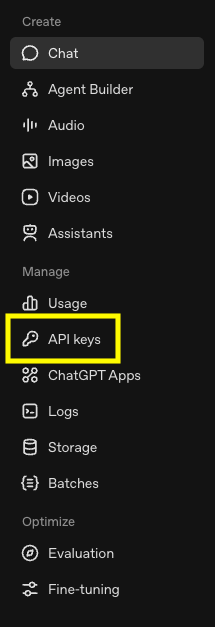
Go to API keys from the left navigation.
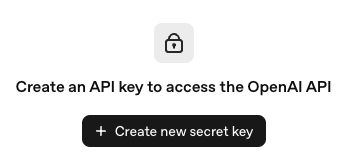
- Click “Create new secret key”.
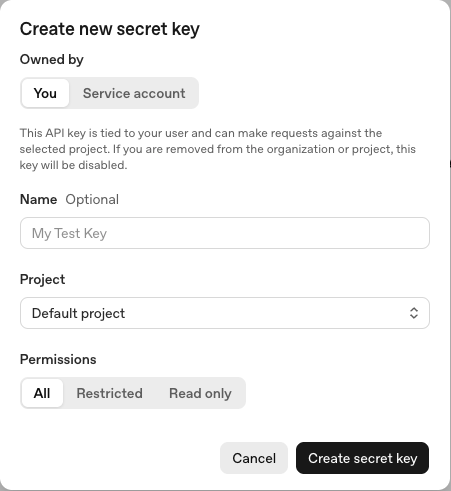
- In “Name”, add an optional name for the OpenAI API key. As a best practice, name API keys so you can more easily track which service each API key is used in, in case you ever need to revoke it.
-
From “Project” select for which OpenAI project this key applies.
-
Click “Create secret key”.
-
OpenAI displays your API key. Save it in a safe, secure place. This is the only screen where the API key is displayed. Click “Done” when ready.
- ✕a coding agent
- ✕no-code
- ✕vibe coding
- ✕a faster Cursor
The one that tells the coding agents what to build.

Access Service Router in Your MindStudio Account
-
Log on to your MindStudio account.
-
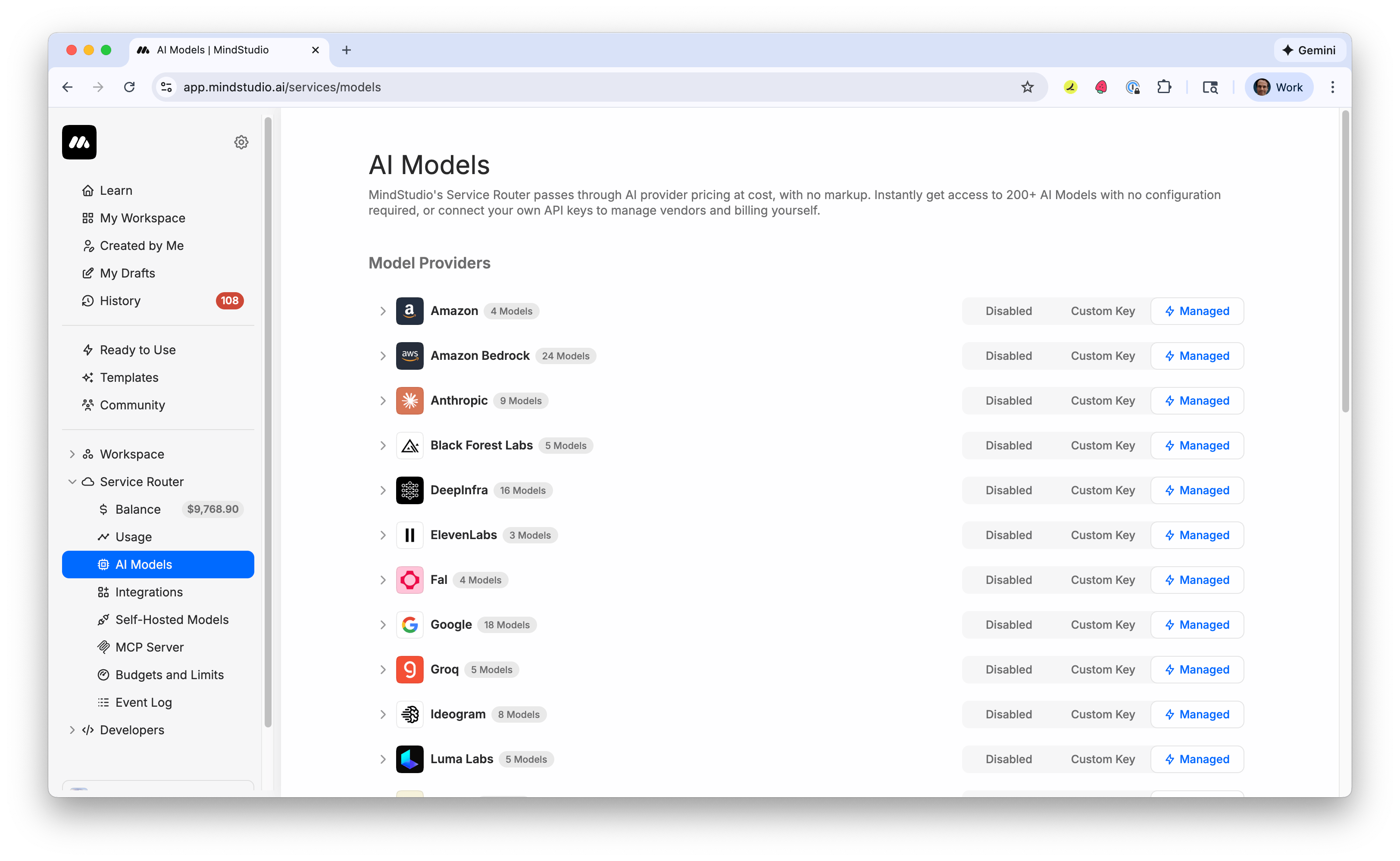
Expand “Service Router”, then select “AI Models”.
-
Locate the AI model provider in which to use your own API key in “Model Providers”. For example, to use your own API key for your OpenAI project, locate the “OpenAI” section.
-
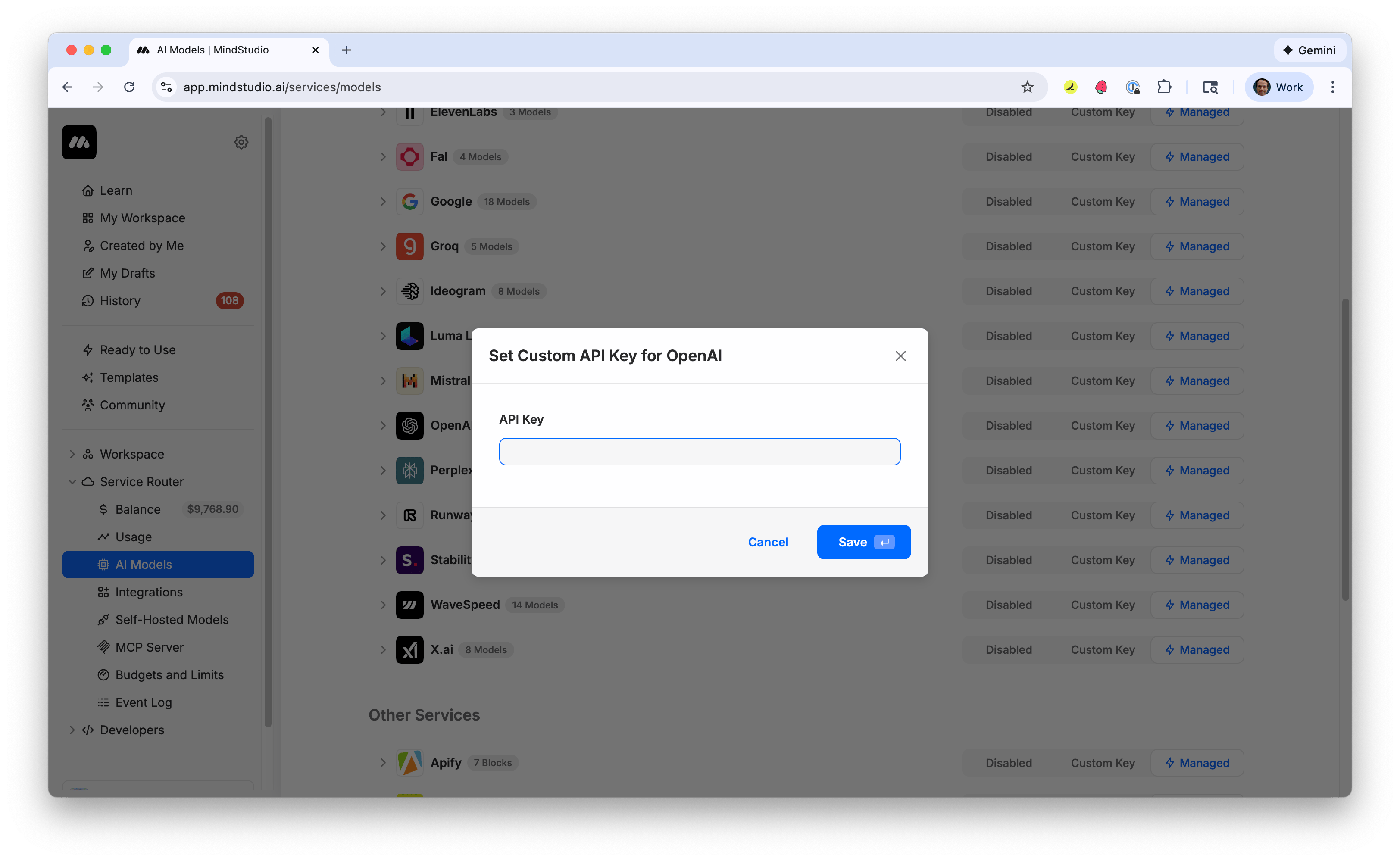
Click “Custom Key” for that AI model provider.
-
Paste your API key into “API Key”, then click “Save”.
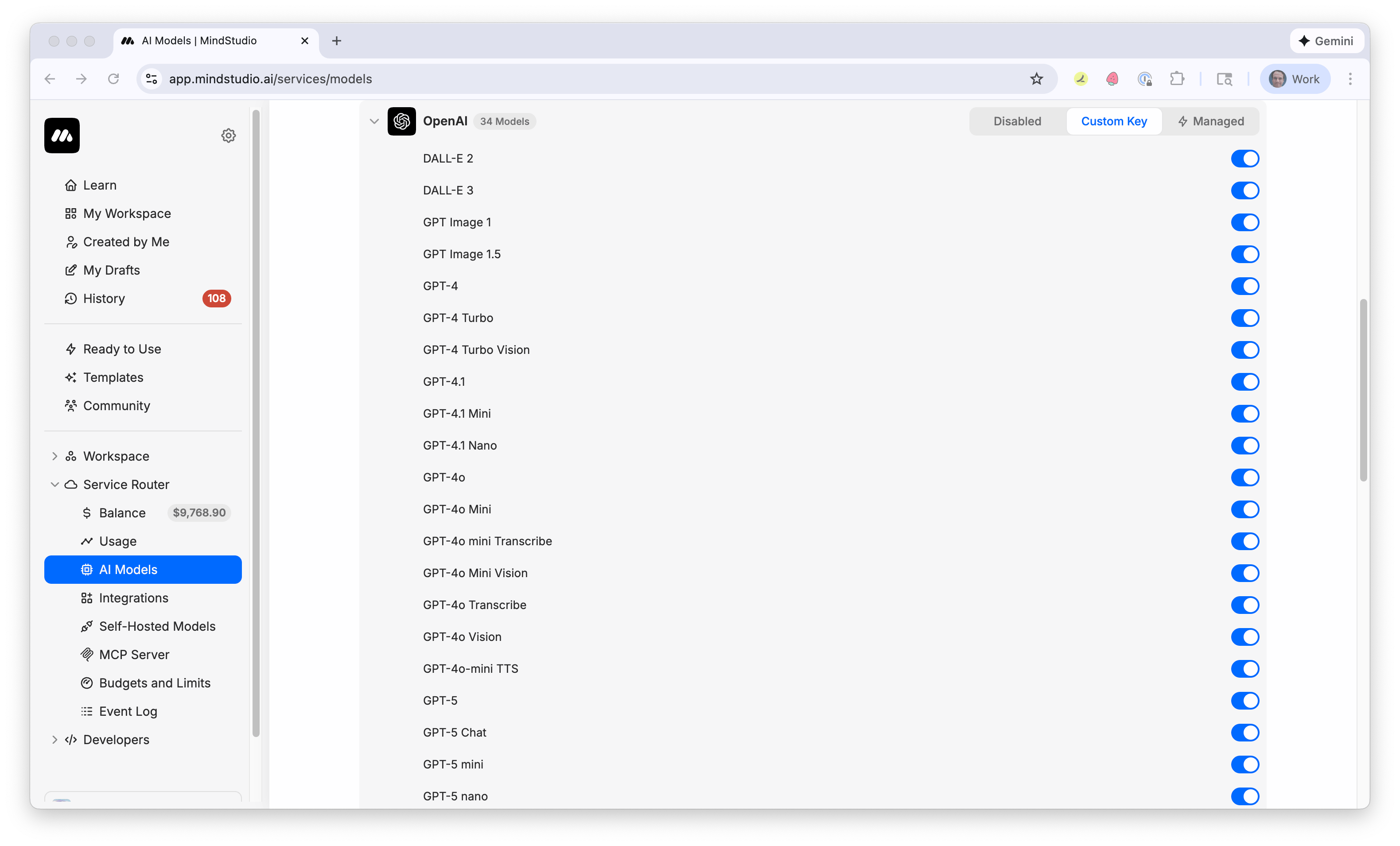
The “Custom Key” indicator is enabled for that AI model provider.
- If necessary, expand that AI model provider’s AI models that MindStudio manages, then toggle specific models On or Off to control which ones are available in your MindStudio workspace.
Remove a Custom API Key for an AI Model Provider
- Click “Managed” for the API model provider in which you are using your custom API key.
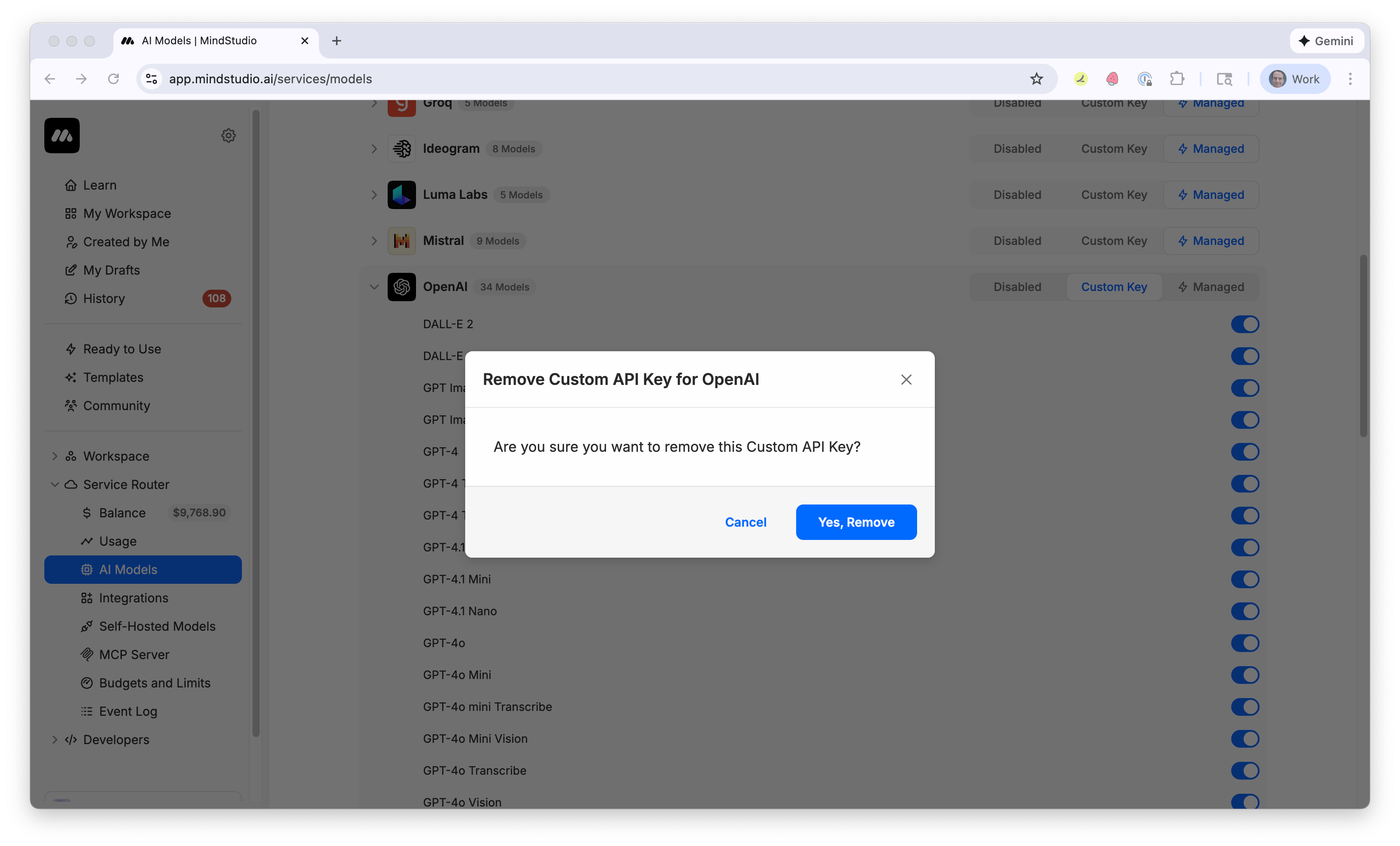
- Click “Yes, Remove”. MindStudio now manages AI models for that AI model provider.