How to Generate AI Images
This tutorial shows how to easily and quickly generate AI images in MindStudio.

MindStudio is the easiest way to create amazing AI-generated images using Google Gemini 3 Image Pro (Nano Banana Pro) and other frontier AI image generation models like:
- OpenAI GPT Image 1.5
- Black Forest Labs Flux 2 Pro and Flux 2 Dev LoRA
- ByteDance Seadream 4.5
- Qwen Z Image Turbo
- Stability SDXL LoRA and Diffusion 3
- Wan 2.6
- And several others
Generate images in minutes without requiring a high-powered computer or complex software.
Follow the steps below to build a simple image generation workbench:
-
Create a MindStudio account.
-
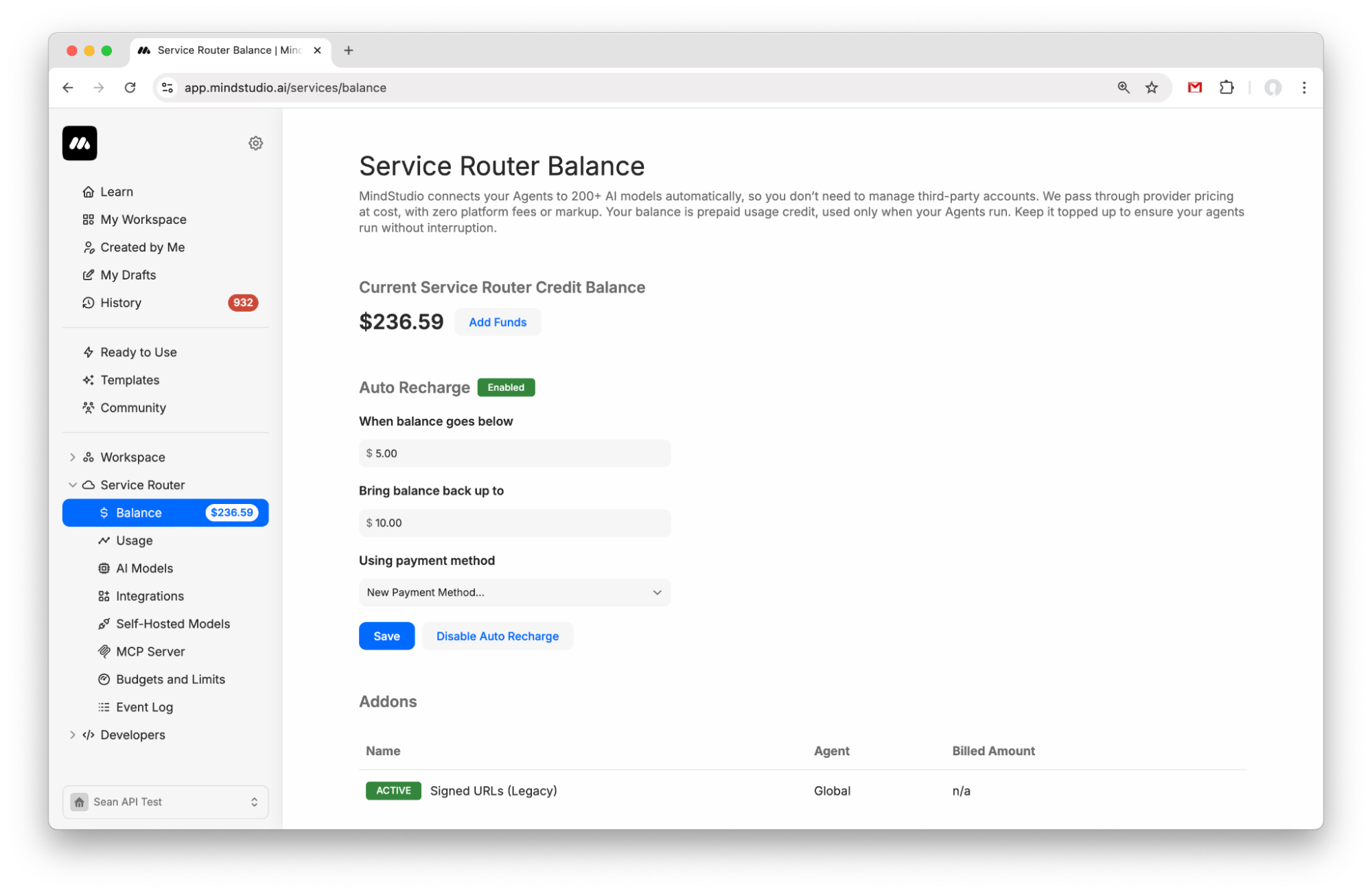
Go to “Service Router > Balance” to add funds to your Service Router balance. Add $5 to get started.
- Create a new agent from My Drafts.
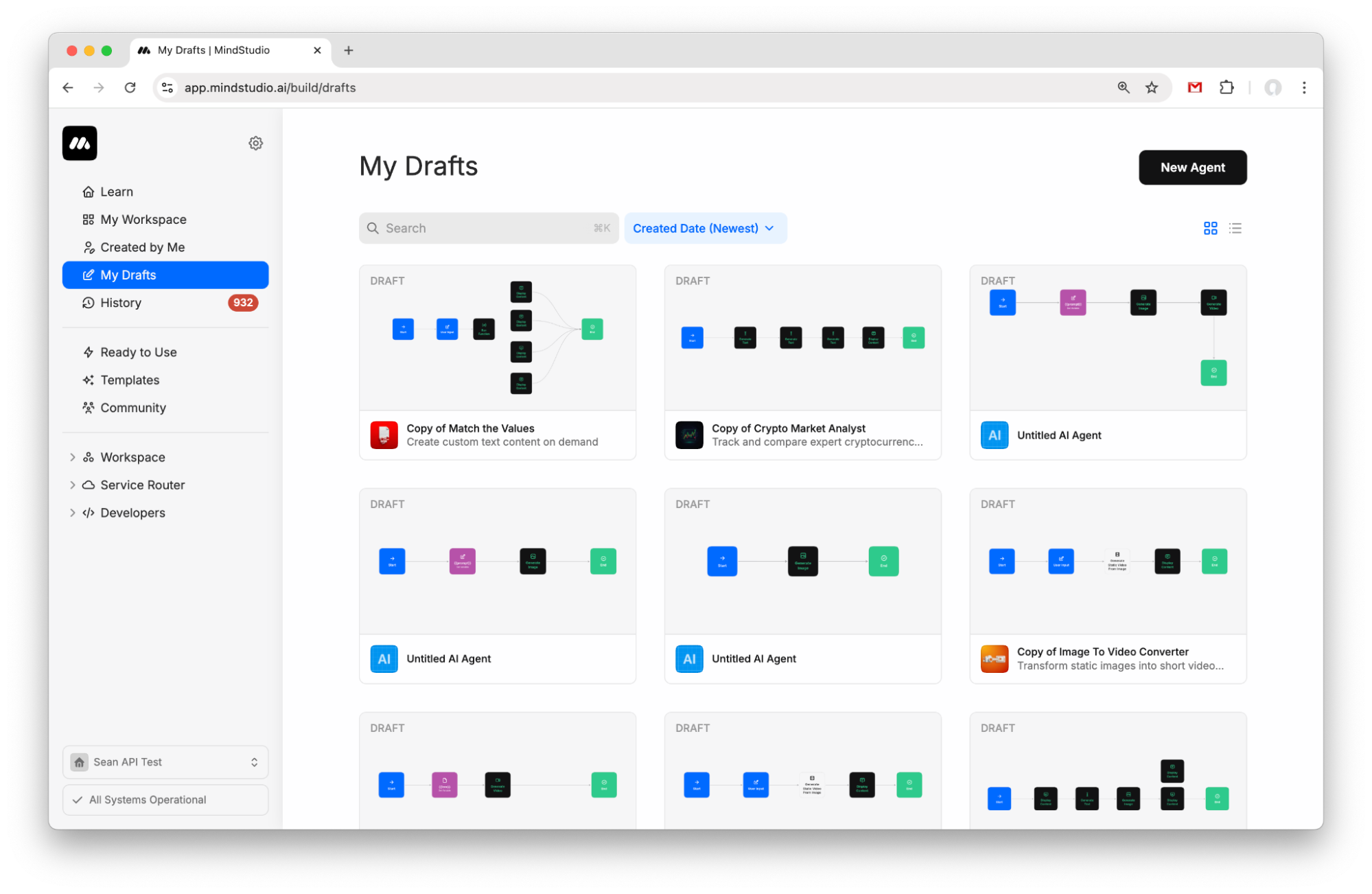
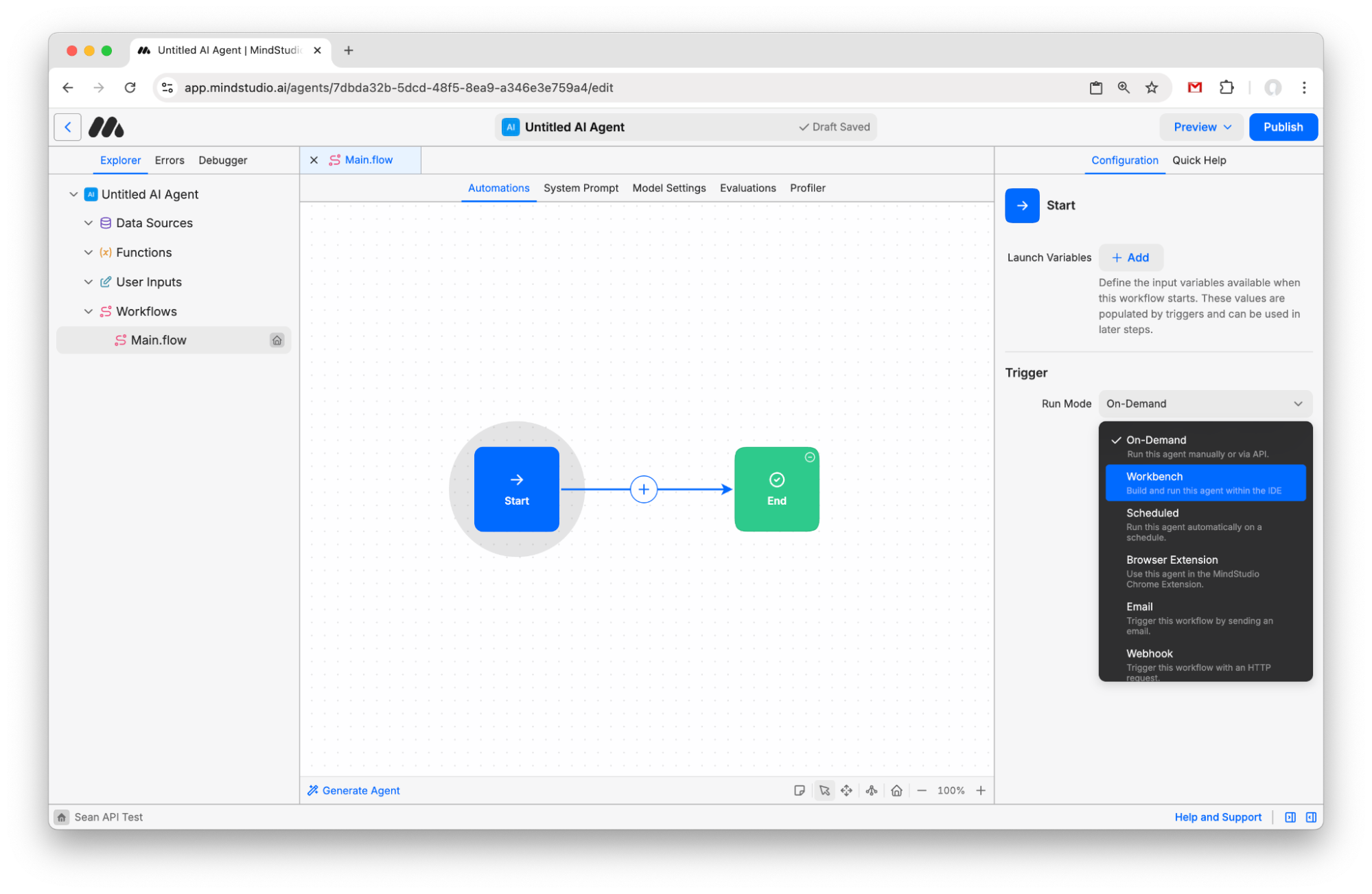
- Click the “Start” block and change the Run Mode to “Workbench”.
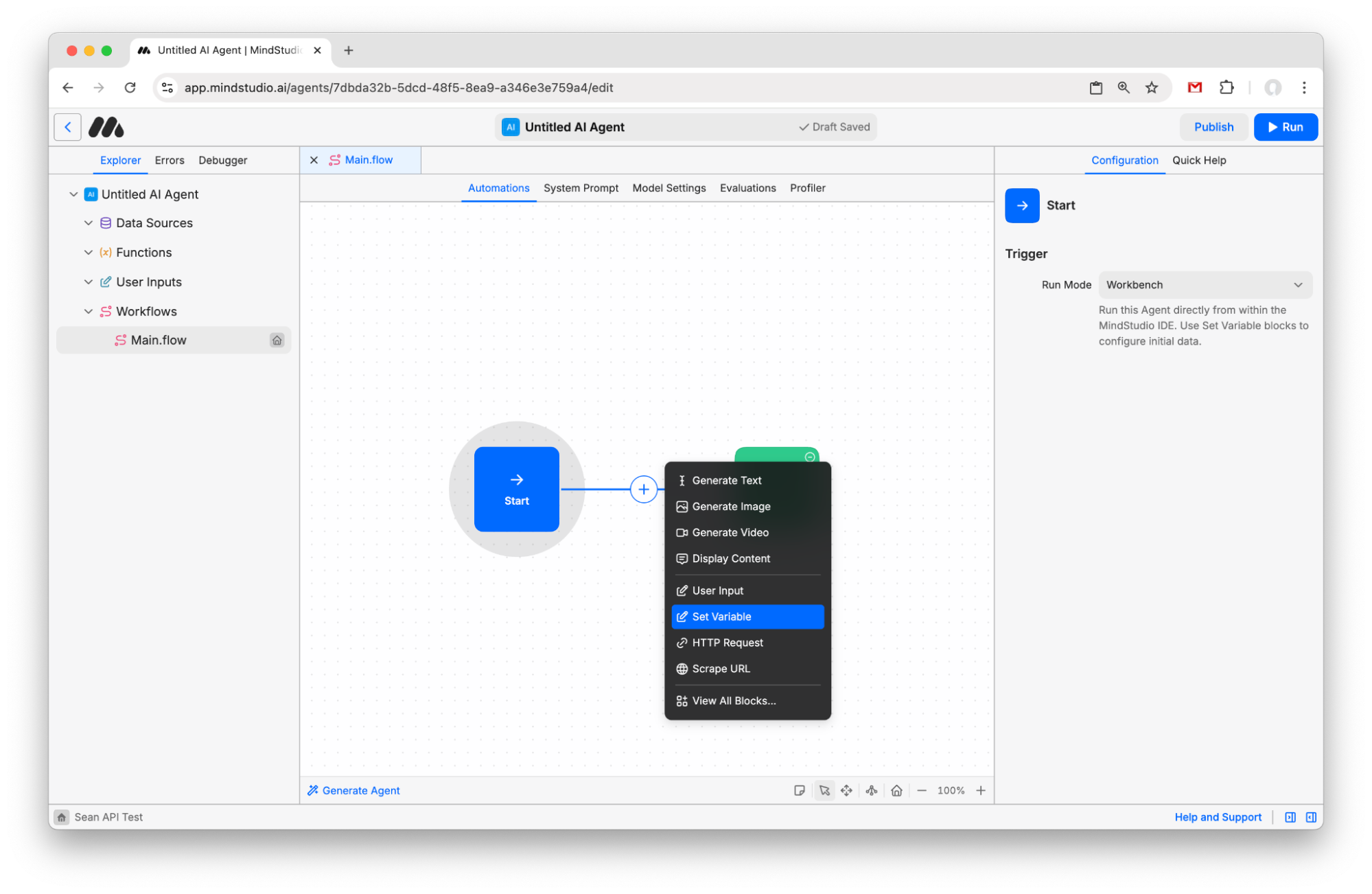
- Click the + button to add a new block and choose “Set Variable”.
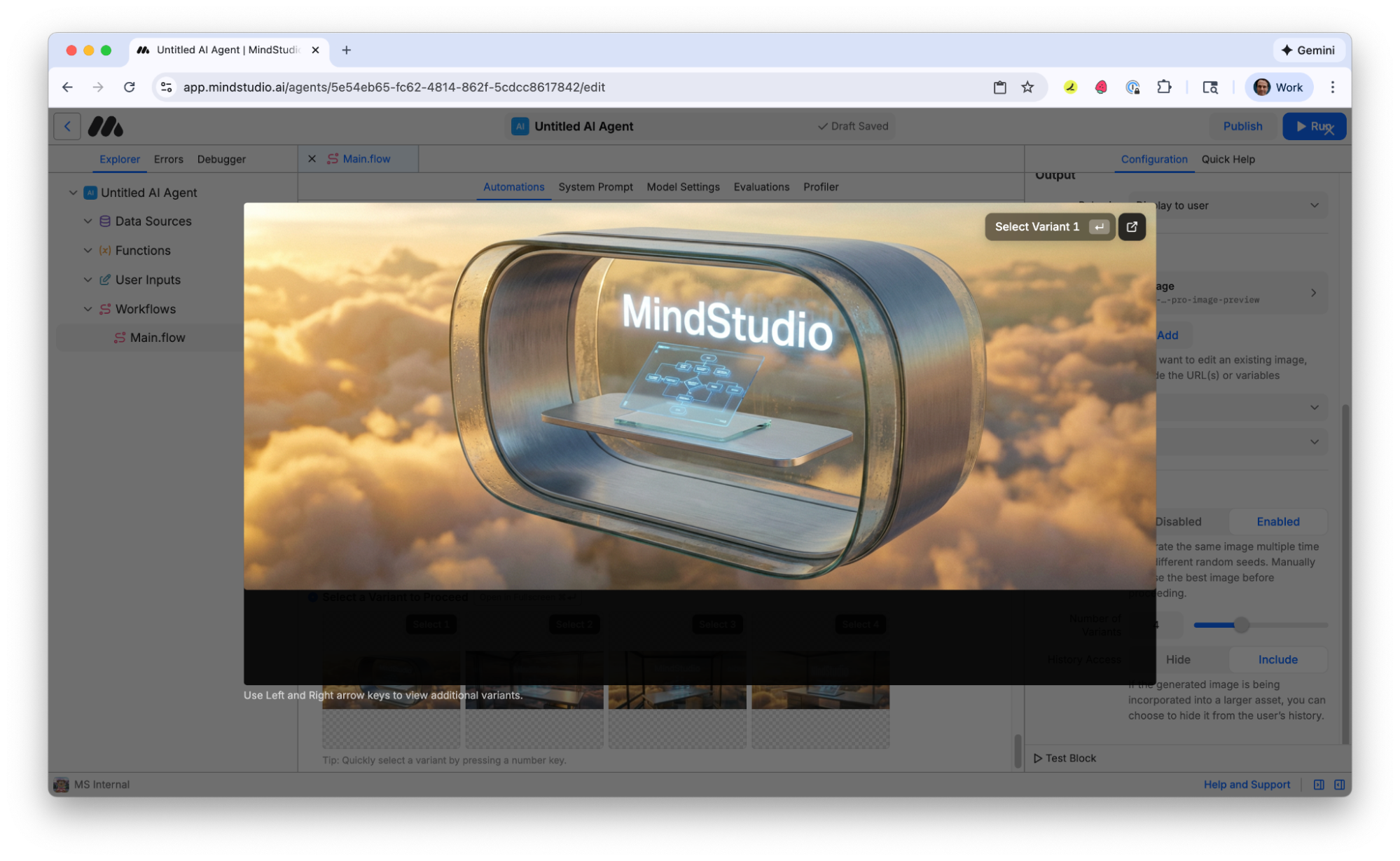
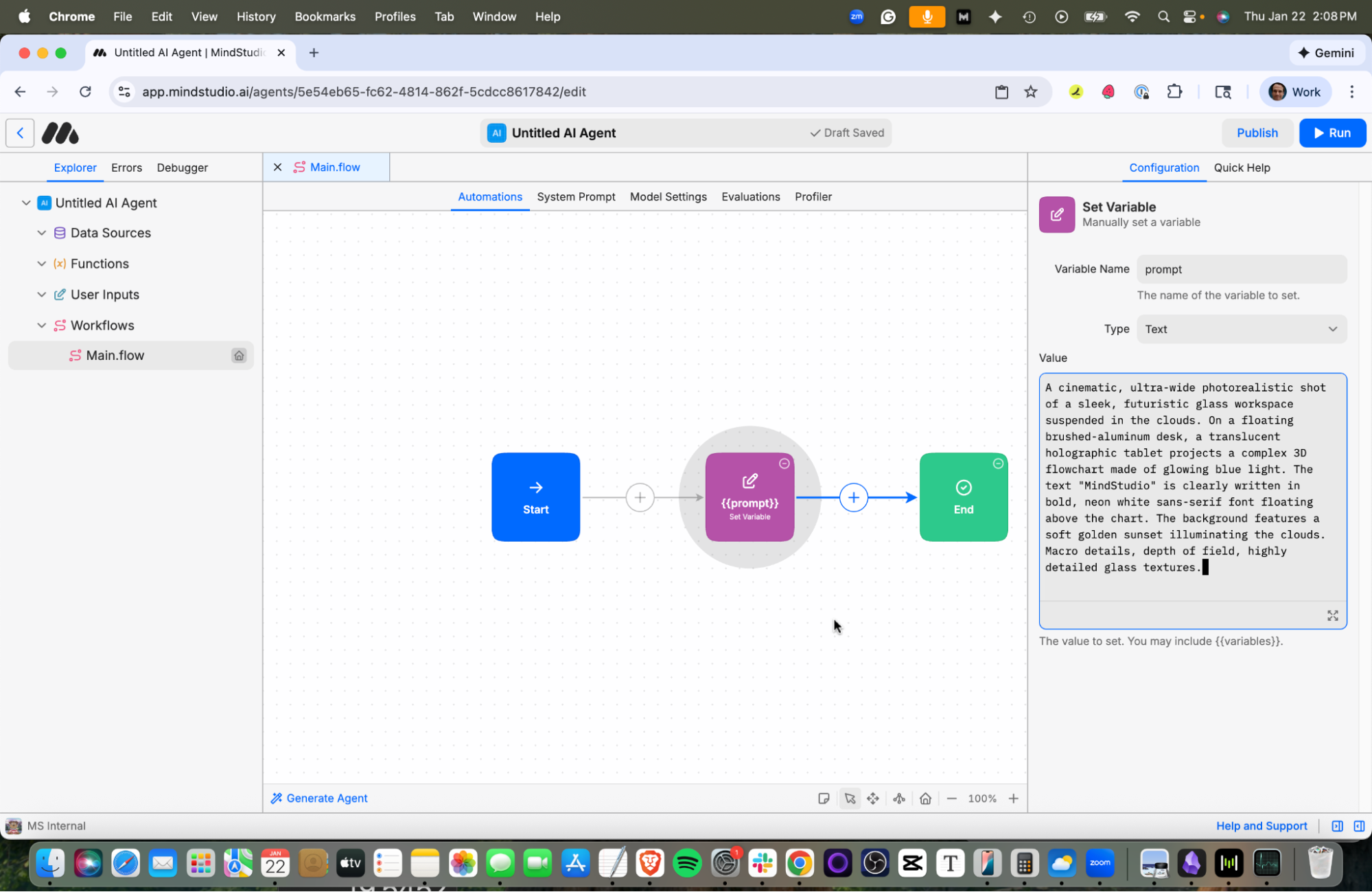
- Name the variable “prompt”. Let’s generate a cool image of a futuristic workspace in the clouds. Copy and paste the following prompt:
,“A cinematic, ultra-wide photorealistic shot of a sleek, futuristic glass workspace suspended in the clouds. On a floating brushed-aluminum desk, a translucent holographic tablet projects a complex 3D flowchart made of glowing blue light. The text “MindStudio” is clearly written in bold, neon white sans-serif font floating above the chart. The background features a soft golden sunset illuminating the clouds. Macro details, depth of field, highly detailed glass textures.”
- Click the + again and add a “Generate Image” block.
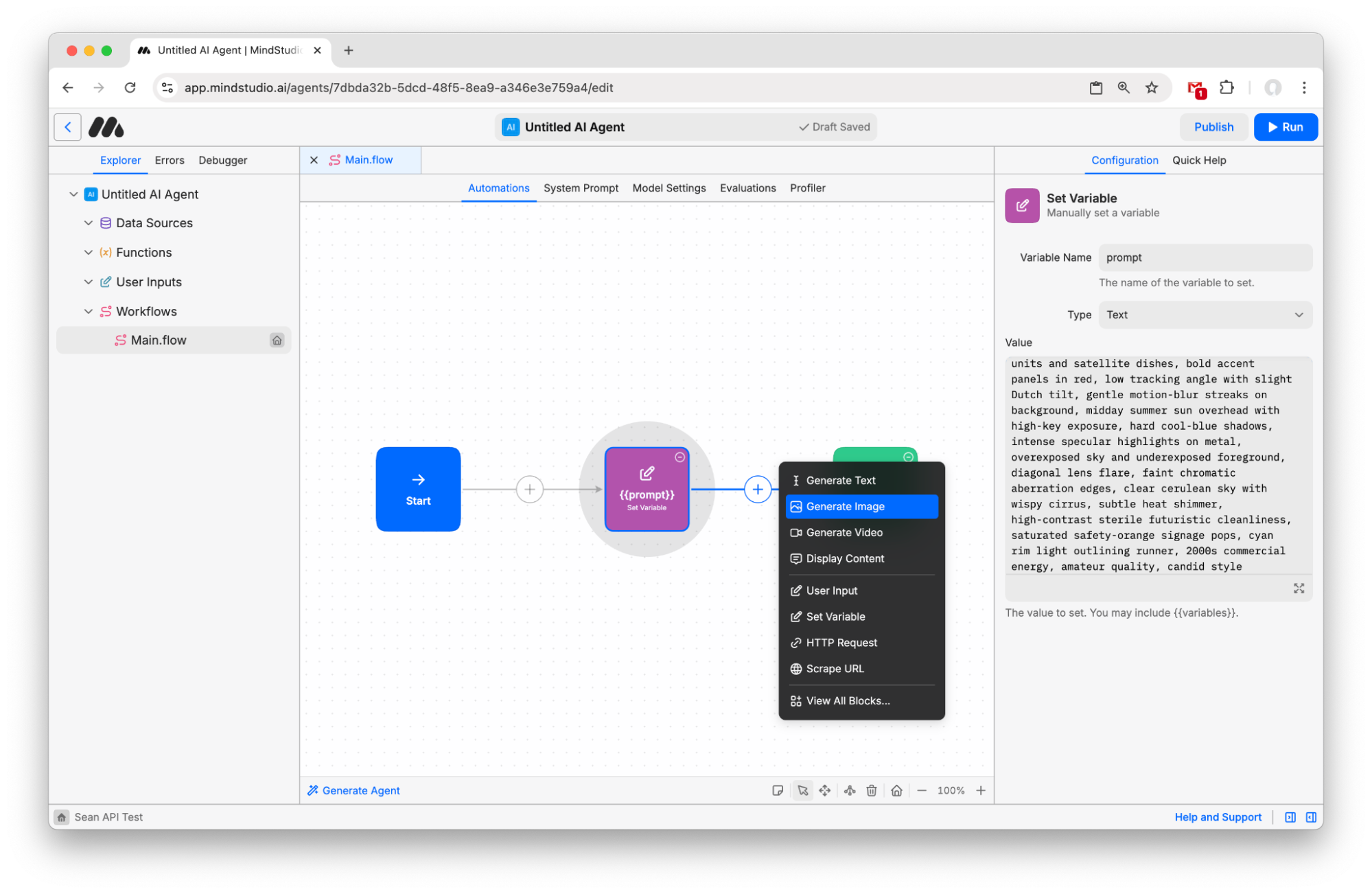
- Type “{{prompt}}” in the prompt field to pass your variable into the Image Generation model.
Plans first. Then code.
Remy writes the spec, manages the build, and ships the app.

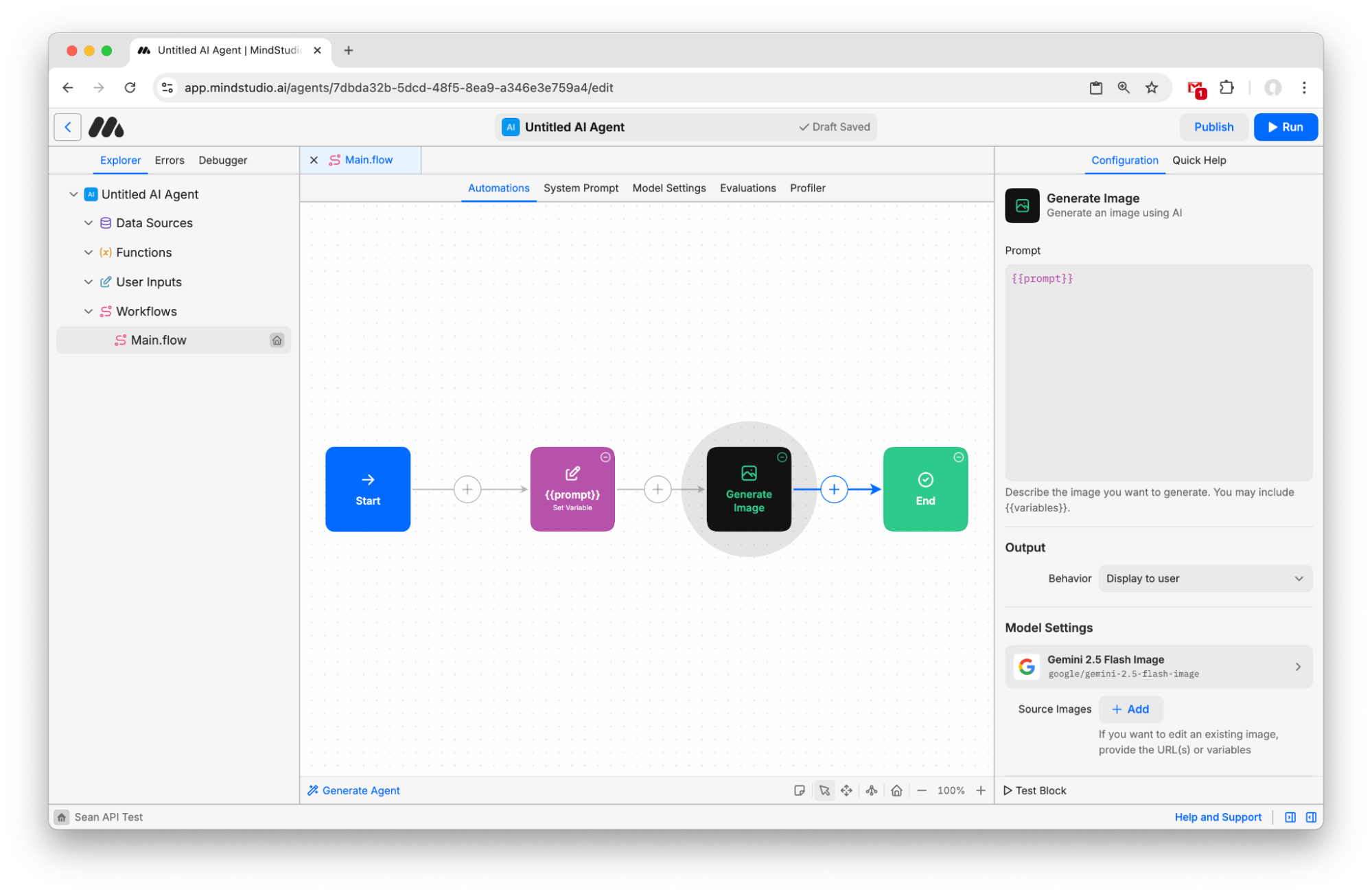
- Click “Gemini 2.5 Flash Image” under “Model Settings” to open the Image Model picker.
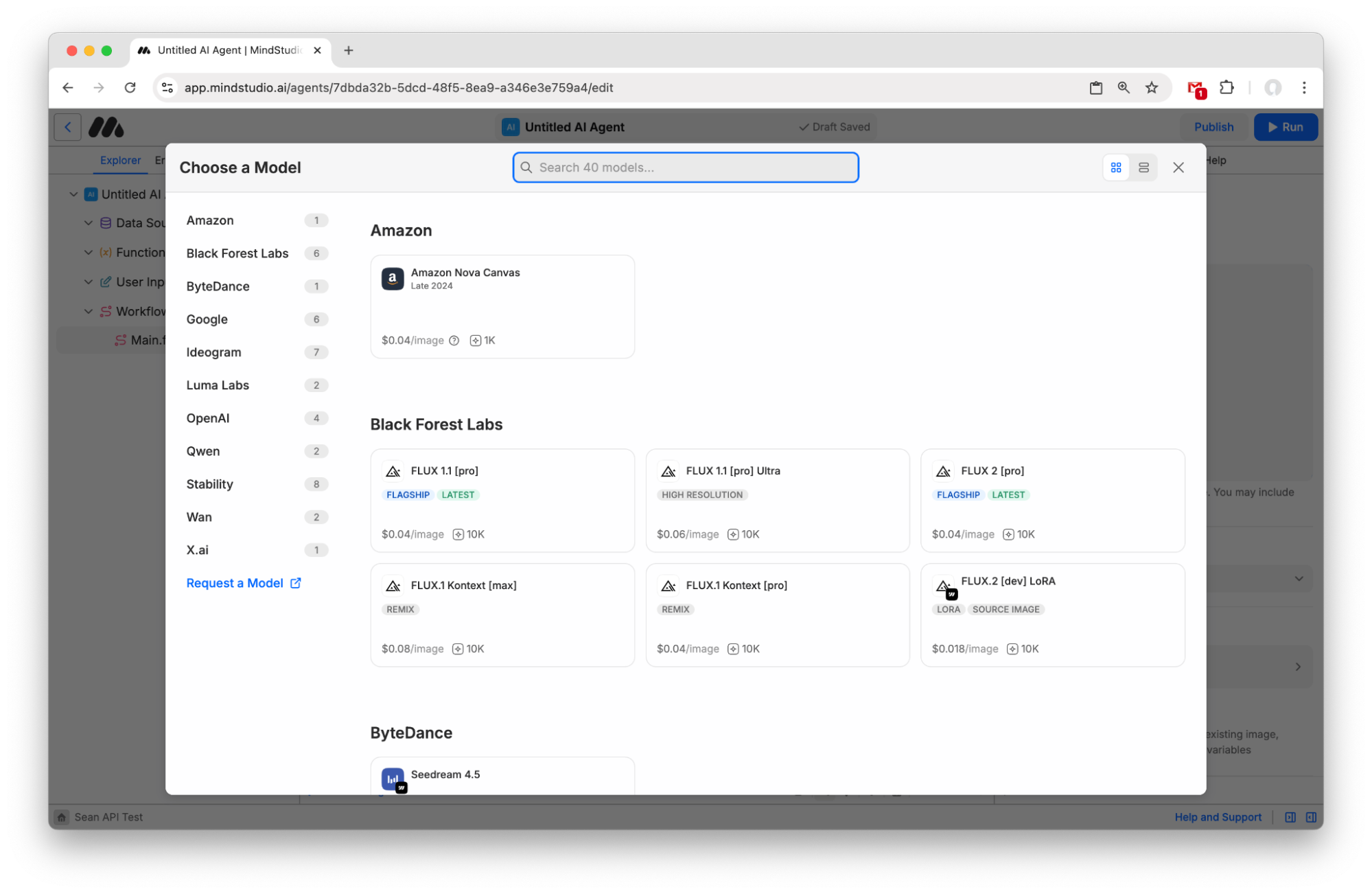
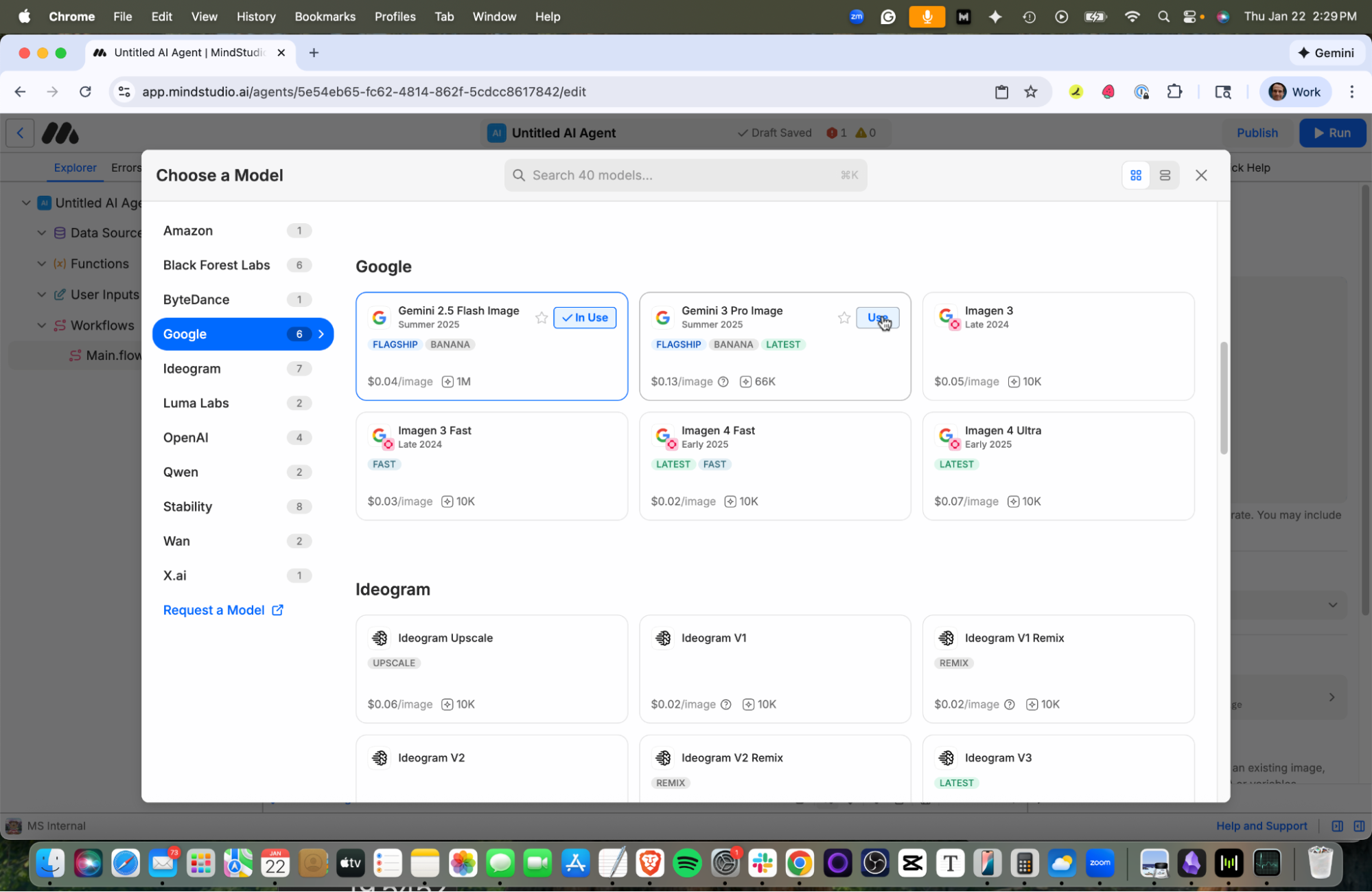
- Click the “Use” button for “Gemini 3 Pro Image”.
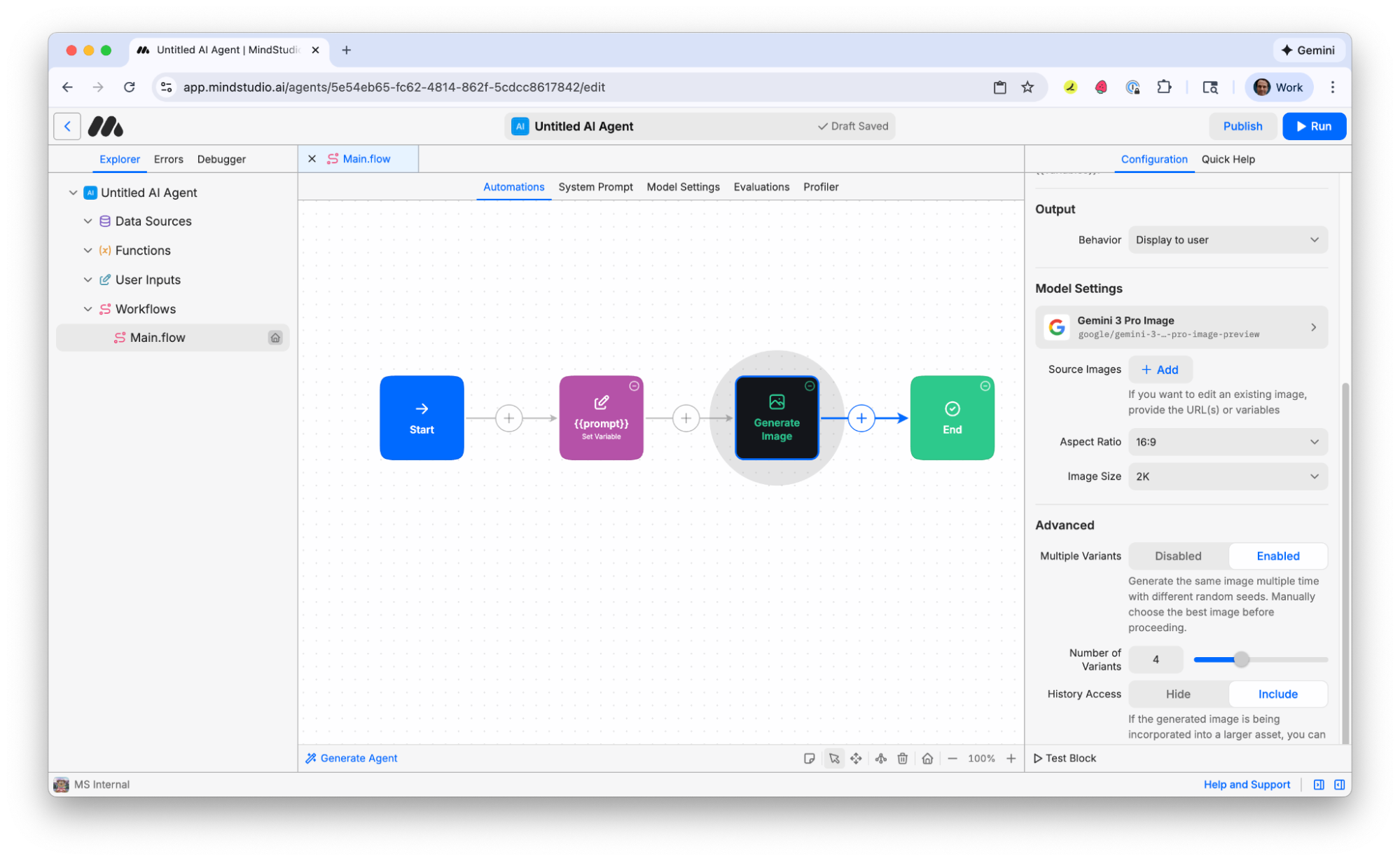
- In the configuration panel on the right, scroll down to “Advanced”, then select “Enabled” toggle on the “Multiple Variants” option. This is disabled by default. This allows you to generate multiple variations of this image at once.
-
Adjust how many variations to make when you run this workbench. 4 is default. This is a good setting to start with so you do not pay for too many images at once.
-
Press “Run” in the top right (or Cmd/Ctrl+R) to start the workbench.
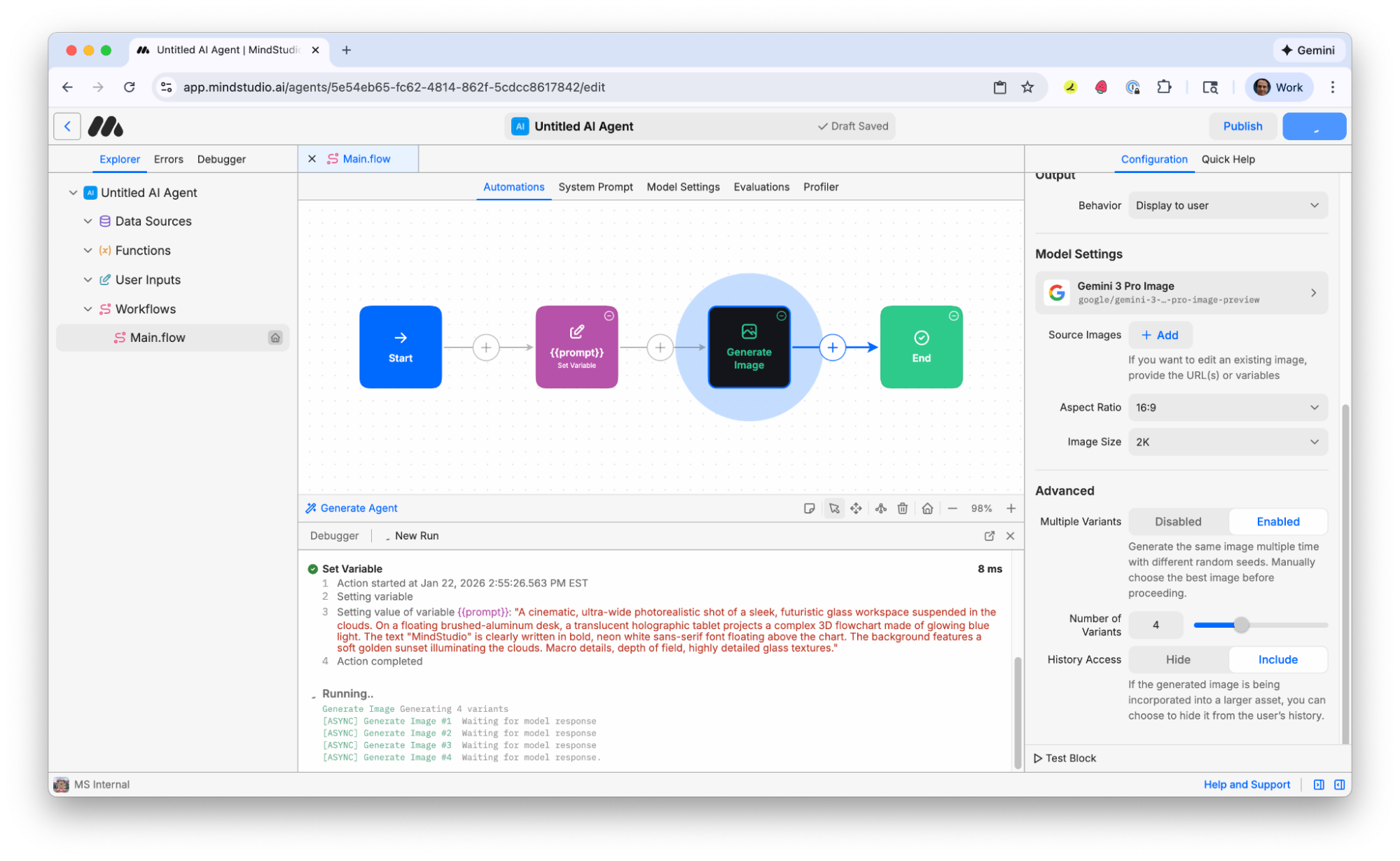
- When the generations finish, four variants are displayed. Click one to open in full screen.
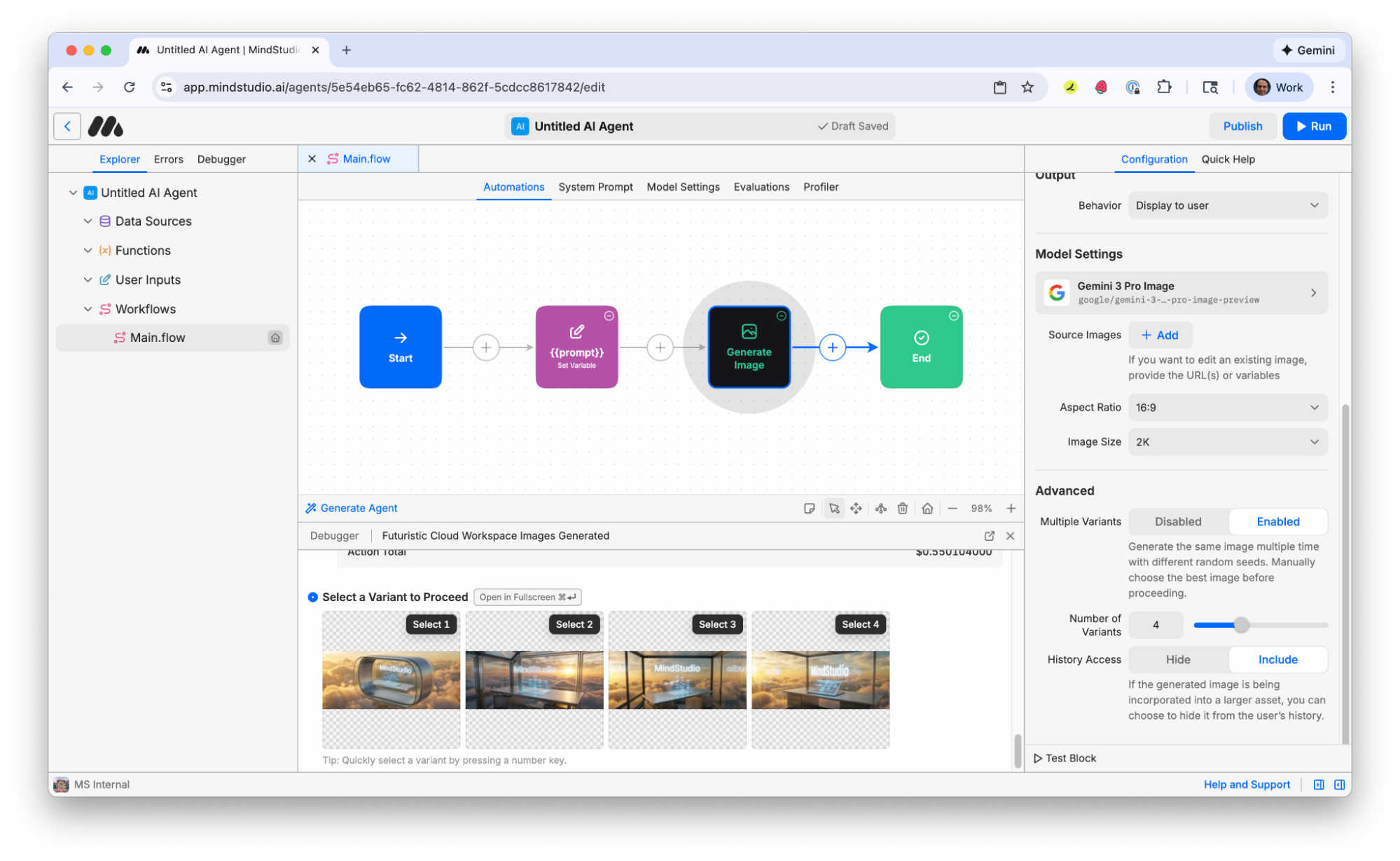
- Choose the best variant and select it to finish the workbench. Note that images are already hosted on MindStudio CDN and ready to be shared or used in other workbenches. This workbench ends with image generation, but a common next step would be to save the generated image to a variable and pass that as the first frame to a “Generate Video” block to animate the image. Check out other tutorials to learn how to continue!