What Is Ideogram V3 Remix? Creative AI Image Editing at Its Best
Ideogram V3 Remix combines V3's quality with powerful remixing tools. Learn how to use it for style transfer, edits, and creative transformations.
What Is Ideogram V3 Remix?
Ideogram V3 Remix is an image editing tool that lets you modify existing images using AI. You upload an image or select one you’ve already generated, adjust how much the AI should change it, and get a new variation that keeps the core elements you want while transforming others.
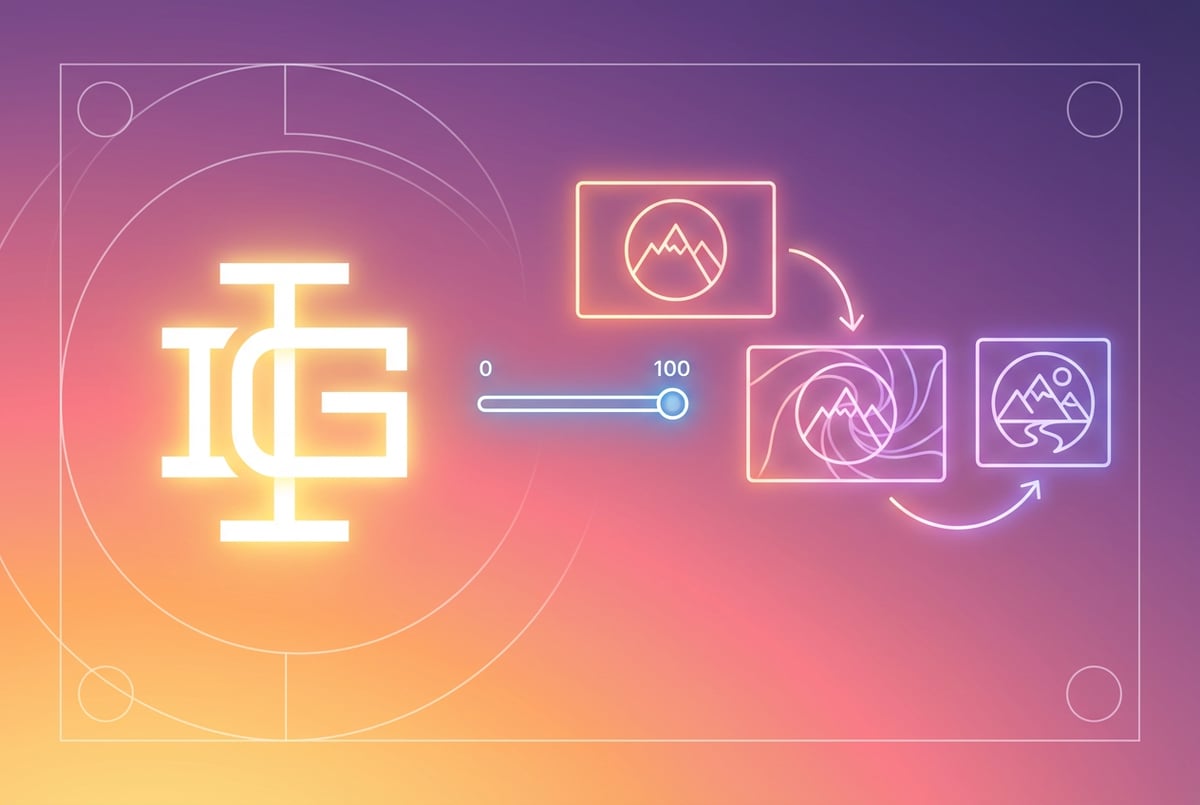
The tool works with any image—whether you created it in Ideogram or uploaded it from somewhere else. You control the transformation with a slider that ranges from 0 to 100. At 100, the new image stays very close to the original. At 0, you get a completely new image based only on your text prompt.
Remix sits at the intersection of image generation and image editing. It’s not just applying filters or making small adjustments. The AI understands your original image and creates something new while respecting the visual DNA you want to preserve.
Why Remix Matters for Creative Work
Most AI image generators give you one shot. You type a prompt, get an image, and if it’s not quite right, you start over. That’s fine for quick concepts, but it breaks down when you’re refining a design or exploring variations of a strong idea.
Remix changes this workflow. You can take a good image and push it in different directions without losing what made it work in the first place. A product photo can become a stylized illustration. A portrait can shift lighting conditions. A logo concept can test different color schemes.
- ✕a coding agent
- ✕no-code
- ✕vibe coding
- ✕a faster Cursor
The one that tells the coding agents what to build.

The strength control makes this practical. You’re not guessing whether the AI will give you something close to what you want. You decide how much change happens.
How the Remix Tool Works
When you select an image to remix, Ideogram automatically fills in your prompt box with the original description. If you uploaded the image from outside Ideogram, the AI generates a description based on what it sees.
The aspect ratio stays the same unless you manually change it. This matters for maintaining composition and ensuring the new image fits the same use case as the original.
The strength slider controls how much the parent image influences the result. Higher numbers preserve more details from the original. Lower numbers give the AI more freedom to interpret your prompt without being constrained by the starting image.
You can access Remix from three places:
- Image feeds where you browse generated images
- Image detail pages for any specific image
- The import function when you upload your own images
This flexibility means you can work with Remix at different points in your creative process. Found something interesting in your feed? Remix it. Working on a specific project? Upload your reference and start there.
Text Rendering: Ideogram’s Core Strength
Ideogram built its reputation on one feature most AI image generators struggle with: accurate text. Early AI models would mangle words, scramble letters, or produce complete gibberish when you asked for text in images.
Former Google Brain researchers founded Ideogram specifically to solve this problem. By 2025, their V3 model handles text better than any competitor. You can generate posters, logos, product packaging, and marketing materials with readable, properly spelled text.
Remix extends this capability. You can take an image with text and modify everything else while keeping the typography intact. Or you can adjust the text styling while maintaining the visual context around it.
This matters for practical work. Marketing teams need to test different background treatments for the same headline. Product designers want to see their packaging with different color schemes. Remix handles these tasks without requiring you to recreate the text from scratch each time.
Style Reference and Remix Working Together
Ideogram V3 introduced style reference features that work alongside Remix. You can upload up to three reference images that guide the visual style, color palette, textures, and overall mood.
These style references create what Ideogram calls Style Codes. Once you’ve defined a style, you can save it and reuse it across different projects. This gives you brand consistency without manually describing your visual preferences every time.
When you combine style references with Remix, you get precise control over transformation. Your original image provides the structure and composition. Your style references guide the aesthetic. Your prompt specifies what changes you want. The strength slider determines how much each factor weighs in the final result.
This stacked control system lets you work iteratively. Start with a rough concept. Apply a style reference to get the right aesthetic. Remix with different prompts to explore variations. Each step builds on the previous work instead of starting from zero.
Practical Use Cases for Remix
Everyone else built a construction worker.
We built the contractor.
One file at a time.
UI, API, database, deploy.
Product photography presents one clear application. You shoot your product once, then use Remix to place it in different contexts. A handbag can appear on a marble surface, then a wooden table, then outdoors on grass—all from a single source photo.
Brand design work benefits from rapid iteration. You create a logo concept with specific typography and composition. Remix lets you test that concept with different color schemes, textures, or style treatments. Each variation maintains the core design while exploring aesthetic directions.
Marketing teams use Remix for A/B testing creative. You have a winning ad concept but want to test different backgrounds, lighting, or minor compositional tweaks. Remix generates variations fast enough to actually test multiple options instead of just running with your first idea.
Social media content creation speeds up when you can establish a visual template and remix it for different posts. Your brand maintains consistency because the structure stays similar, but each post feels fresh because the details change.
Illustration work uses Remix to explore artistic approaches. You sketch a character, generate an initial AI version, then remix that version through different art styles. Watercolor, digital painting, pen and ink—each style applied to the same underlying form.
Step-by-Step: Using Remix Effectively
Start by generating or uploading your base image. If you’re generating from scratch, use a clear prompt that describes exactly what you want. The better your starting point, the more useful your remixes will be.
Once you have your image, click the Remix button. The original prompt appears automatically. You can keep it as-is or modify it to guide the transformation.
Set your strength value. For subtle changes, stay above 80. For moderate transformation, use 50-70. For dramatic reimagining while keeping some core elements, go 20-40. Setting strength to 0 removes the parent image influence entirely.
Add or modify your prompt based on what you want to change. Be specific. “Change the background to a sunset” works better than “make it better.” The AI needs direction, not judgment calls.
Generate and review. If the result isn’t quite right, adjust your strength value or refine your prompt. The iterative process works because you’re building on previous attempts instead of randomly generating new images.
Remix vs. Traditional Image Editing
Traditional editing tools like Photoshop give you pixel-level control. You select specific areas, apply filters, adjust layers, and build your final image through manual steps. This precision comes at the cost of time and skill requirements.
Remix operates at a higher level. You describe what you want changed, and the AI handles the implementation. This speeds up exploration dramatically. You can test ten different background treatments in the time it would take to manually composite one.
The tradeoff is predictability. Photoshop does exactly what you tell it to do. Remix interprets your instructions through an AI model that might surprise you—sometimes in good ways, sometimes not.
Smart workflows combine both approaches. Use Remix for rapid exploration and variation generation. When you find something that works, bring it into traditional tools for final polish and pixel-perfect adjustments.
Understanding the Strength Parameter
Other agents ship a demo. Remy ships an app.
Real backend. Real database. Real auth. Real plumbing. Remy has it all.
The strength slider represents how much weight the AI gives to your parent image versus your text prompt. This isn’t a simple blend. The AI is making decisions about what to keep, what to modify, and how to interpret your instructions within the constraints of the original image.
At high strength values (80-100), the AI tries to preserve most visual elements. Colors, composition, objects, and overall structure stay similar. Your prompt guides subtle modifications rather than wholesale changes.
Mid-range values (40-70) give the AI more freedom. Major elements might stay recognizable, but the AI will significantly reinterpret lighting, style, background, or context. This range works well when you want the same subject in a different setting or aesthetic.
Low values (10-30) treat your parent image as loose inspiration. The AI might keep the general composition or major subjects, but everything else is fair game. Color palettes change. Details get replaced. The spirit of the original remains, but the execution is fresh.
Zero strength removes the parent image influence entirely. You’re just using the auto-generated description as your prompt. This can be useful when the AI description is more accurate or creative than your original prompt.
Advanced Remix Techniques
Chain multiple remixes to explore a design space systematically. Start with your base image. Remix it with strength 70 and a prompt for one direction. Take that result and remix it again with a different prompt. Each step is a controlled mutation that lets you walk through creative territory.
Use low-strength remixes to generate completely new ideas while maintaining certain constraints. If your prompt specifies “keep the composition but change everything else,” a strength of 20 tells the AI to respect spatial relationships while reimagining the content.
Combine Remix with other Ideogram features. Use Magic Prompt to enhance your remix descriptions. Apply style references to guide aesthetic direction. Edit specific areas with inpainting before or after remixing. These tools work together rather than in isolation.
Test the same remix prompt at different strength values. Generate at 30, 50, 70, and 90. This gives you a range of options from subtle tweaks to dramatic transformations, all exploring the same creative direction.
Use Remix to correct issues in generated images. If the AI got your subject right but the background wrong, remix with high strength and a prompt that focuses only on the background. The subject stays intact while the context changes.
Integrating AI Image Tools with Workflow Automation
AI image generation works best when it fits into larger workflows. Creating images is just one step in content production, marketing campaigns, or product design processes.
MindStudio lets you build AI applications that incorporate image generation alongside other tools. You can create workflows that combine Ideogram’s generation capabilities with content writing, data processing, or decision-making logic.
For example, a marketing team might build a MindStudio app that takes product information, generates multiple image variations using different AI models, scores them based on brand guidelines, and automatically selects the best options for A/B testing. The image generation is one component in an automated process.
This approach makes AI image tools practical for production work. Instead of manually generating images, writing prompts, and organizing files, you build systems that handle repetitive parts while keeping humans in the loop for creative decisions.
One coffee. One working app.
You bring the idea. Remy manages the project.
MindStudio’s no-code interface means non-technical team members can build these workflows. You don’t need developers to connect your tools and automate your processes. The platform handles the complexity while letting you focus on the creative and business logic.
Pricing and Access Considerations
Ideogram uses a credit-based system. The free tier gives you 10 slow credits per week, which limits how much you can generate but lets you test the platform. All images generated on the free plan are public.
Paid plans start at $8 per month for 400 priority credits. The Plus plan at $20 per month provides 1,000 credits. The Pro plan at $60 per month includes 3,500 priority credits plus unlimited slow credits.
Higher tiers add features like private image generation, batch creation, and upscaling. For professional work, these features justify the cost. Privacy matters when you’re working on client projects or unreleased products.
Credits cost different amounts depending on which model you use and what resolution you generate. Remix operations consume credits like regular generation, but the exact cost depends on your settings.
For heavy users, the unlimited slow credits in the Pro plan provide cost certainty. You can generate as much as you want at slower speeds, which works fine for batch processes or non-urgent projects.
Comparing Remix to Midjourney’s Vary and Other Tools
Midjourney offers a Vary feature that serves a similar purpose—modifying existing images. The approaches differ in how much control you get and what kind of changes work best.
Midjourney’s Vary tends to be more artistic and interpretive. It excels at stylistic transformations and aesthetic exploration. The results often look more polished and professionally composed, particularly for fantasy art, character design, and creative illustration.
Ideogram’s Remix gives you more precise control through the strength slider and works better with text-heavy images. If your use case involves typography, logos, or designs where text accuracy matters, Remix handles these situations more reliably.
DALL-E’s editing capabilities focus on inpainting specific regions. You select an area and describe what should appear there. This works well for targeted changes but doesn’t provide the same kind of whole-image transformation that Remix enables.
Adobe Firefly offers generative fill and expansion that integrates with Photoshop’s traditional editing tools. This combination provides more control for final production work but requires more manual effort than Remix’s prompt-based approach.
The best choice depends on your specific needs. Remix shines for rapid iteration on designs with text, systematic exploration of variations, and workflows where speed matters more than absolute perfection.
Common Challenges and Solutions
Remix sometimes changes elements you wanted to preserve. This happens most often at mid-range strength values where the AI has freedom to interpret. The solution is to be more explicit in your prompt about what should stay the same, or increase your strength value.
Text can still degrade in remixed images, even though Ideogram excels at text rendering. If your remix prompt doesn’t mention the text or if you use low strength values, the AI might treat text as just another visual element. Include specific text preservation instructions in your prompt.
Remy doesn't build the plumbing. It inherits it.
Other agents wire up auth, databases, models, and integrations from scratch every time you ask them to build something.
Remy ships with all of it from MindStudio — so every cycle goes into the app you actually want.
Color shifts happen when remixing between different styles or lighting conditions. The AI balances your original image colors with your prompt description. If color accuracy matters, include specific color instructions in your prompt or use higher strength values.
Composition changes can occur at low strength values. The AI might decide to crop, expand, or rearrange elements. If composition is crucial, use strength above 70 and include composition keywords in your prompt.
Generation inconsistency means the same settings don’t always produce the same results. AI image generation includes randomness. Generate multiple versions with the same settings and pick the best one instead of expecting perfect consistency.
Remix for Rapid Prototyping
Product design teams use Remix to visualize concepts quickly. Start with a basic 3D render or sketch. Remix it through different materials, colors, and contexts. Show stakeholders multiple options without spending days on manual rendering.
UI design exploration works similarly. Create a basic interface layout, then remix it through different visual styles. Test modern minimalism, retro aesthetics, or futuristic approaches—all from the same functional design.
Architectural visualization benefits from quick context changes. Your building design can appear in different seasons, lighting conditions, or surrounding environments. Each remix shows the same structure in a new context.
Fashion design uses Remix to test patterns, colors, and fabric treatments. A single garment design becomes a collection when you remix it through seasonal color palettes or different material finishes.
Professional Production Workflows
Smart teams don’t rely on AI generation as their final output. They use it for rapid iteration and concept development, then polish the winners with traditional tools.
A typical workflow starts with concept generation. Use Ideogram to create initial ideas or test different approaches. Generate dozens of options quickly without worrying about polish.
Next comes selection. Review your generated options and identify the ones with potential. Most will be discards, but a few will have something worth developing.
Then refinement happens. Take your promising concepts and remix them with adjusted prompts and strength values. Narrow down to your best options.
Finally, production polish. Export your chosen images and bring them into Photoshop, Illustrator, or other professional tools. Fix any issues, adjust details, and prepare files for final delivery.
This workflow gets you the speed of AI generation with the quality control of professional production. You’re not replacing human craft. You’re using AI to explore more ideas faster, then applying human judgment and skill where it matters most.
Batch Processing and Systematic Exploration
Ideogram’s Pro plan includes batch generation. Upload a CSV file with multiple prompts and settings. Generate hundreds of variations automatically.
This capability transforms how you explore design spaces. Instead of manually generating images one at a time, you set up a systematic exploration and let the AI run.
For example, a product team might want to see their product in 50 different room settings. Create a CSV with 50 different room descriptions. Set your base product image as the parent. Run the batch with appropriate strength values. Review all 50 options at once instead of spending hours on manual generation.
Marketing teams test message variations the same way. One base image, multiple text overlays, systematic generation. This produces test assets faster than any manual process.
Other agents start typing. Remy starts asking.
Scoping, trade-offs, edge cases — the real work. Before a line of code.
Legal and Copyright Considerations
Images you generate with Ideogram are yours to use commercially under their terms of service. This includes remixed images based on your own uploaded content.
Remixing images you don’t own raises legal questions. If you upload someone else’s copyrighted image and remix it, you’re creating a derivative work. This might violate copyright law even though the AI transforms the image.
The safe approach is to only remix images you have rights to use. This includes images you generated yourself, stock images you licensed, or images you created through traditional means.
Professional work requires clear rights. Clients want to know they can use the images you deliver. Starting with properly licensed source material makes this straightforward.
Future Developments and Capabilities
AI image generation changes rapidly. Features that seem advanced today become standard within months. Remix capabilities will likely expand as the underlying models improve.
Better prompt understanding means the AI will interpret your instructions more accurately. You’ll need less trial and error to get the results you want.
More granular control parameters beyond the strength slider might emerge. Different strength values for different aspects—composition strength, color strength, style strength—would provide finer control.
Integration with other creative tools will improve. APIs and plugins that connect Ideogram to design software, content management systems, and production workflows make AI generation practical for larger teams.
Video generation is the obvious next frontier. Remix capabilities for video—taking an existing clip and transforming its style or content—would open new creative possibilities.
Best Practices for Consistent Results
Use clear, specific prompts. Vague descriptions give the AI too much freedom to interpret. Specific instructions produce more predictable results.
Test multiple strength values. Generate the same remix at 30, 50, 70, and 90. See which range gives you the transformation level you want for this specific task.
Keep notes on what works. Document successful prompt patterns, strength values, and style references. This builds a knowledge base that makes future work faster.
Generate multiple versions. AI includes randomness. Create three or four versions with the same settings and pick the best one instead of settling for your first result.
Start with good source material. Remix amplifies what’s already there. A mediocre starting image produces mediocre remixes. Spend time getting a solid base before you start transforming it.
Training Your Team on Remix
New users often struggle with prompt writing. The AI doesn’t read your mind. It needs explicit instructions about what to keep, what to change, and what the result should look like.
The strength parameter confuses people at first. They expect it to work like an opacity slider, but it’s more complex. The AI makes intelligent decisions about what to preserve at different strength levels.
Effective training starts with examples. Show before and after images with the prompts and settings used. Let people see what works instead of just reading abstract instructions.
Give people time to experiment. AI image generation requires practice. The relationship between prompts, strength values, and results becomes intuitive after you’ve generated a few hundred images.
Create template prompts for common tasks. If your team frequently performs specific types of remixes, document the prompt patterns that work. This speeds up onboarding and ensures consistency.
Measuring ROI on AI Image Tools
Time savings is the obvious metric. Compare how long tasks took before and after adopting Remix. Product photography that required a full day might now take two hours including shooting and remixing.
Iteration count increases when generation is fast. You can test more options, which leads to better final selections. Instead of picking from three manually created options, you choose from thirty AI-generated variations.
Reduced outsourcing costs matter for teams that previously hired designers for every visual asset. Some work still requires professional designers, but Remix handles routine variation generation in-house.
Faster market testing lets you validate concepts before investing in full production. Generate quick mockups, test them with audiences, and only produce the winners properly.
The real value comes from doing work that wasn’t economically feasible before. Systematic A/B testing of creative. Personalized visuals for different market segments. Rapid prototyping of product concepts. These capabilities create opportunities, not just efficiency.
Conclusion
Ideogram V3 Remix gives you controlled transformation of images through AI. The strength slider, combined with clear prompts and style references, provides the right balance of automation and control for professional work.
The tool works best when you understand what it’s good at. Text-heavy designs, rapid iteration, systematic exploration, and brand-consistent variations all play to Remix’s strengths. Pixel-perfect precision and absolute predictability don’t.
Smart workflows combine Remix with traditional tools and integrate it into larger processes. The speed of AI generation matters most when it feeds into systematic testing, automated selection, or rapid prototyping—not when you’re just creating images for their own sake.
Teams that adopt these tools thoughtfully see real benefits. They produce more options faster, test ideas before committing resources, and focus human creativity on high-value decisions instead of routine execution.
The technology will improve. Models will get better at understanding prompts, maintaining consistency, and handling edge cases. The fundamental value proposition stays the same—controlled, rapid transformation of images through AI instead of manual editing.
Start with simple experiments. Take an image, remix it with different prompts at various strength levels, and see what happens. The learning curve is short. The practical applications become obvious once you understand how the tool responds to different inputs.