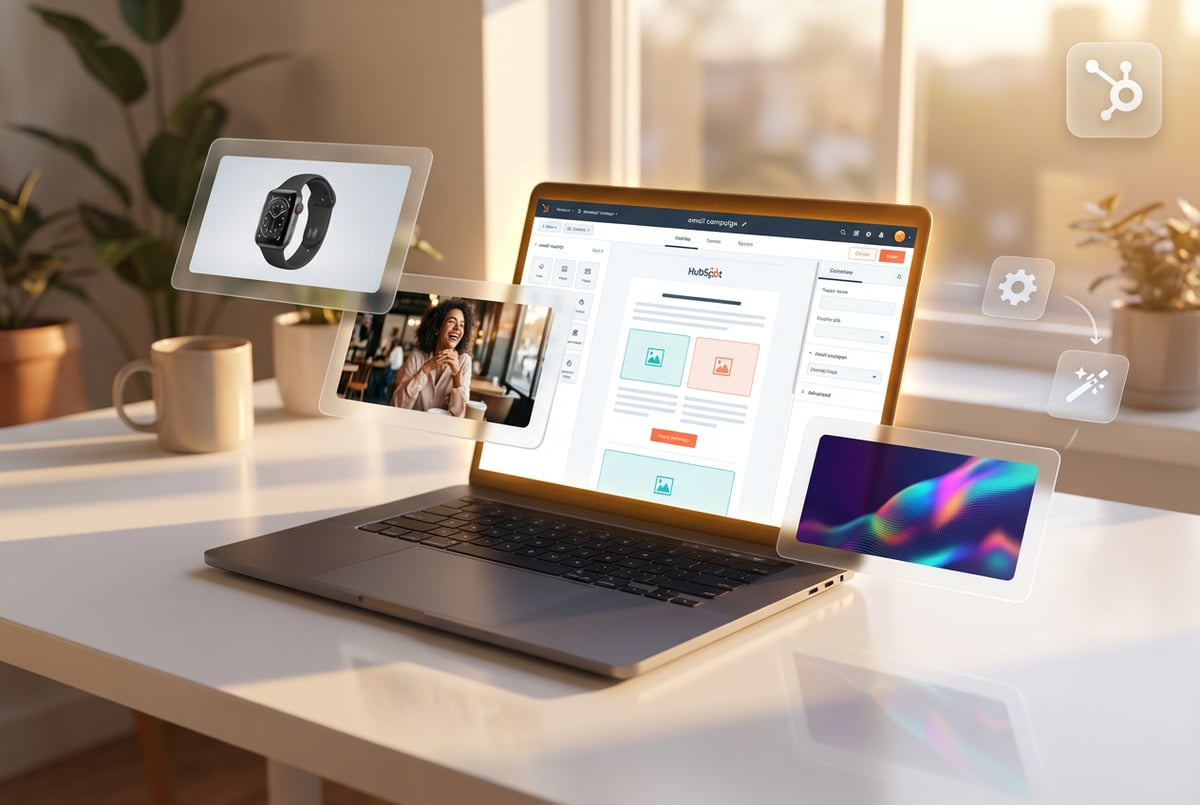
How to Use AI Image Generation with HubSpot for Personalized Email Campaigns
Connect AI image models to HubSpot to automatically generate personalized visuals for email campaigns and landing pages.
Why AI-Generated Images Matter for Email Marketing
Email marketing works when it’s personal. The problem is that creating unique, relevant images for different audience segments takes time—time most marketing teams don’t have.
Generic stock photos don’t cut it anymore. Your audience can spot a templated email from a mile away. They’re more likely to delete it than engage with it.
AI image generation solves this problem. Instead of searching through stock photo libraries or waiting weeks for design work, you can generate custom visuals that match your message in seconds. You can create unique images for each segment, campaign, or even individual recipient.
The numbers back this up. Companies using AI-powered personalization in emails see transaction rates that are six times higher than non-personalized messages. HubSpot’s own data shows that personalized emails achieve open rates 26% higher than generic campaigns.
This guide shows you how to connect AI image generation to HubSpot and use it to create email campaigns that actually perform.
Understanding HubSpot’s Native AI Image Capabilities
HubSpot includes AI image generation through Breeze, their built-in AI system. You can access it when creating blog posts, landing pages, emails, and social media content.
The tool works through text prompts. You describe what you want, select a style and size, and Breeze generates the image. You can enhance basic prompts to add more detail, or upload an existing image to generate variations.
- ✕a coding agent
- ✕no-code
- ✕vibe coding
- ✕a faster Cursor
The one that tells the coding agents what to build.

HubSpot improved their image generation significantly when they partnered with Stability AI through Amazon Bedrock. Within four months, HubSpot customers generated 300,000 images—a 150% increase above their initial monthly cap of 120,000 images.
The integration provides automatic updates to the latest AI models. When Stable Diffusion releases a new version, HubSpot customers get access without changing their workflow.
How to Use Breeze for Email Images
Here’s how to generate images directly in HubSpot:
- Open your email editor in Marketing Hub
- Click the image module where you want to add AI-generated content
- Select “Generate with AI” from the image options
- Write a text prompt describing your image (example: “minimalist workspace with laptop and coffee cup, morning light”)
- Choose your preferred style (photorealistic, illustration, abstract, etc.)
- Select image dimensions based on your email template
- Click generate and wait 5-10 seconds
- Review the result and regenerate if needed
You can enhance simple prompts by clicking “Enhance prompt” before generating. This adds detail and context that improves the output quality.
After generating an image, you have options. You can edit it further using Adobe Express integration, save it to your files library, or add it directly to your email content.
Limitations of Native HubSpot Image Generation
HubSpot’s built-in image generation has some constraints you should know about:
- Generation limits: 30 images per minute, 1,000 per day
- Single model access: You’re using whatever model HubSpot has integrated
- Limited prompt control: Less fine-tuning compared to direct API access
- No batch processing: You generate images one at a time
- Basic customization: Fewer style and parameter options than dedicated platforms
These limits work fine for most marketing teams. But if you’re running high-volume campaigns or need specific image characteristics, you’ll want more control.
Connecting External AI Image Models to HubSpot
You can connect more powerful AI image generation to HubSpot through custom integrations. This gives you access to multiple models, batch generation, and advanced customization.
The main approaches are custom API workflows, third-party integration platforms, and no-code AI tools that connect to HubSpot’s CRM.
Using Custom API Workflows
HubSpot’s Operations Hub lets you build custom API workflows that connect to external image generation services. This requires some technical knowledge but provides the most flexibility.
You need Operations Hub Professional or Enterprise to create custom code actions. The system runs on AWS Lambda with these constraints:
- 20-second execution time limit per action
- 128 MB memory cap
- Works with up to 50 HubSpot properties
- Supports JavaScript or Python
Here’s the basic process:
- Set up a contact-based or company-based workflow
- Add a custom code action that calls your AI image API
- Pass relevant contact properties (industry, job title, interests) as parameters
- Generate image based on those parameters
- Store the image URL in a HubSpot property
- Use that property in your email template
You’ll need to handle authentication securely using HubSpot’s Secrets management system. Store your API keys there, not in the workflow code itself.
The workflow automatically retries failed actions for up to three days when it encounters rate limits or server errors. This improves reliability for high-volume operations.
Integration Through Postman Flows
Other agents ship a demo. Remy ships an app.
Real backend. Real database. Real auth. Real plumbing. Remy has it all.
HubSpot’s Postman Flows workspace provides a visual, low-code way to build API integrations. You can use it to connect image generation APIs without extensive coding.
Postman’s AI block lets you generate text, images, and JSON data directly within workflows. This works well for transforming data between HubSpot and external AI services.
The visual interface shows you each step: data input, API call, response handling, and HubSpot property updates. Non-technical team members can understand the logic without reading code.
You can test and debug workflows in real-time, making it easier to catch issues before deploying to production campaigns.
Using Third-Party Integration Platforms
Platforms like Zapier, Make, and Integration Glue can connect HubSpot to AI image APIs without custom coding. They provide pre-built connectors and workflow templates.
The typical setup process:
- Create a trigger in your integration platform (example: new contact added to HubSpot list)
- Add an action that calls an AI image generation API
- Map HubSpot properties to prompt parameters
- Generate the image
- Upload the result to HubSpot’s file manager
- Update contact properties with the image URL
- Trigger email send with the new image
Integration Glue offers a HubSpot workflow action specifically for ChatGPT, which can generate images through DALL-E. It works across multiple HubSpot objects: Contacts, Companies, Deals, Tickets, and Custom Objects.
The free plan includes 100 credits per month. Paid plans start when you need higher volume or additional features.
Building Personalized Email Campaigns with AI Images
The goal isn’t just to generate images. It’s to create email campaigns where the visuals match what each recipient cares about.
This requires connecting your image generation to HubSpot’s contact data and segmentation tools.
Segment-Based Image Personalization
Start by creating audience segments based on the data you have. Common segmentation criteria:
- Industry (SaaS, healthcare, finance, retail, etc.)
- Company size (startup, SMB, enterprise)
- Job role (marketer, sales, operations, executive)
- Product interest (which features or use cases they’ve explored)
- Engagement level (active users, at-risk, new leads)
- Geography (different markets may need different imagery)
For each segment, define what type of imagery would resonate. A startup founder might respond to minimal, modern designs. An enterprise IT director might need professional, corporate visuals.
Create prompt templates for each segment. Include variables that pull from contact properties:
“Professional [INDUSTRY] workplace showing [JOB_ROLE] using [PRODUCT_FEATURE], modern lighting, clean composition”
When the workflow runs, it replaces those variables with actual contact data and generates unique images for each segment.
Behavioral Trigger-Based Images
You can generate images based on actions contacts take. This creates more relevant, timely emails.
Examples:
- Contact downloads a guide about email automation → Generate an image showing automated email workflows
- Contact views your pricing page → Create an image visualizing your pricing tiers
- Contact abandons a cart → Generate a product image with a discount badge
- Contact reaches a milestone (100 days using your product) → Create a celebration graphic with their company logo
Set up workflows that trigger on these behaviors. The workflow generates the appropriate image and sends an email that references the action the contact took.
This approach works because the email feels like a natural response to what the person just did, not a generic blast.
Built like a system. Not vibe-coded.
Remy manages the project — every layer architected, not stitched together at the last second.
Dynamic Content Blocks with AI Images
HubSpot’s smart content feature lets you show different content to different viewers in the same email template. You can use this with AI-generated images.
Create a single email template with multiple image blocks. Each block displays for a specific segment and contains an AI-generated image optimized for that audience.
When someone opens the email, HubSpot checks their contact properties and shows them the relevant image block. One email template serves personalized content to your entire database.
This reduces the number of email variants you need to manage while increasing personalization.
Advanced Implementation with MindStudio
If you want more control and sophistication, you can build custom AI agents that handle the entire image generation and personalization workflow.
MindStudio provides a no-code platform for building AI agents that connect to HubSpot. You get access to over 200 AI models from providers like OpenAI, Anthropic, Google, and Meta without managing separate API keys.
Here’s how you could use MindStudio for HubSpot email personalization:
Building a Multi-Step Image Generation Agent
Create an agent that handles the complete workflow:
- Receives contact data from HubSpot via webhook or API
- Analyzes contact properties to determine the best image style
- Generates a detailed prompt based on industry, role, and interests
- Selects the optimal AI image model for the job (photorealistic vs. illustration vs. text-heavy)
- Generates the image
- Optionally generates variations or applies post-processing
- Uploads the result to HubSpot’s file manager
- Updates contact properties with image URLs
- Triggers the email send
The visual workflow builder in MindStudio lets you map this out without writing code. You drag and drop components, connect them, and set conditions.
Each step can use a different AI model. You might use Claude for analyzing contact data and creating the prompt, then switch to DALL-E for actual image generation.
Dynamic Tool Selection
MindStudio agents can autonomously decide which tools to use based on context. This means the agent evaluates what type of image is needed and picks the right model.
Example: If the email needs text-heavy images (like pricing comparison graphics), the agent selects GPT Image 1.5 which excels at text rendering. If it needs photorealistic product shots, it uses FLUX.1.1 Pro instead.
You don’t hard-code these decisions. The agent makes them based on the requirements you define.
Batch Processing at Scale
MindStudio can process large volumes of contacts efficiently. Instead of generating images one at a time, you can batch process hundreds or thousands of contacts.
The system handles rate limiting, retries, and error handling automatically. You don’t need to build retry logic or monitor for failures.
This works well for preparing campaign assets before a major email send. Generate all your personalized images in advance, store them in HubSpot, then launch the campaign when ready.
Connecting MindStudio to HubSpot
MindStudio supports direct integration with HubSpot through its 1,000+ available connectors. You can:
- Read contact, company, and deal data
- Create and update records
- Upload files to HubSpot’s file manager
- Trigger workflows
- Log activities and engagement
Plans first. Then code.
Remy writes the spec, manages the build, and ships the app.
Deploy your agent as a web app, scheduled automation, or API endpoint. HubSpot workflows can call the API endpoint to generate images on demand.
The platform includes SOC 2 certification and GDPR compliance, which matters when you’re processing customer data.
Optimizing AI Image Generation for Email Performance
Generating images is one thing. Making sure they improve your email metrics is another.
Image Specifications for Email
Email clients handle images differently than web browsers. Follow these specifications:
- Width: 600px maximum (most email clients display at 600px or less)
- File format: JPEG for photos, PNG for graphics with transparency
- File size: Under 100KB per image (faster loading, less likely to be blocked)
- Aspect ratio: 16:9 for headers, 1:1 for product shots, 4:3 for general content
- Resolution: 72 DPI (higher resolution wastes bandwidth in email)
When generating images via API, specify these dimensions in your request. Most AI image models let you set exact pixel dimensions.
If the generated image is larger than needed, resize it before adding to your email. This reduces file size and improves deliverability.
Alt Text and Accessibility
Many email clients block images by default. Your email needs to work even when images don’t load.
Write descriptive alt text for every AI-generated image. The alt text should convey the image’s purpose and message.
Poor alt text: “Image 1”
Good alt text: “Marketing team collaborating on campaign strategy in modern office”
You can automate alt text generation using AI. Have your workflow generate both the image and a description, then use the description as alt text.
Test your emails with images disabled. If the message still makes sense, your alt text is working.
A/B Testing AI-Generated Images
Don’t assume AI-generated images automatically perform better. Test them.
Run A/B tests comparing:
- AI-generated images vs. stock photos
- Personalized images vs. generic ones
- Different AI models or styles
- Different prompt approaches
- Image placement in the email
HubSpot’s A/B testing tool lets you test up to 5 variations. Send each version to a portion of your list, measure performance, then send the winner to the rest.
Track these metrics:
- Open rate (subject line impact, though images don’t affect this directly)
- Click-through rate (how many people engage with content)
- Conversion rate (how many take your desired action)
- Reply rate (for B2B sales emails)
- Unsubscribe rate (are personalized images creepy or welcomed?)
Most teams see higher click-through rates with relevant, personalized images. One company reported 40% higher click-through rates using hyper-personalized campaigns.
But test in your context with your audience. What works for one industry might not work for another.
Prompt Engineering for Better Results
The quality of your images depends heavily on prompt quality. Better prompts produce better images.
Effective prompt structure:
- Subject: What’s the main focus? (person, object, scene)
- Action: What’s happening? (working, collaborating, presenting)
- Environment: Where is this? (office, outdoor, studio)
- Style: What’s the aesthetic? (photorealistic, illustration, minimalist)
- Lighting: What’s the mood? (natural light, dramatic, soft)
- Details: Specific elements (laptop, charts, coffee cup)
Example weak prompt: “business person”
Example strong prompt: “Professional woman in her 30s presenting data charts to small team in modern conference room, natural window lighting, business casual attire, collaborative atmosphere, photorealistic style”
One coffee. One working app.
You bring the idea. Remy manages the project.
The strong prompt gives the model more context and reduces ambiguity.
Create prompt templates that include placeholders for contact properties. This maintains consistency while allowing personalization:
“[JOB_ROLE] professional using [PRODUCT_FEATURE] in [INDUSTRY] setting, [STYLE] aesthetic, [LIGHTING] lighting”
Different AI models respond to prompts differently. GPT Image understands natural language well. Midjourney works better with artistic direction. Stable Diffusion gives you more parameter control.
Test your prompts and refine them based on results. Save successful prompts as templates for future campaigns.
Privacy, Compliance, and Ethical Considerations
AI-generated images for email marketing create new privacy and legal questions. Address them proactively.
Data Privacy Regulations
When you generate personalized images based on contact data, you’re processing personal information. This falls under GDPR, CCPA, and similar regulations.
Key requirements:
- Get consent to use personal data for marketing
- Explain how you use AI in your privacy policy
- Allow people to opt out of personalized content
- Don’t use sensitive data (health, finances, etc.) in prompts
- Delete generated images when contacts request data deletion
HubSpot’s consent management tools help you track who’s opted in. Use lists that only include contacts who’ve consented to personalized marketing.
Be transparent about AI use. Your privacy policy should mention that you use AI to generate personalized content.
Intellectual Property Concerns
AI-generated images can sometimes reproduce copyrighted material if the model was trained on protected content. This creates legal risk.
Reduce this risk by:
- Using models trained on licensed content (like Adobe Firefly)
- Avoiding prompts that reference specific copyrighted works or artists
- Adding human review before sending images
- Keeping records of your generation process
U.S. copyright law requires human authorship. Purely AI-generated images can’t be copyrighted. If you significantly shape the output through prompts and editing, you might be considered the author.
Document your process. Show how you selected models, wrote prompts, and made creative decisions. This supports any copyright claims you might make.
Disclosure Requirements
New York and several other jurisdictions now require disclosure when using AI-generated human images in advertising. If your email includes synthetic faces, you may need to label them.
Violations can result in fines: $1,000 for first violations, $5,000 for subsequent ones.
The laws provide exemptions for obvious artistic content, but email marketing often falls in a gray area.
Safer approach: Avoid generating realistic human faces for commercial emails. Focus on objects, scenes, and abstract designs instead.
Brand Safety and Quality Control
AI occasionally generates inappropriate or off-brand content. You need quality controls.
Implement these safeguards:
- Human review: Have someone check generated images before they go to contacts
- Content filters: Use AI safety tools that flag problematic content
- Negative prompts: Specify what you don’t want in images
- Brand guidelines: Create approved prompt templates that maintain brand consistency
- Fallback images: Have backup stock photos if generation fails
Some companies use a two-stage approach: AI generates images, then a human approves or rejects them. Approved images go into a library that campaigns can use.
This adds a review step but reduces the risk of sending something problematic.
Measuring ROI and Campaign Performance
Remy doesn't write the code. It manages the agents who do.
Remy runs the project. The specialists do the work. You work with the PM, not the implementers.
Track whether AI-generated images actually improve your email marketing results.
Key Metrics to Monitor
Compare campaigns with AI-generated images against your baseline performance:
- Click-through rate: Are people engaging more with personalized images?
- Conversion rate: Do personalized images drive more actions?
- Revenue per email: What’s the financial impact?
- Time saved: How much design time did you eliminate?
- Cost per image: What’s your cost compared to hiring designers?
- Unsubscribe rate: Are people turned off by personalization?
HubSpot’s attribution reports show which emails contribute to deals. Use this to calculate revenue impact.
If you’re using custom workflows or external tools, track API costs. Most image generation APIs charge per image (typically $0.02-$0.08 per image).
Calculate your total cost: API charges + HubSpot Operations Hub subscription + time spent building workflows. Compare this to what you’d pay designers or what stock photos would cost.
Setting Up Tracking
Create UTM parameters or HubSpot tracking URLs for links in your emails. This shows which campaigns drive traffic and conversions.
Use HubSpot’s campaign tracking to group related emails. Compare performance across campaigns that used AI images vs. those that didn’t.
Tag contacts when they receive AI-generated content. Create a property like “Received AI Personalized Email” and set it to true when someone gets an AI-generated image. Then segment your analysis by this property.
Optimization Based on Data
Review performance monthly. Look for patterns:
- Which segments respond best to personalized images?
- Which image styles drive more clicks?
- Which prompt templates perform better?
- Are certain AI models more effective?
- Does time of day or send frequency matter?
Use these insights to refine your approach. Double down on what works, cut what doesn’t.
Most teams see improvement within 2-3 months as they optimize their processes and learn what resonates with their audience.
Common Challenges and Solutions
Here are problems you’ll likely encounter and how to solve them.
Challenge: Generated Images Look Generic
Solution: Your prompts aren’t specific enough. Add more detail about style, composition, and context. Include information about your brand guidelines. Use negative prompts to exclude generic elements.
Create a prompt library with tested templates that produce on-brand results. Train team members on effective prompt writing.
Challenge: Image Generation Fails or Times Out
Solution: API calls can fail for various reasons. Build retry logic into your workflows. Have the system try 2-3 times before giving up.
Include fallback images. If generation fails, use a default image instead of breaking the email.
Monitor API status pages for your image providers. If they’re experiencing outages, delay your campaign or switch to backup images.
Challenge: Images Don’t Match Contact Data
Solution: Your data quality is poor. Clean your HubSpot database before implementing AI personalization.
Set data validation rules. Require certain properties to be filled out before triggering image generation.
Use HubSpot’s data quality tools to identify incomplete or inaccurate records. Fix them before including contacts in personalized campaigns.
Challenge: Costs Add Up at Scale
Solution: Generate images in batches during off-peak times. Use workflow logic to avoid regenerating the same image multiple times.
Cache generated images. If multiple contacts share characteristics (same industry, same role), use the same image instead of generating duplicates.
Consider using open-source models you can run on your own infrastructure. This has higher upfront costs but lower per-image costs at scale.
Challenge: Legal Team Concerned About AI Use
Solution: Document your process. Show which models you use, how they’re trained, and what safeguards you have in place.
Use models with clear commercial licenses. Adobe Firefly, for example, trains exclusively on licensed content.
Implement human review for all generated content before sending. This reduces legal exposure.
Update your privacy policy and terms of service to cover AI use. Work with legal counsel to ensure compliance.
Future Trends in AI Image Generation for Email
AI image generation is advancing quickly. Here’s what’s coming.
Video and Animation Integration
Current AI models can generate static images. Next-generation models will create short videos and animations from text prompts.
This means you’ll be able to generate personalized video content for emails. A contact might receive an animated product demo customized to their industry.
Some platforms already support this. Midjourney can animate images. Other tools are developing text-to-video capabilities specifically for marketing.
Real-Time Generation
Image generation currently takes 5-30 seconds. New models will reduce this to under one second.
This enables true real-time personalization. When someone opens an email, the system could generate fresh images based on their current behavior, not just what you knew when you sent the email.
This requires different technical architecture but would significantly increase relevance.
Multi-Modal Generation
Future AI systems will generate complete email campaigns from a single prompt. You describe your goal, and the system creates copy, images, layout, and even subject line variations.
These systems will understand how text and images work together, not just generate them separately.
You’ll still need human oversight and brand alignment, but the first draft will be much more complete.
Better Context Understanding
Current AI models struggle with complex context. They might generate an image that’s technically correct but doesn’t match your message.
Newer models will better understand your campaign goals, brand voice, and audience. They’ll generate images that support your message, not just match your prompt literally.
This reduces the trial-and-error in prompt engineering.
Improved Text Rendering
Text in AI-generated images often looks wrong. Letters are distorted, words are misspelled, or text is illegible.
Models like GPT Image 1.5 and Ideogram have improved this, achieving 90% text accuracy. Future models will handle text perfectly, making them useful for pricing graphics, charts, and text-heavy marketing images.
Privacy-Preserving Personalization
Current personalization requires collecting and processing personal data. Privacy regulations make this harder.
New approaches will enable personalization without exposing raw personal data to AI systems. Techniques like federated learning and differential privacy let you create personalized content while protecting individual privacy.
This will become more important as regulations tighten and consumer privacy concerns grow.
Getting Started: Your Implementation Plan
Here’s a practical roadmap for implementing AI image generation with HubSpot.
Phase 1: Evaluate and Prepare (Week 1-2)
Start small. Don’t rebuild your entire email program at once.
- Audit your current email campaigns: Which ones would benefit most from personalized images?
- Review your HubSpot data quality: Are contact properties accurate and complete?
- Choose your initial use case: Pick one campaign type to test (welcome series, product announcements, etc.)
- Define success metrics: What improvement would make this worthwhile?
- Check your HubSpot subscription: Do you have access to the features you need?
Remy is new. The platform isn't.
Remy is the latest expression of years of platform work. Not a hastily wrapped LLM.
Phase 2: Test with Native Tools (Week 3-4)
Use HubSpot’s built-in Breeze image generation for your first tests.
- Create 3-5 prompt templates for different segments
- Generate sample images for each segment
- Build a test email campaign using these images
- Send to a small list (500-1000 contacts)
- Compare results against a control group using generic images
This validates whether personalized images work for your audience before investing in complex integrations.
Phase 3: Scale with Automation (Week 5-8)
If initial tests succeed, build automated workflows.
- Create HubSpot workflows that trigger image generation based on contact properties
- Set up error handling and fallback images
- Test thoroughly with internal contacts first
- Roll out to a larger audience segment
- Monitor for issues and refine based on feedback
Phase 4: Expand and Optimize (Month 3+)
Once you have a working system, expand to more campaigns and optimize performance.
- Apply AI image generation to more email types
- Test different models or integration approaches
- Refine your prompts based on what performs best
- Consider advanced solutions like MindStudio for more control
- Share learnings with your team and document best practices
Resources You’ll Need
Budget for these resources:
- HubSpot subscription: Marketing Hub Professional or Enterprise, plus Operations Hub if using custom code
- AI image generation API costs: $50-500/month depending on volume
- Integration tools: $0-200/month for platforms like Zapier or Make
- Team time: 10-20 hours to set up initially, 2-5 hours/month to maintain
- Optional: No-code AI platform like MindStudio for advanced use cases
Conclusion
AI image generation changes email marketing by making personalization scalable. You can create unique, relevant images for different segments without hiring a design team or spending weeks on production.
Start with HubSpot’s built-in tools to test whether personalized images improve your metrics. If they do, invest in more sophisticated integrations that automate the process at scale.
The technical implementation matters less than understanding your audience and creating images that resonate with them. Good data and good prompts produce good results.
Test your approach, measure what works, and refine continuously. Most teams see meaningful improvement within a few months as they learn what their audience responds to.
AI image generation is a tool, not a solution by itself. Combine it with solid email marketing fundamentals: clear value propositions, compelling copy, strong calls to action, and respect for your subscribers’ time and attention.
When you get it right, personalized AI-generated images help your emails stand out, drive engagement, and support your business goals.
Frequently Asked Questions
What are the generation limits for HubSpot’s built-in AI image tool?
HubSpot’s native Breeze image generation allows 30 images per minute and 1,000 per day. You also get single model access, limited prompt control, no batch processing, and fewer style and parameter options than dedicated platforms. These limits are fine for most marketing teams, but high-volume campaigns or specific image requirements call for more control through custom integrations.
Do I need coding skills to connect external AI image models to HubSpot?
Not necessarily. Custom API workflows through Operations Hub Professional or Enterprise require technical knowledge and support JavaScript or Python, but there are low-code and no-code alternatives. Postman Flows offers a visual interface, platforms like Zapier, Make, and Integration Glue provide pre-built connectors, and MindStudio lets you build agents with a drag-and-drop workflow builder.
What image specifications should I use for AI-generated email images?
Keep images at a maximum width of 600px, use JPEG for photos and PNG for graphics needing transparency, and stay under 100KB per image. Recommended aspect ratios are 16:9 for headers, 1:1 for product shots, and 4:3 for general content, at 72 DPI. If the generated image is larger than needed, resize it before adding it to your email to reduce file size and improve deliverability.
Are there legal risks to using AI-generated images in marketing emails?
Yes. Generating personalized images from contact data falls under GDPR, CCPA, and similar regulations, so you need consent, privacy policy disclosure, and opt-out options. AI images can also reproduce copyrighted material, and U.S. copyright law requires human authorship for protection. New York and other jurisdictions require disclosure for AI-generated human images in advertising, with fines of $1,000 for first violations and $5,000 for subsequent ones.
How much should I budget to get started?
Plan for a HubSpot subscription (Marketing Hub Professional or Enterprise, plus Operations Hub if using custom code), $50-500 per month in AI image API costs depending on volume, and $0-200 per month for integration tools like Zapier or Make. Expect 10-20 hours of team time for initial setup and 2-5 hours per month for maintenance. Most image generation APIs charge roughly $0.02-$0.08 per image.