ChatGPT Images 2.0: What It Can Do and How to Use It
ChatGPT Images 2.0 generates dense text, working QR codes, and complex layouts. Here are the most powerful use cases and how to get the best results.
What Changed With ChatGPT’s Latest Image Generation
OpenAI’s image generation in ChatGPT has gone through several iterations, but the jump to what’s widely called “ChatGPT Images 2.0” — powered by GPT Image 2 — is the most meaningful upgrade yet. It’s not just higher resolution or better photorealism. The model can now do things that were practically broken in earlier versions: render dense, legible text inside images, generate scannable QR codes, handle multi-panel layouts, and follow complex compositional instructions with real precision.
For anyone who tried AI image generation a year ago and walked away frustrated, this is worth revisiting. The gap between “impressive demo” and “actually useful for work” has closed considerably.
This guide covers what ChatGPT Images 2.0 can actually do, the use cases where it performs best, and concrete tips for getting better results from your prompts.
What GPT Image 2 Is (and What’s Different)
GPT Image 2 is OpenAI’s second-generation native image model, built directly into ChatGPT rather than bolted on as a separate tool. Unlike DALL-E 3 — which was a capable but separate image generation system — GPT Image 2 is tightly integrated with the language model underneath ChatGPT. That integration matters more than it sounds.
Other agents start typing. Remy starts asking.
Scoping, trade-offs, edge cases — the real work. Before a line of code.

Because the image model and the language model share context, the system understands your request more completely before generating anything. You can reference prior turns in the conversation, describe specific layout requirements in natural language, and iterate with follow-up instructions the way you’d edit a document. The model remembers what you asked for and adjusts.
A few specific things that got meaningfully better:
- Text rendering. Earlier models butchered words, especially anything longer than a few characters. GPT Image 2 can render full sentences, labels, signs, and interface mockups with legible, correctly spelled text.
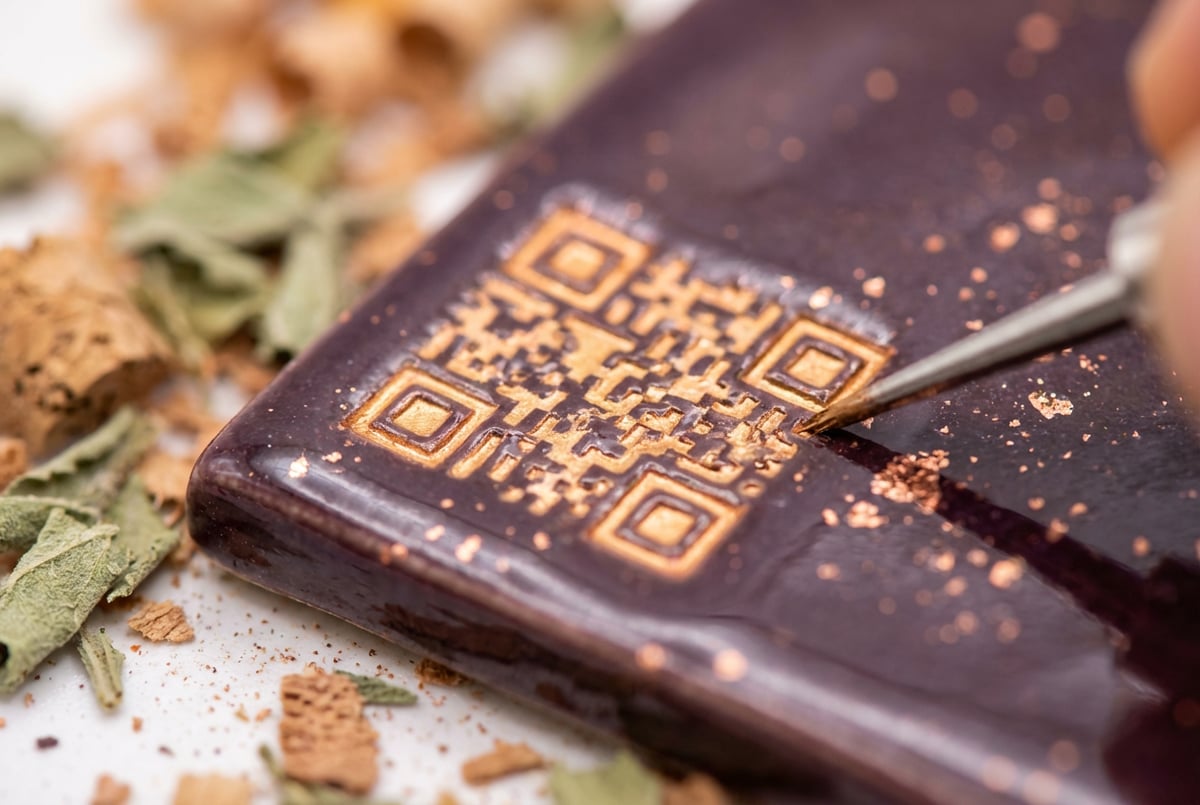
- QR codes. It can generate functional QR codes embedded in images. These actually scan.
- Complex layouts. Multi-column designs, infographics, product mockups with overlaid graphics — the model follows structural prompts instead of defaulting to a generic composition.
- Instruction fidelity. When you say “put the headline in the top-left corner in white text, with a dark background,” it does that. Not always perfectly, but consistently enough to be useful.
- Photo-realistic product shots. The model handles lighting, surface reflections, and depth of field well enough that results can stand in for professional product photography in many contexts.
One shift underpins all of this: GPT Image 2 reasons before it renders. It applies a thinking step to interpret the prompt — planning element placement, text positioning, and spatial relationships — before generating a single pixel. That’s a big reason it topped the LM Arena image leaderboard, a benchmark driven by real human preference votes rather than automated scoring. On complex, multi-condition prompts the difference is obvious: the model treats the request as a problem to reason through, not a bag of keywords to pattern-match.
This isn’t just about aesthetics. These improvements make the model practical for real workflows — ad creative, content production, e-commerce, and more.
The Most Powerful Use Cases
Marketing and Ad Creative
Ad creative is one of the strongest use cases. ChatGPT Images 2.0 can generate complete ad units — image, headline, body copy, call-to-action — as a single output. You describe the offer, the target audience, the brand feel, and the layout, and the model produces a near-final asset rather than a background that still needs a designer to add text in Figma.
For teams running paid social campaigns, this compresses the creative iteration cycle significantly. You can generate 10 concept variants in the time it used to take to brief a designer on one. For AI banner and ad creative templates, this model is currently one of the most capable options available.
Product Packaging Mockups
Packaging concepts normally take a designer days to mock up. GPT Image 2 generates photorealistic packaging renders with correct label text in minutes — feed it your dimensions, brand colors, copy, and required callouts (net weight, ingredients, certifications) and the output is good enough for stakeholder review, investor decks, or early customer testing. The text accuracy is what makes it work: earlier models mangled brand names and scrambled ingredient lists. Best for CPG brands, startups validating new SKUs, and agencies doing rapid concepting.
UGC-Style Ad Creative
User-generated-style ads consistently outperform polished studio ads on paid social, but real UGC is slow to source and brief. GPT Image 2 can generate static UGC-style creatives — casual product-in-hand shots, lifestyle photos, and screenshot-style testimonials with native-looking text overlays. The lighting and texture quality make outputs feel less “AI-generated” than most alternatives, which is exactly what Meta and TikTok ad testing needs when you want dozens of variants without a full shoot. See how one D2C brand cut creative costs with AI image generation for a concrete example at scale.
Display and Banner Ads
Display campaigns need the same creative across dozens of size formats, each normally requiring its own design pass. GPT Image 2 generates display units with correctly spelled CTA copy — “Shop Now,” “Get 20% Off,” “Free Trial” — placed legibly across leaderboard, rectangle, skyscraper, and mobile-banner formats from a single brief. Best for digital marketers, in-house creative teams, and programmatic buyers.
Product Photography
E-commerce teams spend significant time and money on product photography. ChatGPT Images 2.0 handles lifestyle shots, white-background catalog images, and styled product scenes well enough to replace placeholder photography and in many cases final photography for digital channels.
You can describe a specific scene — “a ceramic mug on a reclaimed wood table, morning light, soft shadows, cozy kitchen background, shallow depth of field” — and get a result that looks like it was shot intentionally. Combine this with AI product photography templates for e-commerce and you have a repeatable workflow rather than a one-off generation.
Infographics and Data Visualization
This is where the dense text rendering really earns its value. GPT Image 2 can generate infographics with labeled sections, data callouts, step-by-step diagrams, and comparison charts — all with readable text throughout. Earlier models made this essentially impossible because text would blur or corrupt at any complexity.
The results still benefit from human review and occasionally need layout correction, but the starting point is now close enough to a finished asset that it’s worth building workflows around. If you regularly produce visual content for reports or presentations, AI infographic generator templates can help systematize this further.
Social Media Content
Social content has specific format requirements: square, portrait, landscape, specific text treatments, brand colors. ChatGPT Images 2.0 handles these constraints when you specify them clearly. You can request a 1:1 image for Instagram with a bold centered headline and a gradient background in specific hex colors, and the model will attempt all of it — often successfully.
For teams managing content across multiple channels, AI image generation templates for social media managers provide structured starting points that make consistent output easier.
Thumbnails and Cover Images
YouTube thumbnails, blog headers, and article covers benefit from the same text-in-image improvements. High-contrast text, expressive faces, bold compositions — the model handles all of these. The key is giving it format constraints upfront (dimensions, safe zones) and being specific about the visual hierarchy you want.
See AI thumbnail generator templates for YouTube and blogs for structured prompts that work well here.
Educational and Training Visuals
Diagrams, labeled illustrations, process flows, and annotated screenshots all require accurate text placement. GPT Image 2 is one of the first AI image models capable enough to serve this use case without constant manual cleanup. An e-learning platform generating course visuals with AI is no longer a distant possibility — it’s a workflow teams are running today.
Before-and-After Marketing Images
Remy doesn't build the plumbing. It inherits it.
Other agents wire up auth, databases, models, and integrations from scratch every time you ask them to build something.
Remy ships with all of it from MindStudio — so every cycle goes into the app you actually want.
Before-and-after visuals sell transformation with almost no copy — think fitness, home improvement, skincare, and software outcomes. GPT Image 2 can generate matched before/after pairs from a prompt, or use inpainting to turn a real “before” photo into a realistic “after.” It maintains character and scene consistency across both panels, which older models handled badly. See how to create AI-powered before-and-after images for marketing for the full workflow. Best for health and wellness brands, home services, and SaaS teams showing product results.
QR Code Artwork and Branded Links
One of the more surprising capabilities: generating images where a functional QR code is stylistically integrated into the design. You can have a QR code that links to a URL embedded in a product label, a poster, or a business card mockup. The code scans correctly, and the surrounding design is generated to match your style specifications.
This is genuinely novel. No previous mainstream AI image model could do this reliably.
How to Get Better Results
Be Specific About Layout Before Style
Most people describe the mood or aesthetic first and layout last. Flip this. Lead with structure: number of columns, where text appears, what’s in the foreground vs. background, aspect ratio. The model prioritizes compositional instructions better when they come first.
Instead of: “A vibrant ad for a coffee brand with a clean modern feel”
Try: “A horizontal banner ad, 16:9, with the product (espresso cup) centered on the left half, and bold white sans-serif text on the right half reading ‘Start sharp.’ Dark charcoal background, minimal styling.”
Specify Text Exactly
Don’t say “add a headline.” Write the exact text you want rendered. GPT Image 2 is now accurate enough that what you write is what you get — but only if you give it something specific. Vague instructions like “inspirational caption” will produce generic text. If you need specific words, spell them out.
Use Iteration, Not Perfect Prompts
The conversational interface is one of ChatGPT Images 2.0’s real advantages. You don’t need to write a perfect prompt on the first try. Generate something, describe what needs to change, and iterate. “Move the text to the upper right,” “make the background darker,” “remove the logo in the corner” — these follow-up instructions work reliably.
Trying to fit all requirements into one massive prompt often produces worse results than generating, reviewing, and adjusting in a few turns.
Set Format Constraints Upfront
If you need a specific aspect ratio or platform format, say it immediately. “Generate a 9:16 vertical image for Instagram Stories” sets the compositional frame before anything else is decided. Retrofitting a landscape composition into portrait after the fact loses quality.
Reference Visual Style with Specificity
“Photorealistic” and “cinematic” are nearly meaningless at this point — everyone uses them. Instead, describe the specific qualities you want: “shot on 35mm film with visible grain,” “flat design with bold outlines and limited color palette,” “clean UI mockup with a light gray background and rounded card components.”
The more specific the visual language, the closer the output gets to what you’re picturing.
Know When to Use a Different Tool
GPT Image 2 is strong at photorealism, text rendering, and structured layouts. For highly stylized illustration, specific artistic aesthetics, or fine-grained visual consistency across many images, other models may serve you better. Ideogram V3 specializes in typographic imagery. Midjourney V8 leads on artistic style. Recraft V4 is built for brand-consistent professional assets.
Everyone else built a construction worker.
We built the contractor.
One file at a time.
UI, API, database, deploy.
Knowing the right tool for the job matters more than picking one and using it for everything. If you want a full breakdown, choosing the right AI model for image generation walks through how to evaluate your options against specific use cases.
How ChatGPT Images 2.0 Compares to the Competition
The landscape has gotten competitive. GPT Image 2 vs Imagen 3 covers the head-to-head in detail, but the short version: GPT Image 2 leads on text rendering and instruction following, while Imagen 3 tends to produce more consistent photorealism in unstructured creative prompts.
The broader comparison across GPT Image 2 vs Gemini image generation shows a similar pattern — Gemini is strong on naturalistic output, GPT Image 2 is stronger when you need the model to follow a specific compositional brief.
For most business and creator use cases — ad creative, content production, product imagery — ChatGPT Images 2.0 is the most immediately practical choice. It’s already in a tool most teams use, which removes the friction of managing separate subscriptions and workflows.
Here’s a quick view of where GPT Image 2 leads and where another model may serve you better, by use case:
| Use Case | GPT Image 2 | Alternatives to Consider |
|---|---|---|
| Product packaging with text | Excellent | Ideogram V3 (also strong on text) |
| UGC-style ads | Very good | Midjourney for artistic style |
| Social graphics | Very good | Recraft V4 for brand consistency |
| E-commerce photos | Very good | Imagen 3 for pure photorealism |
| Infographics | Good | Ideogram V3 |
| UI mockups | Good | Specialized tools for production work |
| Thumbnails | Very good | Any strong model works here |
Where It Still Falls Short
Honest limits worth knowing before you build around it:
- Complex text: short headlines and labels render reliably; long body copy still garbles.
- Consistent characters: generating the same person across a series of images isn’t dependable yet. Product consistency is better; human consistency is harder.
- Abstract concepts: the model is stronger at literal scenes than metaphors — “show a feeling of loneliness” produces generic results.
- Speed: the reasoning step adds latency, which you’ll need to design around for real-time uses.
- Photorealistic portraits: skin, hands, and fine facial detail are still occasionally wrong — better than before, but not headshot-grade.
Real Workflow Examples
Social content at scale. Write a content calendar with topics and formats, generate an image per post, review, publish. Because GPT Image 2’s instruction-following is cleaner, the review-and-fix rate drops sharply versus earlier models — less time repairing broken prompts, more time approving outputs. AI content calendar automation for images and video covers how to structure this so it doesn’t become a manual bottleneck.
E-commerce creative. A D2C brand can take 20 product SKUs and produce four to five lifestyle photos each in a morning, instead of a week-long studio shoot that costs thousands. Upload product photos, define a scene per SKU, run them through the API, and spot-check the results.
YouTube and blog thumbnails. Thumbnails reward reliable short-text rendering and strong composition — both areas where GPT Image 2’s reasoning step helps it understand what “thumbnail” means visually and place the headline cleanly.
Scaling Image Generation Beyond ChatGPT
Other agents ship a demo. Remy ships an app.
Real backend. Real database. Real auth. Real plumbing. Remy has it all.
ChatGPT is a great interface for one-off generation and iteration, but it has limits when you need volume. Generating 200 product variants, automating content for 50 SKUs, or running image generation as part of a larger data pipeline requires a different approach.
This is where building on top of the underlying API — or connecting image generation to your existing tools — becomes necessary. Teams using AI image generation with Shopify to automate product photos, or batch AI image generation workflows for high-volume content, quickly outgrow the manual chat interface.
If you go the API route, a few things are worth knowing up front. You specify the image model version in the call, choose a quality setting (higher quality costs more tokens and takes longer), and receive results as base64 or a URL. There’s also an image-editing endpoint that accepts a source image for inpainting and edits. Latency is higher than older DALL-E models because of the reasoning step — plan for roughly 10–20 seconds per generation at higher quality, and process batch jobs asynchronously with retry logic for rate limits.
If you’re thinking about building an application that uses GPT Image 2 as part of a larger workflow — something that takes structured inputs, generates images at scale, applies business logic, and delivers outputs where your team actually works — that’s where Remy comes in.
Remy compiles annotated spec documents into full-stack applications: backend, database, auth, and deployment included. You could describe an image generation tool — “take a product SKU from our database, generate a lifestyle photo using GPT Image 2, and upload it to our Shopify store automatically” — and Remy builds the app from that spec. You’re not writing the API integration code by hand. The spec is the source of truth; the code is derived from it.
If you want to put GPT Image 2 to work inside a real application without building the infrastructure from scratch, you can try Remy at goremy.ai.
Frequently Asked Questions
What is ChatGPT Images 2.0?
“ChatGPT Images 2.0” refers to the image generation capability in ChatGPT powered by GPT Image 2, OpenAI’s second-generation native image model. It’s built directly into the ChatGPT interface and represents a major improvement over DALL-E 3 in text rendering, layout handling, QR code generation, and instruction fidelity.
Who has access to ChatGPT Images 2.0?
As of early 2026, image generation with GPT Image 2 is available to ChatGPT Plus, Pro, and Team subscribers. Free tier users may have limited or no access depending on current rollout status. Access via the OpenAI API is available to developers with API keys, subject to usage limits and pricing.
Can ChatGPT generate images with text in them?
Yes. This is one of the biggest improvements in GPT Image 2. The model can render dense, legible text including multi-word headlines, labels, signs, interface elements, and even full paragraphs. Earlier versions of DALL-E struggled heavily with this. For text-heavy image formats like infographics, posters, and ad creative, the improvement is substantial.
Do QR codes generated by ChatGPT actually work?
- ✕a coding agent
- ✕no-code
- ✕vibe coding
- ✕a faster Cursor
The one that tells the coding agents what to build.
Yes, in most cases. ChatGPT Images 2.0 can generate functional QR codes that scan correctly when you provide the target URL in your prompt. The code can be integrated into a larger image design — product labels, posters, business cards — and still scan reliably. Always verify the QR code scans correctly before using it in production.
What’s the difference between GPT Image 1 and GPT Image 2?
GPT Image 1 was OpenAI’s first natively built image model, introduced as part of the ChatGPT product in 2024. GPT Image 2 builds on it with significantly better text rendering, stronger instruction following, improved photorealism, and the ability to handle complex multi-element layouts. For most practical use cases, GPT Image 2 is the better choice.
How should I prompt ChatGPT Images 2.0 for best results?
Start with layout and structure, then describe style. Specify exact text you want rendered. Use the conversational interface to iterate — you don’t need a perfect prompt on the first try. Set aspect ratio or format constraints at the beginning. Avoid vague aesthetic descriptors and use specific, concrete language about what you want in the image.
Key Takeaways
- ChatGPT Images 2.0 is powered by GPT Image 2 and represents a major leap in text rendering, QR code generation, layout handling, and instruction fidelity.
- The most productive use cases include ad creative, product photography, infographics, social media content, and educational visuals.
- Prompt structure matters: lead with layout, specify exact text, and use the conversational interface to iterate rather than writing one complex prompt.
- For high-volume or workflow-integrated image generation, the ChatGPT interface has limits — building on the API or using purpose-built tooling is the better path.
- Other models (Ideogram, Midjourney, Recraft) outperform GPT Image 2 in specific areas; the right choice depends on your use case.
If you’re building something on top of GPT Image 2 — an application, an automated workflow, a product that generates images at scale — try Remy at goremy.ai. Describe what the app does in a spec, and Remy compiles it into a full-stack application, infrastructure included.