What Is Recraft V4 Vector? How to Generate Native SVG Logos and Icons With AI
Recraft V4 Vector generates true scalable SVG files—not rasterized fakes—for logos, icons, and illustrations. Here's how it works and when to use it.
True Vector, Not a Fake: What Makes Recraft V4 Vector Different
Most AI image generators have a dirty secret: they can’t actually make vector files. You ask for a logo, you get a PNG. You drop it into your design software and zoom in—pixels everywhere. The “SVG” output some tools advertise is often just a raster image wrapped in an SVG container, which defeats the entire purpose.
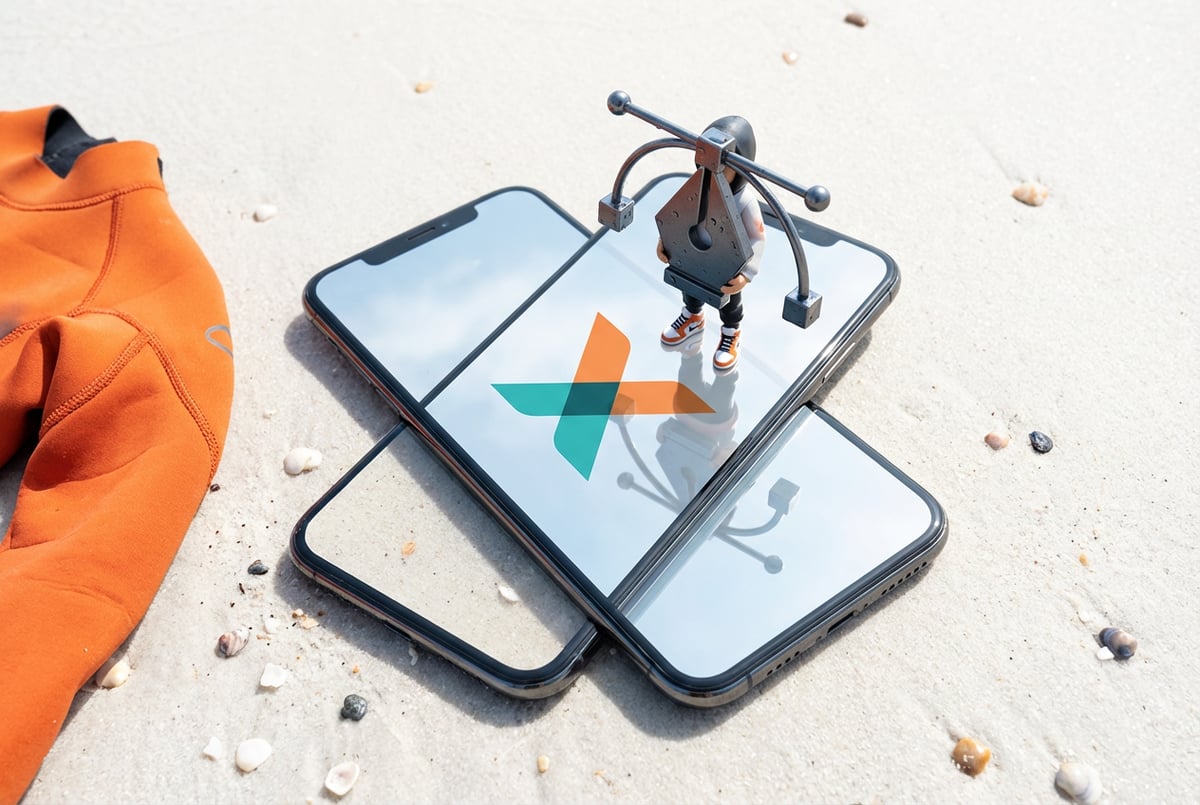
Recraft V4 Vector is built differently. It generates native SVG files with real vector paths—scalable to any size without quality loss, editable in Figma or Illustrator, and small enough to drop directly into a codebase. For designers, developers, and brand teams, that’s a meaningful shift in what AI image generation can actually deliver.
This article covers what Recraft V4 Vector is, how it works, what it’s good at, where it falls short, and how to get the best results from it.
What Recraft V4 Vector Actually Is
Recraft is an AI design platform focused on brand-consistent visual content. Their model lineup includes several variants, but V4 Vector is the one built specifically to output native scalable vector graphics.
The key distinction is in the output format. Standard image generation models—FLUX, Stable Diffusion, Midjourney, DALL-E—produce raster images. They work at a fixed pixel resolution. Recraft V4 Vector produces SVG files where shapes, lines, curves, and fills are defined mathematically as vector paths.
Raster vs. Vector: Why It Matters for Logos and Icons
- ✕a coding agent
- ✕no-code
- ✕vibe coding
- ✕a faster Cursor
The one that tells the coding agents what to build.

A raster image is a grid of pixels. Zoom in far enough and you’ll see the squares. A vector graphic is a set of mathematical instructions: draw a curve from point A to point B, fill it with this color. Scale it to billboard size or favicon size—it looks identical.
For logos and icons, this matters for a few concrete reasons:
- Scaling without degradation — A logo needs to work on a business card, a website header, a trade show banner, and an app icon. Vector handles all of these from a single file.
- Editability — Designers can open an SVG in Illustrator, Figma, or Inkscape and change colors, adjust paths, or tweak proportions without reexporting.
- Small file size — Simple vector icons are often just a few kilobytes, which matters for web performance.
- CSS and code compatibility — SVG code can be pasted directly into HTML or styled with CSS, making it practical for front-end development.
Most AI tools can’t deliver this. Recraft V4 Vector can.
How Recraft V4 Vector Generates SVGs
Recraft V4 Vector was trained specifically on vector design data. The model doesn’t generate a raster image and then “trace” it into vector paths (a process called auto-tracing, which produces messy, over-complicated path data). Instead, it generates vector-native output from the start.
What “Native SVG” Means in Practice
When you download an SVG from Recraft V4 Vector, you get a file with:
- Clean
<path>elements defining each shape - Explicit fill and stroke colors
- Viewbox and dimensions set correctly
- No embedded raster data hidden inside the file
Open it in a text editor and you’ll see readable SVG code. Open it in Figma or Illustrator and you can select, modify, and recolor individual elements.
This is different from tools that export a <image> tag with a base64-encoded PNG inside an SVG wrapper. That approach looks like a vector file but behaves like a raster image.
What the Model Understands
Recraft V4 Vector is trained to understand design conventions specific to vector graphics:
- Flat design — Simplified shapes without photorealistic lighting or texture
- Iconography conventions — The visual shorthand used in UI icons (lines, fills, negative space)
- Logo structures — Emblems, wordmarks, badge-style layouts, abstract marks
- Color palettes — Limited, intentional color use typical of brand design
The model works best with prompts that align with these conventions. It’s not a photorealistic image generator—it’s a vector design tool.
What You Can Generate With Recraft V4 Vector
Logos and Brand Marks
This is probably the strongest use case. Recraft V4 Vector handles:
- Abstract geometric logos
- Badge and emblem-style marks
- Icon-based logomarks (without wordmarks, or combined with simple text)
- Monogram-style marks
Text rendering in AI-generated SVGs has historically been unreliable, and Recraft V4 Vector is better at it than most competitors—but complex typographic logotypes with custom letterforms still benefit from human refinement.
UI and App Icons
Single-color, outlined, and filled icons for interfaces work well. The model understands standard icon conventions (24x24, 16x16 grid logic, consistent stroke widths). You can generate icon sets with consistent visual style by using a consistent prompt structure across multiple generations.
Decorative Illustrations
Remy doesn't build the plumbing. It inherits it.
Other agents wire up auth, databases, models, and integrations from scratch every time you ask them to build something.
Remy ships with all of it from MindStudio — so every cycle goes into the app you actually want.
Simple, flat-style illustrations for web headers, marketing materials, or infographics are another strong use case. Complex, detailed scenes are harder—vector output naturally pushes toward simpler forms, which is often the right aesthetic for this context anyway.
Stickers and Clip Art
Bold outlines, high-contrast fills, and simple subjects make for clean vector sticker designs. These export cleanly and can go straight to print or digital sticker production.
How to Use Recraft V4 Vector: A Practical Guide
Step 1: Access the Model
Recraft V4 Vector is available through Recraft’s platform. You select the Vector model option when setting up your generation—it’s distinct from their standard image generation models.
Step 2: Write an Effective Prompt
Vector prompts work differently from photorealistic image prompts. A few principles:
Be specific about subject and style, not scene:
- Good:
minimalist owl logo, flat vector, geometric shapes, dark navy and gold - Less effective:
a wise old owl perched in a moonlit forest, detailed feathers
Include style descriptors that match vector aesthetics:
flat design,geometric,minimalist,bold outlines,limited color palette,icon style,line art
Specify use case:
app icon,company logo,UI icon,badge design,sticker
Name your colors or palette:
two-color, black and amber,monochrome,pastel pink and cream
Step 3: Iterate on Generations
AI generation is probabilistic. Run several variations of a prompt and select the strongest output. Recraft’s interface lets you generate multiple options and adjust parameters like color palette and style.
Small prompt changes produce meaningfully different results:
geometric bear logovs.abstract bear mark, triangular shapeswill give you quite different outputs- Adding
negative spaceoroptical illusionas a descriptor changes the composition approach
Step 4: Download and Inspect the SVG
Once you have a result you like:
- Download the SVG file
- Open it in a text editor or browser developer tools and verify it contains path data (not embedded image data)
- Open in Figma, Illustrator, or Inkscape for review
Step 5: Refine in a Vector Editor
Almost all AI-generated SVGs need some cleanup:
- Remove unnecessary paths or hidden elements
- Simplify overly complex path nodes
- Adjust colors to match your exact brand values
- Tweak proportions or spacing
Think of the AI output as a strong starting point, not a finished asset. A designer can typically take a solid Recraft output and finalize it in 15–30 minutes—compared to hours building from scratch.
Where Recraft V4 Vector Falls Short
Being honest about limitations helps you use the tool appropriately.
Complex Typography
Wordmarks with custom letterforms, calligraphic logotypes, or logos where letter spacing and weight are critical still require human expertise. Recraft V4 Vector can render text in SVGs, but the output often needs refinement to meet professional standards.
Highly Detailed Illustrations
The more complex the scene, the messier the vector output. Intricate vector illustrations with dozens of overlapping elements, gradients, and fine linework often produce path data that’s hard to work with downstream.
Exact Brand Matching
If you have an existing brand with specific Pantone colors, precise geometric proportions, or established design language, AI generation won’t match it automatically. You’ll need to use the output as a starting point and apply your brand standards manually.
Seven tools to build an app. Or just Remy.
Editor, preview, AI agents, deploy — all in one tab. Nothing to install.
Consistency Across a Set
Generating a cohesive icon set—where every icon shares the same stroke weight, visual density, and corner radius—takes careful prompt management. It’s doable, but requires systematic prompting and curation across generations.
Comparing Recraft V4 Vector to Other Options
Recraft V4 Vector vs. Auto-Tracing Tools
Tools like Adobe Illustrator’s Image Trace or Inkscape’s trace function take a raster image and convert it to vector paths after the fact. This works but produces bloated, messy SVGs with hundreds of unnecessary anchor points. Recraft V4 Vector generates cleaner path structures because it starts in vector space.
Recraft V4 Vector vs. Standard AI Image Generators
FLUX, Midjourney, DALL-E, and similar models produce raster images. You can export them as high-resolution PNGs and auto-trace them, but the result won’t be as clean as native vector output. They’re better for photorealistic or highly detailed images—Recraft V4 Vector is better for logos and icons specifically.
Recraft V4 Vector vs. Canva AI
Canva’s AI tools generate raster images. They’re accessible and beginner-friendly but don’t output native vector files. If you need SVG, Canva isn’t the right tool.
Recraft V4 Vector vs. Looka or Tailor Brands
Logo platforms like Looka and Tailor Brands do produce SVG output, but they’re template-based systems with limited variation. Recraft V4 Vector is a generative model—it produces novel outputs rather than remixing templates.
FAQ
What is Recraft V4 Vector?
Recraft V4 Vector is an AI model that generates native SVG (scalable vector graphic) files from text prompts. Unlike standard AI image generators that produce raster images (PNG, JPG), Recraft V4 Vector outputs true vector files with editable paths—suitable for logos, icons, and illustrations that need to scale to any size without quality loss.
Is the SVG output truly editable?
Yes, in most cases. The SVG files contain actual path data that you can open and edit in Figma, Adobe Illustrator, Inkscape, or any vector editor. You can select individual shapes, change colors, adjust paths, and modify the design. Some complex outputs may have more anchor points than ideal, requiring cleanup—but the underlying file structure is genuine vector, not an embedded raster image.
Can Recraft V4 Vector generate text in logos?
It can render text within SVG output, and it handles simple wordmarks better than most AI tools. However, complex typographic logotypes with precise custom letterforms still benefit from manual refinement. For anything beyond simple text labels, plan to adjust the typography in a dedicated vector editor after generation.
How does Recraft V4 Vector compare to tracing a rasterized image?
Auto-tracing a raster image (using Illustrator’s Image Trace or similar) converts pixel data into vector paths after the fact. This typically produces over-complicated paths with many unnecessary anchor points. Recraft V4 Vector generates vector-native output from the start, which means cleaner path structures and more practical SVG code.
What prompts work best for vector logo generation?
Built like a system. Not vibe-coded.
Remy manages the project — every layer architected, not stitched together at the last second.
Prompts that align with vector design conventions work best. Use descriptors like flat design, geometric, minimalist, limited color palette, icon style, bold outlines, and badge design. Be specific about subject, style, and color—but avoid photorealistic or scene-heavy descriptions. Think in terms of shapes and graphic marks rather than detailed scenes.
Can I use Recraft V4 Vector output commercially?
Recraft’s platform allows commercial use of generated assets, but you should review their current terms of service for specifics around commercial licensing and IP ownership. Like any AI-generated content, it’s worth confirming the usage rights match your intended application before deploying assets for client work or brand identity systems.
Key Takeaways
- Recraft V4 Vector generates native SVG files—real vector paths, not raster images wrapped in SVG containers. This is genuinely different from most AI image generators.
- The strongest use cases are logos, UI icons, and simple flat illustrations—where vector scalability and editability matter most.
- Prompt style matters—use flat design vocabulary, specific color descriptors, and style terms that match vector aesthetics.
- AI output is a starting point—plan to refine in a vector editor. A designer can typically finalize a solid Recraft output in 15–30 minutes.
- Limitations are real—complex typography, detailed illustrations, and exact brand matching still require human expertise.
- For teams generating assets at scale, combining vector generation with automation tools like MindStudio makes the workflow significantly more efficient.
The days of AI image generation being synonymous with “raster only” are ending. Tools like Recraft V4 Vector are making native vector generation practical—and for anyone working in brand design, UI, or content production, that’s worth understanding and using.