How to Use ChatGPT Image 2 for Business: Infographics, Ads, and Brand Assets
ChatGPT Image 2 can generate infographics, Facebook ads, product mockups, and brand guidelines from a URL. Here are the most useful business applications.
What ChatGPT Image 2 Actually Does Well for Business
OpenAI’s GPT-4o native image generation — widely referred to as ChatGPT Image 2 — is a meaningful step up from the DALL-E pipeline it replaced. The text rendering alone is enough to make it useful for real marketing work. But there’s more to it than that.
For business users, the capability that matters most is this: you can describe what you want in plain language, iterate in conversation, and get output that’s actually usable — not just “cool-looking.” From infographics to Facebook ads to brand asset sheets, ChatGPT Image 2 can handle a surprisingly wide range of creative production tasks without a designer in the loop.
This guide covers the most practical business applications, how to prompt effectively for each, and where the tool falls short so you can plan around it.
Why This Generation Is Different
Earlier AI image tools struggled with two things that make business content hard to produce: readable text and layout fidelity. A banner ad with garbled text is useless. An infographic where the data labels look like nonsense defeats the purpose.
ChatGPT Image 2 (the GPT-4o image model) fixed most of the text problem. It can render short phrases, labels, callouts, and headers with reasonable accuracy. It’s not perfect — longer strings and small body copy still cause issues — but the improvement over DALL-E 3 and Midjourney is substantial.
Beyond text, the model responds well to structured layout prompts. You can ask for a three-column infographic with specific sections and get something that follows that structure. That wasn’t reliably possible before.
What’s changed in practical terms:
- Readable headlines and short copy in generated images
- Better adherence to layout instructions (columns, grids, cards)
- Improved consistency when iterating in a conversation thread
- Ability to reference URLs and uploaded images to extract brand context
- Stronger color palette control from natural language descriptions
This adds up to a tool that belongs in a marketing team’s toolkit, not just a creative experimentation one.
Creating Infographics from Scratch
Infographics are one of the clearest wins for ChatGPT Image 2. The combination of layout understanding and text rendering makes it possible to produce a working draft in minutes.
How to Prompt for Infographics
The key is to be specific about structure before you worry about aesthetics. A vague prompt like “make an infographic about email marketing statistics” will produce something generic. A structured prompt gives you something usable.
A better approach:
“Create a vertical infographic with 5 sections. Each section has an icon, a bold headline (under 6 words), and one supporting stat. Topic: email marketing ROI. Use a dark navy background with white text and orange accent colors. Make it feel modern and clean, not corporate.”
Then iterate. ChatGPT retains context across the conversation, so you can follow up with things like:
- “Change the third stat to: ‘Email generates $42 for every $1 spent’”
- “Make the icons larger and center-align all the text”
- “Adjust the color scheme to match #1A1A2E and #E94560”
Where Infographics Work Best
- Social media carousels — Generate a single-panel version first, then ask for variations by section
- Internal reports and decks — Quick visual summaries of data without a designer
- Landing page assets — “How it works” or “Why us” visual breakdowns
- Email headers — Simple stat callouts or process flows
Watch Out For
Long strings of text inside infographic panels still get garbled occasionally. Keep body copy short — 8 words or fewer per callout is safer. For anything with longer copy, generate the layout and add text in Canva or Figma afterward.
Generating Facebook and Instagram Ads
Ad creative is another area where ChatGPT Image 2 earns its place. You can generate ad concepts, test different visual styles, and produce platform-specific dimensions — all through prompting.
Ad Copy + Visual in One Prompt
One of the more useful workflows is generating an ad image that already includes the headline and CTA. This lets you evaluate the full creative concept before committing to production.
Example prompt:
“Create a Facebook ad image (1200x628px ratio) for a productivity app targeting freelancers. Headline: ‘Stop losing track of your time.’ CTA button: ‘Try Free.’ Use a clean, minimal aesthetic — light background, bold sans-serif font, and a screenshot mockup of a dashboard on the right side. Keep it professional but approachable.”
You get an immediate visual concept. From there you can test variations:
- “Try a dark mode version”
- “Change the headline to: ‘Your hours. Your data. Your invoice.’”
- “Show a person working at a desk instead of the dashboard mockup”
Testing Multiple Ad Concepts
ChatGPT Image 2 is fast enough to generate 4–5 concept variations in a single session. That’s useful for A/B testing briefs — you can show a client or stakeholder three directions before spending on professional production.
Useful ad types to generate:
- Testimonial ads — Styled quote cards with a headshot placeholder and social proof text
- Product showcase ads — Flat lays, product-on-background compositions
- Event promotion — Date, time, CTA, and brand elements in a single image
- Retargeting creatives — Simple reminder-style visuals with bold headlines
Platform-Specific Tips
For Instagram Stories (9:16 ratio), include “vertical format, 9:16 aspect ratio” explicitly in your prompt. For Google Display ads, specify dimensions like 300x250 or 728x90 and keep the visual simple — text-heavy layouts don’t work well at small sizes.
Building Brand Asset Sheets
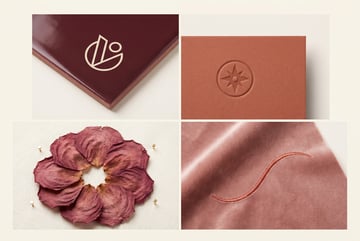
This is a less obvious use case but one of the more practical ones. You can use ChatGPT Image 2 to mock up entire brand systems — color palettes, typography pairings, icon sets, and logo concepts — from a description or a URL.
Generating a Brand Style Reference
If you have an existing website, paste the URL and ask:
“Look at this website and generate a brand style sheet image. Include: a color palette (show hex codes), two font pairing examples, one icon style example, and a logo lockup concept. Keep it laid out like a design agency’s brand guide.”
ChatGPT will extract visual context from the URL and use it to inform the style sheet. It won’t always nail the exact colors (hex accuracy is approximate), but it produces a useful reference document that you can refine.
For a new brand, describe the personality instead:
“Create a brand style sheet for a sustainable skincare brand. The brand is minimal, earthy, and premium. Color palette should use warm neutrals — cream, terracotta, and muted sage. Font pairings: a serif for headings, a clean sans-serif for body. Include example icon styles and a simple logomark concept.”
What You Can Generate in a Brand Session
- Logo concepts — Early-stage exploration before working with a designer
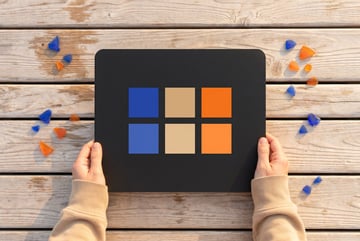
- Color system visuals — Primary, secondary, and neutral palette laid out with hex references
- Typography examples — Headings, subheadings, body copy at different weights
- Icon style guides — Line icons, filled, rounded vs. sharp — shown as a reference sheet
- Branded template mockups — Business cards, social media templates, email headers
Limitations to Know
ChatGPT Image 2 can’t export vector files or print-ready assets. What you get is a raster image — useful as a reference or mockup, but not a final deliverable for a printer or developer. For final production, these concepts need to be rebuilt in Figma, Illustrator, or similar tools.
Product Mockups and Packaging Concepts
For e-commerce businesses and physical product brands, mockup generation is one of the most time-saving applications. You no longer need to buy a mockup template or hire a photographer for every product variant.
Generating Product-on-Surface Mockups
“Create a product mockup photo of a matte white 12oz coffee mug with the label ‘[Brand Name]’ printed on it in a clean sans-serif font. The mug is sitting on a wooden table with soft morning light and a minimal background. Photo-realistic style.”
Remy doesn't write the code. It manages the agents who do.
Remy runs the project. The specialists do the work. You work with the PM, not the implementers.

Change the surface, lighting, or background without reshooting:
- “Same mug, dark marble countertop, evening light”
- “Show the mug from above, on a linen napkin”
- “Add a coffee bean scatter in the foreground”
Packaging Label Concepts
For early-stage product development, ChatGPT Image 2 can generate packaging concepts from a brief:
“Design a product label concept for a natural dog supplement. The label goes on a 4-inch round tin. Brand name: Pawwell. Use earthy greens and cream. Include: brand name, a simple leaf icon, and ‘All-Natural Supplements’ as a tagline. Show it as a flat label design.”
This is useful for client presentations and investor decks before committing to a production designer.
Lifestyle and Context Shots
Beyond isolated mockups, you can generate in-context product imagery:
- “Show [product] in a home office setting with books and a plant”
- “Generate a flat lay of [product] with complementary items for Instagram”
- “Create a ‘hero shot’ of [product] against a gradient background”
These won’t replace professional photography for final use, but they work well for social content, pitch decks, and early-stage marketing.
Prompting Strategies That Actually Work
Getting consistent, usable output from ChatGPT Image 2 requires a few habits. These aren’t complex — they’re just more deliberate than typing a vague description.
Structure Your Prompt in Layers
A reliable prompt structure for business content:
- Format — What type of asset is it? (infographic, ad, mockup, style sheet)
- Dimensions/orientation — Vertical, horizontal, square, specific ratio
- Content — What text, data, or visual elements should appear?
- Style — Aesthetic direction, color palette, font style
- Mood/tone — Professional, playful, minimal, bold
Use Reference Images
You can upload a screenshot of an existing ad or design you like and say “generate something in this style for [topic].” The model picks up visual cues from reference images well.
Iterate, Don’t Restart
Staying in a single conversation thread is better than starting fresh each time. The model remembers what you’ve described and built, so refinements are faster and more accurate.
Be Explicit About Text
If specific text must appear accurately in the image, write it exactly as you want it in quotes within your prompt. “Include this headline exactly: ‘Your Data, Finally Organized’” is more reliable than “include a headline about data organization.”
Frequently Asked Questions
What is ChatGPT Image 2?
“ChatGPT Image 2” refers to the native image generation capability built into GPT-4o, released by OpenAI in early 2025. Unlike the previous DALL-E 3 integration, this model generates images natively within the GPT-4o architecture. The result is tighter instruction-following, better text rendering, and stronger layout control — all of which matter for business content like ads and infographics.
Can ChatGPT Image 2 generate text in images accurately?
Yes, significantly better than previous AI image models. Short headlines, labels, callouts, and CTA text are generally rendered legibly. The model struggles more with longer body copy, small text, or dense text blocks. A practical rule: keep any text element in your prompt to 8 words or fewer for reliable output.
Seven tools to build an app. Or just Remy.
Editor, preview, AI agents, deploy — all in one tab. Nothing to install.
Can I use ChatGPT Image 2 to create a logo for my business?
You can generate logo concepts, but the output is a raster image — not a scalable vector file. For final production use, a logo needs to be recreated in a vector format (SVG, EPS, or AI file) by a designer. ChatGPT Image 2 is genuinely useful for early-stage logo exploration and getting clear on direction before engaging a professional.
Is ChatGPT Image 2 available to all users?
As of 2025, the GPT-4o native image generation is available to ChatGPT Plus, Pro, and Team subscribers, with limited availability rolling out to free-tier users. Access in the API is available for developers with usage limits that vary by tier. OpenAI’s official documentation has current availability details.
How do I get consistent brand colors and styles across multiple images?
Consistency is the biggest practical challenge with any AI image tool. The most reliable approach: include your brand’s hex color codes explicitly in every prompt (“use #2D4A7A for the primary color”), describe the font style in detail (“clean geometric sans-serif, similar to Futura”), and maintain a single conversation thread so the model can reference earlier approved outputs. For production-level consistency, using a platform like MindStudio lets you embed those brand parameters into a reusable workflow template.
Can ChatGPT Image 2 read a website URL and generate assets based on it?
Yes. You can paste a URL into the chat and ask GPT-4o to extract visual style information — colors, layout approach, tone — and use that context to generate on-brand assets. This works reasonably well for extracting overall style direction, though exact color matching (precise hex values) should always be verified and specified manually.
Key Takeaways
- ChatGPT Image 2 (GPT-4o native image generation) is genuinely useful for business content because it handles text rendering and layout much better than earlier tools.
- Infographics, ad creative, brand style sheets, and product mockups are the highest-value business applications right now.
- Prompt structure matters more than prompt length — specify format, dimensions, content, style, and tone separately for best results.
- Iterate in conversation rather than starting fresh; the model builds on prior context in a thread.
- Output is raster-only — final production assets (logos, print files, vectors) still need professional design work.
- For automated, scalable image production, tools like MindStudio’s AI Media Workbench let you connect image generation to your existing business workflows without code.
The fastest way to see what’s possible is to run a few real prompts against your actual marketing needs — a product mockup, an ad concept for a current campaign, or a brand reference sheet. The quality gap between “interesting AI toy” and “actually useful for work” closes quickly once you see what it does with a specific, well-structured brief.