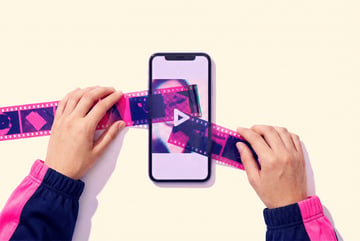
What Is Gemini Omni Flash? Google's Conversational Video Editing API Explained
Gemini Omni Flash lets developers edit existing videos conversationally via API. Learn what it can do, how it compares to Seedance, and how to use it.
Google’s Approach to Video That Already Exists
Most AI video tools start from nothing. You type a prompt, the model generates footage. That’s useful, but it sidesteps a real problem most developers and content teams face: they already have video, and they need to change it.
Gemini Omni Flash takes a different angle. Instead of generating video from scratch, it’s built to work with footage you already have — accepting video as input, processing natural language instructions, and returning modified or analyzed output. It’s the Gemini model family’s answer to conversational video editing via API, and it’s increasingly relevant for anyone building production pipelines that involve video at scale.
This article breaks down what Gemini Omni Flash actually is, what it can and can’t do, how it compares to generation-focused tools like Seedance, and where it fits in a real development workflow.
What Gemini Omni Flash Actually Is
Gemini Omni Flash is a multimodal model from Google — part of the Gemini 2.0 Flash family — designed for high-speed, low-latency tasks across text, image, audio, and video. The “omni” designation refers to its ability to accept and reason across multiple modalities at once, not just one at a time.
Remy is new. The platform isn't.
Remy is the latest expression of years of platform work. Not a hastily wrapped LLM.

Where it distinguishes itself from Google’s Veo models (which generate video from text prompts) is in its orientation toward understanding and responding to video that already exists. You can pass it a video file, describe what you want to know or change, and get back structured analysis, descriptions, timestamps, or instructions for edits — all through the Gemini API.
The “Flash” in the name signals the model tier: fast, cost-efficient, optimized for high-throughput use cases. It’s not the most capable model in the Gemini lineup, but it’s the most practical one for applications that need to process video frequently and quickly without running up large API bills.
The “Conversational” Part
What makes this particularly interesting for developers is the multi-turn conversation aspect. You don’t have to write one massive prompt that covers every possible scenario. Instead, you can interact with the model iteratively:
- Ask it to describe what’s happening in a video
- Then ask it to identify where a specific object appears on screen
- Then ask it to generate a script for subtitles covering those sections
- Then ask follow-up questions about tone or formatting
This conversational flow makes Gemini Omni Flash more useful for complex editorial tasks than a single-shot model would be. You’re building context across turns, which means the model retains awareness of earlier instructions and video content throughout the session.
Core Capabilities
Video Understanding at Scale
Gemini Omni Flash can process long video files — up to approximately one hour of footage in some configurations — and extract structured information from them. This includes:
- Scene-by-scene descriptions
- Speaker identification and dialogue extraction
- Object and activity recognition
- Timestamp annotations for specific moments
- Sentiment and tone analysis for spoken content
For developers building tools like automatic highlight reels, content moderation systems, or video cataloging pipelines, this is the foundational capability that makes everything else possible.
Natural Language Edit Instructions
The model doesn’t directly manipulate video files — that distinction matters and we’ll come back to it. But it can reason about edits in plain language and return actionable instructions that downstream tools can execute.
For example, you might prompt it with: “This video is 12 minutes long. Identify the three moments where the speaker makes a distinct point, and give me timestamps plus a one-sentence summary of each.” The model returns that structured output, which you then use to programmatically cut clips using a video editing library.
This positions Gemini Omni Flash as the reasoning layer in a pipeline, not the execution layer. It’s the part that understands what needs to happen — the actual file manipulation happens downstream.
Multimodal Input in a Single API Call
One practical advantage of the omni architecture: you can mix input types in a single request. Send a video alongside a reference image (“identify moments in this video that look like this image”), or pair video with a transcript (“here’s what was said — now identify where in the video these specific lines appear”). This cross-modal reasoning is harder to replicate by chaining separate specialized models.
Low Latency for Production Use
Flash-tier models are built for speed. For use cases where you’re processing dozens or hundreds of videos — automated social media workflows, broadcast monitoring, educational content pipelines — the throughput characteristics of Gemini Omni Flash make it more viable than heavier models that produce richer output but take longer to respond.
Remy doesn't build the plumbing. It inherits it.
Other agents wire up auth, databases, models, and integrations from scratch every time you ask them to build something.
Remy ships with all of it from MindStudio — so every cycle goes into the app you actually want.
What Gemini Omni Flash Doesn’t Do
It’s worth being clear about the boundaries here, because confusion about this is common.
It doesn’t directly output edited video files. When you send a video and ask it to “remove the first 30 seconds,” it won’t return a trimmed video file. It returns text — instructions, timestamps, descriptions — that you use to drive actual editing tools.
It’s not a generation model. If you want to create video from a text prompt, that’s Veo 2 or Veo 3, not Gemini Omni Flash. The Flash model understands and reasons about video; it doesn’t synthesize new footage.
Long video support has limits. While the context window is large, very long or high-resolution videos may require chunking or preprocessing before sending to the API. Developers building around this need to account for file size and context constraints.
Understanding these limits isn’t a knock against the model — it’s just accurate. Knowing where Gemini Omni Flash ends and where other tools need to begin is what makes a well-designed pipeline.
Gemini Omni Flash vs. Seedance
The comparison to Seedance comes up often in developer discussions, but it’s a bit of an apples-to-oranges situation. They’re solving related but distinct problems.
What Seedance Does
Seedance, developed by ByteDance, is primarily a video generation model. It excels at creating high-quality, cinematic video clips from text or image prompts. Its strengths include:
- Photorealistic footage generation
- Strong motion consistency across frames
- Prompt adherence for specific visual styles
- Support for image-to-video workflows
Seedance is optimized for creating video — it’s built for content creators, marketers, and developers who need to generate original footage programmatically.
Where Gemini Omni Flash Fits
Gemini Omni Flash is optimized for understanding and directing edits to video that already exists. It brings the reasoning capabilities of a large language model to video content. It doesn’t try to generate video, and Seedance doesn’t try to analyze and reason about existing footage in the same way.
Use Seedance when: You need to generate new footage from a prompt or an image. You’re building a content production pipeline that outputs original video clips.
Use Gemini Omni Flash when: You already have video and need to extract information from it, automate editing decisions, or build a conversational interface around footage analysis.
In practice, these two tools aren’t competitors — they’re often used together. Generate video with a model like Seedance or Veo, then use Gemini Omni Flash to analyze, annotate, and drive post-production decisions.
| Feature | Gemini Omni Flash | Seedance |
|---|---|---|
| Primary purpose | Video understanding + editing direction | Video generation |
| Input | Existing video + text | Text / image prompts |
| Output | Structured text, analysis, timestamps | Generated video files |
| API access | Gemini API | Available via API |
| Conversational | Yes, multi-turn | Limited |
| Best for | Editing pipelines, analysis, automation | Content creation, original footage |
Real-World Use Cases
Automated Video Editing Pipelines
One coffee. One working app.
You bring the idea. Remy manages the project.
A media company publishing 50 videos a week can use Gemini Omni Flash to automatically identify the best clip moments, generate chapter markers, and extract pull quotes — all without a human editor reviewing raw footage first. The model flags the interesting sections; humans review just those sections.
Content Moderation
Platforms with user-generated video need to check content at scale. Gemini Omni Flash can analyze video for specific elements — flagged objects, speech patterns, content categories — and return structured results that feed into moderation workflows.
Automated Subtitle and Caption Generation
Send a video to the API, ask it to generate time-coded subtitles, and receive back a structured transcript with timestamps. Pair this with a rendering tool and you have an automated closed-caption pipeline. For platforms serving global audiences, this is a significant operational win.
Educational Content Processing
EdTech platforms can use the model to break long lecture videos into topic-based segments, generate summaries of each section, and create searchable indexes of course content — all automatically.
Customer-Facing Video Analysis Tools
Developers can build interfaces that allow end users to ask questions about their own video content. “Show me all the moments in this recording where the presenter mentions pricing” — that’s a natural language query that Gemini Omni Flash can answer against a provided video file.
Getting Started with the Gemini API for Video
Prerequisites
To use Gemini Omni Flash for video tasks, you’ll need:
- A Google Cloud account with the Gemini API enabled
- An API key from Google AI Studio
- Familiarity with the Gemini API’s file upload mechanism (videos need to be uploaded before being referenced in a prompt)
Basic Workflow
- Upload the video file using the Gemini File API. The API returns a file URI.
- Reference the URI in your prompt alongside your natural language instructions.
- Specify the model —
gemini-2.0-flashor the appropriate variant for your use case. - Send the request and parse the response for the structured output you need.
- Use multi-turn conversation for iterative tasks where follow-up questions add value.
Prompt Design for Video Tasks
Prompts for video analysis benefit from specificity. Instead of “describe this video,” try “identify all moments where a product is shown on screen, and return the start and end timestamps along with a brief description of what’s being shown.” The more structured your requested output format, the easier it is to parse and use downstream.
You can also instruct the model to return JSON, which makes integration with downstream tools significantly cleaner.
FAQ
Is Gemini Omni Flash the same as Gemini 2.0 Flash?
Gemini Omni Flash refers to the multimodal (omni) capabilities of the Gemini Flash model tier — specifically its ability to process video, audio, image, and text together in a single context. Gemini 2.0 Flash is the underlying model version. The “omni” designation highlights the cross-modal reasoning capability that distinguishes it from text-only or single-modality models.
Can Gemini Omni Flash actually edit video files?
No — not directly. The model returns text-based output: descriptions, timestamps, structured data, edit instructions. To produce actual edited video files, you pair the model’s output with a video processing library or tool (like FFmpeg, a cloud video API, or a no-code platform like MindStudio). Think of Gemini Omni Flash as the decision-making layer, not the file manipulation layer.
Other agents start typing. Remy starts asking.
Scoping, trade-offs, edge cases — the real work. Before a line of code.
How does Gemini Omni Flash compare to GPT-4o for video tasks?
Both are capable multimodal models that can process video input. Gemini Omni Flash tends to handle longer video files more gracefully due to Google’s large context window. GPT-4o currently has more limited video input support compared to Gemini’s native video processing. For video-heavy workflows, Gemini’s native video support gives it a practical edge in most scenarios.
What video formats does the Gemini API accept?
The Gemini File API accepts common video formats including MP4, MOV, AVI, MKV, and WebM. Files must be uploaded via the File API before being referenced in a prompt. There are size and duration limits that vary by model configuration, so check the Gemini API documentation for current limits.
Is there a cost difference between Gemini Omni Flash and other Gemini models?
Yes. Flash-tier models are priced lower than Pro-tier models. For video processing at scale, the cost difference is meaningful — Flash models are designed for high-throughput use cases where per-request cost matters. If your application processes many videos frequently, starting with Flash and moving to Pro only when you need more nuanced reasoning is a sensible approach.
What’s the maximum video length Gemini Omni Flash can process?
Gemini 2.0 Flash supports a large context window that can accommodate roughly one hour of video at 1 frame per second, or shorter videos at higher frame rates. For longer content, you may need to process the video in chunks. The exact limits depend on resolution and encoding — the official documentation has current specifications.
Key Takeaways
- Gemini Omni Flash is a multimodal AI model that accepts video as input and returns text-based analysis, timestamps, and edit instructions — it’s a reasoning layer, not a file manipulation tool.
- It’s designed for conversational, multi-turn interactions with video content, making it useful for complex editorial and analysis workflows.
- It’s fundamentally different from generation models like Seedance or Veo — those create video; Gemini Omni Flash understands and reasons about existing video.
- Real-world use cases include automated editing pipelines, content moderation, subtitle generation, and educational content processing.
- You can build on top of Gemini Omni Flash without managing the API yourself using platforms like MindStudio, which includes it alongside 200+ other AI models in a no-code workflow builder.
If you’re building anything that involves processing or editing video at scale, Gemini Omni Flash is a practical tool to have in your stack. And if you’d rather spend time on the product logic than API plumbing, MindStudio gives you access to it — and everything else — without the setup overhead.