Claude Code Desktop App: The Features That Change How You Work
Claude Code's desktop app now shows file structure, renders markdown, and runs parallel sessions. Here's what changed and why it matters for builders.
What Actually Changed in the Claude Code Desktop App
The Claude Code desktop app started life as a thin wrapper around the terminal interface. Useful, but not dramatically different from running Claude Code in a standard terminal. That’s changed.
Recent updates have pushed the desktop app into genuinely different territory — not just a prettier shell, but a working environment with its own capabilities. File structure panels, rendered markdown, and parallel session support have turned it into something closer to a real IDE than a glorified chat window.
If you’ve been defaulting to the terminal because the desktop app felt half-finished, it’s worth a second look. Here’s what’s different now and why it matters for how you actually build.
The File Structure Panel: Why It Changes More Than You’d Expect
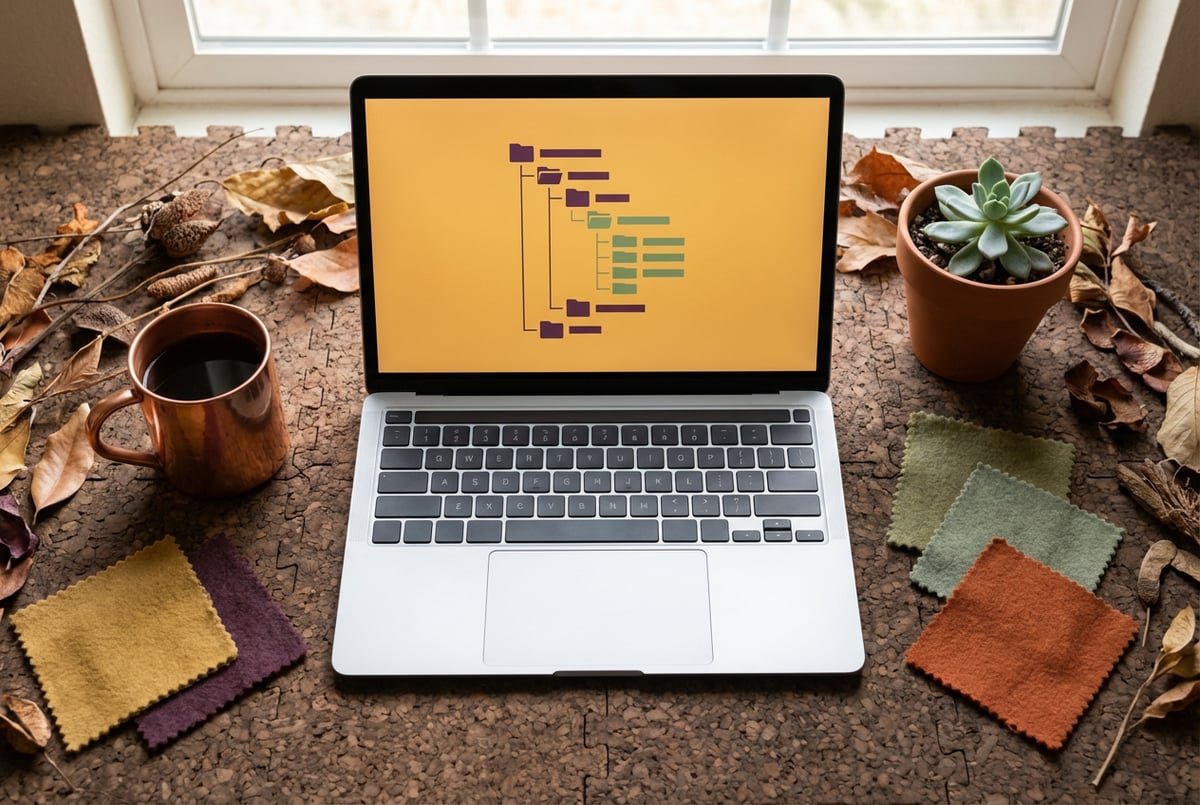
The most visually obvious addition to the Claude Code desktop app is the file structure panel — a persistent sidebar showing your project’s directory tree as Claude works.
At first glance, it looks like a minor cosmetic change. It’s not.
What You Can See in Real Time
The panel shows your full project hierarchy while Claude is actively working. As the agent creates, modifies, or deletes files, the tree updates live. You’re not watching a log scroll by and guessing what’s happening. You can see exactly which files are being touched.
Plans first. Then code.
Remy writes the spec, manages the build, and ships the app.

This matters more the larger your project gets. If you’re working on a codebase with 50+ files spread across nested directories, following Claude’s activity through terminal output alone is genuinely hard. The file tree gives you a spatial map that the terminal doesn’t.
Why This Helps With Verification
One of the consistent challenges with agentic coding is knowing when to trust the agent’s output and when to double-check. The file panel gives you a fast visual sanity check: Did Claude create the file in the right directory? Is it modifying the right config? Are there unexpected new files appearing?
These aren’t questions you want to audit after the fact by reviewing a diff. Catching a wrong directory during the run is much cheaper than cleaning it up after.
Navigation Without Breaking Flow
You can click into files directly from the panel while Claude is still running. This lets you review what’s been written without switching to another window or running a cat command in a separate terminal. Small quality-of-life improvement, but in practice it removes a lot of context switching from your workflow.
Markdown Rendering: Making Output Actually Readable
Claude Code has always been verbose with its planning and reasoning output. When it explains what it’s about to do, generates a task breakdown, or writes documentation, that output contains markdown — headers, bullet points, code blocks, bold text.
In a terminal, all of that renders as raw syntax. Pound signs, asterisks, backticks. Readable, but work to parse.
The desktop app now renders that markdown properly. Headers look like headers. Lists format as lists. Code blocks get syntax highlighting.
Where This Shows Up in Practice
The biggest impact is on output that’s designed to be read, not run. Things like:
- Plan Mode outputs — When Claude drafts an implementation plan before writing code, that plan is often a structured markdown document. Rendered, it’s easy to review. Raw, it takes more effort.
- Documentation generation — If you’re using Claude to write README files, API docs, or internal specs, you can review the rendered result directly in the app without opening a separate viewer.
- Error explanations and summaries — Claude frequently produces structured explanations of what went wrong and what it’s going to try next. These are much faster to read when they render properly.
It sounds minor. In practice, reducing friction on reading Claude’s output affects how often you actually engage with it. If the planning phase output looks like noise, you skip it. If it’s clearly formatted, you’re more likely to review it and catch issues before execution starts.
Parallel Sessions: The Feature That Changes Your Throughput
This is the big one. The Claude Code desktop app now supports running multiple sessions simultaneously, each in its own isolated context.
You can open several projects at once, run independent agents on each, and monitor all of them from a single application window.
What Parallel Sessions Actually Mean
Before this, running parallel Claude Code work required opening multiple terminal windows or tabs, manually managing context between them, and losing the unified view entirely. Workable, but clunky.
The desktop app puts those parallel streams in a single interface. You can have:
- One session refactoring a service
- Another writing tests for a different module
- A third working on a separate feature branch
Built like a system. Not vibe-coded.
Remy manages the project — every layer architected, not stitched together at the last second.
All running at the same time. None waiting for the others.
This is different from Claude Code’s internal agent parallelism (where one session spawns sub-agents to divide a task). Desktop session parallelism is about separate, independent workstreams — multiple projects or branches running in parallel under your supervision.
For a deeper look at how parallel execution patterns work, the guide on running multiple Claude Code sessions at once covers the mechanics well, including how git worktrees fit into this workflow.
Practical Use Cases
Feature branch development. You’re building two features that don’t depend on each other. Rather than finishing one before starting the other, you run both sessions in parallel. By the time the first one finishes, the second is halfway done.
Test-and-fix loops. One session runs tests. When failures come back, a second session works on fixes. You’re not waiting for one to finish before starting the next phase.
Cross-project maintenance. If you maintain multiple codebases — a client project and an internal tool, for example — you can work on both in parallel without constantly switching terminal contexts.
The throughput difference compounds over a full work session. Tasks that would take the entire day sequentially can complete in the morning if you’re running them in parallel.
If you want to understand how to structure this kind of work systematically, the parallel agentic development playbook is worth reading alongside this.
Session Management and Context Awareness
The desktop app has also gotten better at surfacing session state — which is useful when you’re managing multiple contexts at once.
Context Window Visibility
You can see how much context each session has consumed, which is relevant when you’re deciding whether to run a compact operation or start a fresh session. This matters because context compounding is one of the most common reasons Claude Code sessions degrade over time — the agent starts referencing earlier, less relevant parts of the conversation instead of staying focused on the current task.
Having a visible indicator lets you intervene earlier, before context rot affects output quality.
Session History and Resume
The desktop app preserves session history more reliably than the terminal interface. You can pick up a previous session without losing the prior context, which is useful for longer-running projects where work spans multiple days.
This connects to Claude Code’s memory systems more broadly — the desktop app’s session persistence is one layer of a larger system that also includes the claude.md file and project-specific instructions.
Keyboard Shortcuts and Command Interface
The desktop app has its own keyboard shortcut layer that the terminal interface doesn’t provide. These aren’t documented exhaustively anywhere obvious, but several are genuinely useful:
- Quick session switching — Jump between parallel sessions without reaching for the mouse.
- Command palette — Accessible via keyboard, surfaces common actions without having to type slash commands.
- File navigation shortcuts — Move between recently edited files quickly.
If you’re coming from an IDE background, these will feel familiar. They won’t replace your editor’s shortcuts, but they reduce friction within the Claude Code workflow specifically.
Remy doesn't build the plumbing. It inherits it.
Other agents wire up auth, databases, models, and integrations from scratch every time you ask them to build something.
Remy ships with all of it from MindStudio — so every cycle goes into the app you actually want.
Desktop App vs. Terminal: When to Use Each
The desktop app isn’t strictly better than the terminal for all use cases. Here’s an honest breakdown.
Use the Desktop App When
- You’re actively supervising an agent run and want visual feedback
- You’re working on multiple sessions in parallel
- The outputs you’re reviewing include documentation, plans, or other human-readable content
- You’re newer to Claude Code and want more visual grounding in what’s happening
Use the Terminal When
- You’re running Claude Code in headless mode as part of a larger automated pipeline
- You need to integrate Claude Code into scripts or CI workflows
- You prefer keyboard-only workflows and find the GUI adds friction
- You’re on a remote server or environment where a GUI isn’t available
The comparison between the desktop app and terminal for agentic work goes deeper on this if you’re trying to make a firm decision about which to standardize on.
For most interactive development work, the desktop app is now the better default. For automation and pipeline work, the terminal (and headless mode) still wins.
How These Features Fit Into the Larger Claude Code Ecosystem
The desktop app improvements don’t exist in isolation. They’re part of a broader push to make Claude Code viable as a primary development environment rather than just an AI-assisted tool bolted onto an existing workflow.
Agent Teams and the Desktop App
With Claude Code Agent Teams, you can have multiple specialized agents collaborating on a shared task list. The desktop app’s parallel session support and file visibility make monitoring that kind of multi-agent work much more practical.
Watching a single agent is manageable in a terminal. Watching four agents working in parallel, all touching different parts of the same codebase, becomes genuinely difficult without visual tools. The file panel and session management in the desktop app are directly relevant here.
Git Worktrees and Parallel Development
The combination of desktop parallel sessions and git worktrees is particularly powerful. Each session can operate on a separate worktree — an isolated checkout of your repository — which means parallel agents don’t step on each other’s changes.
The setup for this is covered in detail in the guide on using git worktrees with Claude Code. The desktop app’s parallel session view makes this workflow more manageable to monitor in practice.
Where Remy Fits
Claude Code, even with the desktop app improvements, is still fundamentally a code-level tool. You’re working in TypeScript, navigating file structures, managing sessions — all operating at the layer of code as the source of truth.
Remy works at a different level. You describe your application in a spec — an annotated markdown document — and Remy compiles that into a full-stack application: backend, database, auth, tests, deployment. The spec is the source of truth. The code is derived output.
Seven tools to build an app. Or just Remy.
Editor, preview, AI agents, deploy — all in one tab. Nothing to install.
That distinction matters for how you think about development work. Claude Code is excellent when you have an existing codebase and need an agent to help you extend it, refactor it, or debug it. Remy is the right starting point when you’re building something from scratch and want the entire application to emerge from a structured description of what it does.
The two approaches can complement each other. Remy for the initial build, Claude Code for the iterative work that follows. Or Claude Code for the parts of your stack that exist outside the spec, Remy for the core application.
If you want to see what spec-driven development looks like in practice, try Remy at mindstudio.ai/remy.
Frequently Asked Questions
Does the Claude Code desktop app work on both Mac and Windows?
Yes. The desktop app is available for both platforms. Installation steps for each are covered in the complete setup guide for Mac and Windows. The feature set is consistent across both versions, though some keyboard shortcuts differ by OS.
How many parallel sessions can you run in the desktop app at once?
There’s no hard published limit on parallel sessions in the desktop app. In practice, the constraint is your machine’s available memory and the rate limits on your Claude subscription plan. Most users run 2–4 parallel sessions comfortably. Running more than that is possible but monitoring all of them simultaneously becomes harder.
Is the file structure panel available for all project types?
The file panel works for any project opened via the desktop app. It reflects the actual directory structure of whatever path you’ve loaded. There’s no requirement for a specific file structure or framework — it shows what’s there.
Does markdown rendering affect how Claude writes its output, or just how it displays?
It only affects display. Claude produces the same output whether you’re in the desktop app or the terminal. The rendering layer in the desktop app interprets the markdown syntax and formats it visually. This means if you copy Claude’s output to use elsewhere, you’ll still get the raw markdown text, not formatted HTML.
Can I use the desktop app for headless or automated workflows?
The desktop app is primarily for interactive use. For automated and pipeline workflows — running Claude Code as part of a CI process or integrating it with external systems — the terminal and headless mode are the right tools. The desktop app adds useful features for human-supervised work, not for unattended automation.
How does parallel session support in the desktop app differ from Claude Code’s internal agent parallelism?
Desktop parallel sessions are separate, independent Claude Code instances that you manage from a single window. Internal agent parallelism is when one Claude Code session spawns multiple sub-agents internally to divide a complex task. The two can work together: you might run two desktop sessions in parallel, each of which internally uses split-and-merge patterns with sub-agents to further parallelize work within each session.
Key Takeaways
- The Claude Code desktop app now includes a live file structure panel that updates in real time as agents work — giving you spatial awareness of what’s being touched.
- Markdown rendering makes planning outputs, documentation, and summaries significantly easier to review, which improves how often you actually engage with them.
- Parallel session support is the most impactful addition: running multiple independent workstreams from a single interface changes throughput meaningfully.
- Context window visibility helps you intervene before session quality degrades, rather than after.
- The desktop app is best for interactive, supervised work. The terminal remains the right choice for automated and pipeline workflows.
- For building new applications from scratch, Remy’s spec-driven approach is a different — and often faster — starting point than any code-level tool. Try it at mindstudio.ai/remy.