How to Generate Editable SVG Files with AI: Recraft V4.1 Vector Model Explained
Recraft V4.1 Vector generates real editable SVG files you can open in Figma or Illustrator. Learn how it works and when to use it over raster image models.
Why Most AI Image Models Can’t Help Designers (and What Recraft V4.1 Does Differently)
If you’ve ever tried to use an AI-generated image in a real design project, you’ve hit the wall. You get a beautiful PNG. You try to scale it up. It gets blurry. You try to hand it off to a developer who needs clean paths. You try to change the color. None of it works the way it should.
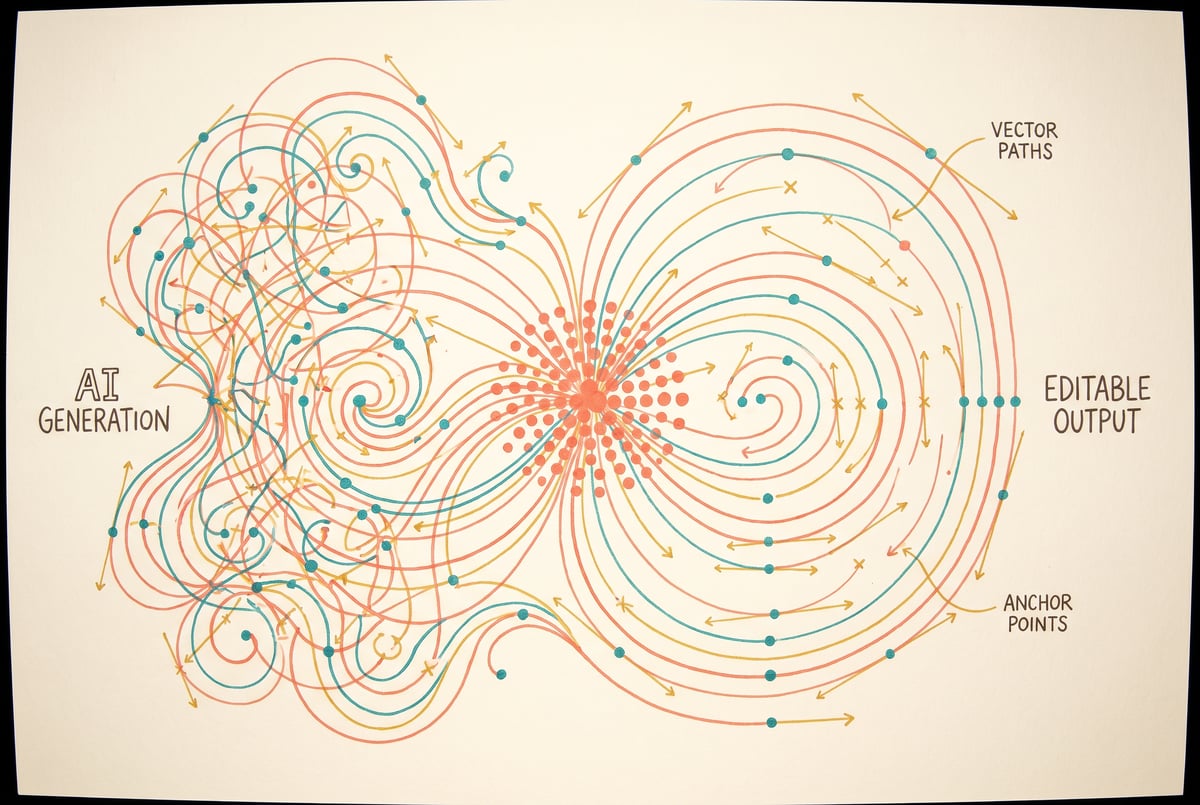
That’s the fundamental limitation of raster-based AI image generation — and it’s the exact problem Recraft V4.1’s vector model is built to solve. Instead of generating pixels, it generates real, editable SVG files that open cleanly in Figma, Adobe Illustrator, and Inkscape.
This article breaks down how the Recraft V4.1 vector model works, what kinds of output it produces, when it makes sense to use it over raster alternatives, and how to get the best results from it in a real workflow.
Raster vs. Vector: Why the Format Matters
Before getting into the model itself, it’s worth being clear about why the file format matters so much.
Raster images (PNG, JPG, WebP) store information as a grid of pixels. They look great at their original size, but they don’t scale — enlarge one enough and you see the individual squares. Every pixel is a fixed color value, so editing colors or shapes means working at the pixel level, which is time-consuming and lossy.
Seven tools to build an app. Or just Remy.
Editor, preview, AI agents, deploy — all in one tab. Nothing to install.

Vector images (SVG, AI, EPS) store information as mathematical descriptions of shapes — paths, curves, fills, and strokes. Because they’re defined mathematically, they scale infinitely without any loss of quality. A logo generated as an SVG will look identical at 50px and 5000px. Individual elements can be selected, recolored, or removed.
For design work — logos, icons, illustrations, UI components, infographics — vector format is almost always what you actually need. Raster AI models give you something that looks like a vector output but technically isn’t. Recraft V4.1’s vector model gives you the real thing.
What Recraft V4.1 Vector Actually Generates
Recraft’s vector model doesn’t take a raster image and trace it into paths (a common workaround that produces messy results). It generates SVG directly from a text prompt.
The output is a genuine .svg file containing structured XML — <path>, <rect>, <circle>, <g> groups, and similar elements with explicit fill and stroke attributes. When you open it in Illustrator or Figma, you see a properly structured layer hierarchy, not a flattened mess.
What the SVG Code Actually Looks Like
Recraft’s SVG output tends to use clean path data rather than embedded raster images (which some lower-quality “vector” tools sneak in). The paths are expressed as standard SVG d attributes — Bezier curves, lines, and arcs — which any vector editor can parse and manipulate.
The quality varies by complexity. Simple geometric compositions (icons, flat illustrations, logos with limited color palettes) tend to produce clean, editable output. Complex photorealistic scenes produce more intricate path structures that may require cleanup, but the underlying editability is still there.
How It Compares to Other “Vector” AI Tools
Several other AI tools market SVG generation but produce embedded PNGs inside an SVG wrapper — essentially a raster image with a .svg extension. This isn’t editable in any meaningful sense.
Recraft V4.1 generates actual path-based SVGs. This is verified by opening the file in a text editor and checking that the content is XML paths rather than base64-encoded image data. It’s a meaningful distinction for professional workflows.
How to Generate Editable SVG Files with Recraft V4.1
Here’s a practical walkthrough of generating usable SVG output.
Step 1: Set Up Your Prompt for Vector Output
Prompting for vector output is different from prompting for photo-realistic images. The model handles flat, geometric, and illustrative styles better than complex textures or photographic subjects.
Good prompt characteristics for clean SVG output:
- Flat design or minimal shading
- Limited color palettes (2–5 colors work best)
- Clear subject matter — logos, icons, simple scenes
- Style references like “flat vector,” “icon style,” “geometric illustration,” “line art”
A prompt like "a flat vector illustration of a mountain landscape with a sun, minimal style, 4 colors" will generate a much cleaner SVG than "a photorealistic mountain at sunset." The latter is possible, but the resulting SVG will be extremely complex and harder to edit.
Step 2: Choose the Vector Model in Recraft
In Recraft’s interface, you explicitly select the vector model — it’s separate from their raster image models. The V4.1 vector model is specifically trained on SVG-native outputs rather than fine-tuned from a pixel-based architecture.
Remy doesn't build the plumbing. It inherits it.
Other agents wire up auth, databases, models, and integrations from scratch every time you ask them to build something.
Remy ships with all of it from MindStudio — so every cycle goes into the app you actually want.
When accessing Recraft via API or through third-party tools, the model identifier for vector output is distinct from their standard image generation model. Check the API documentation to confirm you’re requesting the vector endpoint.
Step 3: Download and Inspect the SVG
Download the generated .svg file. Before opening it in your design tool, open it in a text editor to check the structure.
You’re looking for:
<svg>as the root element with properviewBoxattributes<path>elements withdattributes containing path data<g>groups for organized layer structurefillandstrokeattributes (notstyle="background-image: url(data:image/png...")
If you see base64 image data embedded in the SVG, the tool generated a raster-in-SVG file. That’s not a vector. With Recraft V4.1, you should see proper path-based structure.
Step 4: Import into Figma or Illustrator
In Figma: Drag and drop the SVG directly onto the canvas. Figma will parse the path structure and create editable vector layers. You can ungroup them and edit individual paths, change colors, or restructure the hierarchy.
In Adobe Illustrator: Use File > Open (not Place) to open the SVG as an editable document. Each path becomes its own object. The Layers panel will show the structure. Use Direct Selection (A) to edit individual anchor points.
In Inkscape: Open directly. Inkscape has native SVG support and shows the full path structure in the XML editor.
Step 5: Edit and Refine
This is where the vector advantage shows up. You can:
- Select a specific shape and change its fill color
- Delete elements you don’t need
- Scale the entire file to any size
- Export as SVG, PDF, or high-resolution PNG for any use case
- Hand off clean paths to a developer for web use or animation
Common Challenges and How to Handle Them
Even with a good model, SVG generation has real-world limitations.
Complex Shapes Produce Dense Path Data
If your prompt asks for something with lots of detail, the resulting paths can be extremely dense — hundreds of points on a single path. This is technically editable but practically difficult.
Fix: Simplify the subject in your prompt. If you need detail, generate the complex version and use Illustrator’s Simplify Path tool to reduce anchor point count without major shape distortion.
Layer Structure Can Be Flat
Some outputs group everything into a single <g> element rather than organizing shapes logically. This makes editing harder because you have to select individual paths manually.
Fix: After import, use Figma’s “Flatten” or Illustrator’s Layer panel to reorganize manually. For anything you’ll be editing frequently, a little reorganization time upfront saves a lot later.
Gradients and Shadows May Not Round-Trip Cleanly
Recraft V4.1 can generate SVGs with gradient fills. SVG gradients use <linearGradient> or <radialGradient> elements and are fully editable, but some export workflows strip them. Check that your target application supports SVG gradients before building a workflow around them.
Text Renders as Paths, Not Editable Text
This is expected behavior for AI-generated SVGs. Text in the composition will be converted to path outlines rather than live text. If you need editable text, generate the illustration without text and add it manually in your design tool.
When to Use Recraft V4.1 Vector vs. Raster AI Models
Built like a system. Not vibe-coded.
Remy manages the project — every layer architected, not stitched together at the last second.
The vector model isn’t always the right choice. Here’s when to use each.
Use Recraft V4.1 Vector when:
- You’re generating logos, icons, or brand assets
- The output needs to scale to print or large format sizes
- You need to edit colors, shapes, or structure after generation
- You’re handing off to a developer who needs clean SVG for web or animation
- You’re creating flat illustrations for UI or presentations
Use raster models (FLUX, Stable Diffusion, Midjourney, DALL-E, etc.) when:
- You need photorealistic output
- The subject has complex textures, lighting, or depth
- The final format is web display at a fixed size
- You’re generating reference images, not production assets
- You want cinematic or painterly styles
A practical rule: if the output needs to work in a professional design system, vector is usually the right starting point. If it just needs to look good in a specific context, raster is often faster and produces more realistic results for certain subject types.
How to Add Recraft V4.1 to an Automated Design Workflow
Generating a single SVG manually is straightforward. But if you’re producing dozens of icons, building a content pipeline, or integrating vector generation into a larger production system, you need automation.
This is where MindStudio’s AI Media Workbench fits naturally. MindStudio gives you access to 200+ AI models — including Recraft’s vector model — from a single no-code interface. You can trigger SVG generation as part of a broader workflow: pull a list of icon names from Airtable, generate SVGs for each, and push the results to a shared Google Drive folder, all without writing a line of code.
A practical example: a design team building a product icon library could set up a MindStudio agent that accepts a brief description via form input, generates an SVG via Recraft V4.1, runs it through quality checks, and delivers it to a Slack channel for review. What would otherwise be a manual back-and-forth between a designer and an AI tool becomes a repeatable, automated process.
MindStudio also connects to tools like Figma via webhooks, meaning generated assets can flow directly into a design system’s review queue. For teams producing large volumes of design assets, this kind of pipeline is a significant time saver.
You can start building for free at mindstudio.ai.
Frequently Asked Questions
What is Recraft V4.1 and how is it different from other image models?
Recraft V4.1 is a family of AI image generation models developed by Recraft. The vector variant is specifically trained to generate SVG files with real path-based structure — not raster images disguised as SVGs. Most AI image models (Stable Diffusion, DALL-E, Midjourney) produce pixel-based outputs. Recraft’s vector model produces editable vector graphics that work natively in design tools like Figma and Adobe Illustrator.
Can I really edit Recraft SVG outputs in Figma or Illustrator?
Other agents start typing. Remy starts asking.
Scoping, trade-offs, edge cases — the real work. Before a line of code.
Yes, with some caveats. Simple to moderately complex SVGs from Recraft V4.1 open cleanly in both tools and allow standard vector editing: selecting paths, changing colors, adjusting shapes, resizing. Very complex outputs may have dense path structures that require simplification. Text is rendered as path outlines rather than live text, so you’ll need to add any text manually.
Does Recraft V4.1 vector output work for logos?
It can generate strong logo candidates, especially for flat, geometric, or icon-style marks. It’s less reliable for complex letterform-based logos or marks requiring very specific typographic treatment. The typical workflow is to generate several options, choose the strongest one, open it in Illustrator, and refine the paths manually. It’s a useful starting point rather than a finished product for most logo work.
How do I access the Recraft V4.1 vector model?
Recraft’s vector model is accessible through Recraft’s own web application at recraft.ai, and via their public API for programmatic access. It’s also available through third-party platforms that integrate Recraft’s API, including MindStudio. API access requires an account and API key from Recraft; platforms like MindStudio abstract this and let you use the model without managing API credentials separately.
What file formats can I export from a Recraft SVG?
Once you have the SVG in Figma or Illustrator, you can export to any format those tools support: SVG, PDF, PNG at any resolution, WebP, JPEG, EPS. For web use, SVG is usually the best choice for icons and illustrations. For print, export as PDF or high-resolution PNG (300 DPI or higher). For animations, SVG is the native format that CSS and JavaScript can target.
Is AI SVG generation good enough for production use?
For many use cases, yes — especially icons, simple illustrations, and decorative elements. For brand-critical assets like primary logos, AI generation is typically a starting point that requires manual refinement from a skilled designer. The key advantage is speed: getting a solid, editable starting point in seconds rather than building from scratch. Whether that starting point meets production standards without further work depends on the complexity of what you’re generating.
Key Takeaways
- Recraft V4.1’s vector model generates real SVG files with editable path structure — not rasterized images with an SVG extension.
- The output works directly in Figma, Adobe Illustrator, and Inkscape without conversion steps.
- Prompt for flat, geometric, limited-color subjects to get the cleanest SVG output.
- Vector generation is the right choice when output needs to scale, be edited, or integrate into a design system — raster models are still better for photorealistic output.
- Tools like MindStudio let you connect Recraft’s vector model into automated pipelines that scale from single assets to full icon libraries.
If you’re building design workflows that involve AI-generated assets at any volume, connecting the generation step to an automated pipeline with MindStudio is worth exploring — you can chain Recraft V4.1 with file storage, review tools, and team notifications in a single no-code workflow.