Google Pomelli Video Animation Only Works in 9:16 — The Hidden Format Requirement Most Users Miss
The animate button in Pomelli only appears after switching to 9:16 story format. Animated text is also unreliable. Here's the workaround for both issues.

The Animate Button in Google Pomelli Is Hidden Behind a Format Switch
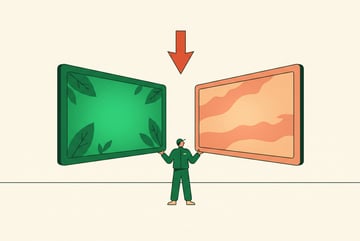
Google Pomelli’s animate button doesn’t appear unless you first switch your creative to 9:16 story format. That’s it. That’s the entire reason most users can’t find it.
If you’ve been staring at a campaign image wondering where the video option went, you’re not missing a setting buried in a menu. The button is conditionally rendered based on aspect ratio. Switch to story format, and it appears. Stay in feed format, and it doesn’t exist as far as the UI is concerned.
There’s a second issue layered on top of this: even once you find the animate button, you should use “animate without text.” Animated text generation in Pomelli is currently unreliable — the text renders incorrectly often enough that it’s not worth including in your workflow by default.
These two constraints together — the hidden format requirement and the broken text animation — define the practical ceiling of Pomelli’s video output right now. Understanding both saves you a lot of confused clicking.
What’s Actually Happening in the UI
Pomelli is a Google Labs AI marketing tool. It’s built around the concept of Business DNA — a structured profile of your brand that includes brand values, brand aesthetic, brand tone of voice, a business overview, logo, colors, fonts, and images. Everything Pomelli generates flows from that profile.
Other agents ship a demo. Remy ships an app.
Real backend. Real database. Real auth. Real plumbing. Remy has it all.

The campaign section takes a product image or a product link, accepts a target audience prompt, and generates three campaign ideas. Each idea produces a set of creative images. Those images can be edited — you can toggle the header on or off, change the description text, adjust font, color, and size, generate a call-to-action, or hit “fix layout” to let Pomelli automatically reorient the product placement. There’s also a version history system: left and right arrows cycle between edit versions, so you can compare where you started versus where you are.
All of that works regardless of format. The animation feature does not.
When you’re looking at a campaign creative in standard feed format, the animate option is simply absent. The UI doesn’t tell you why. There’s no tooltip, no grayed-out button with an explanation. It’s just not there. The only way to surface it is to resize the creative to 9:16 — the story post format — and then the animate button appears.
This is almost certainly an intentional product constraint rather than a bug. Story format (9:16) maps directly to Instagram Stories, TikTok, YouTube Shorts — the vertical video surfaces where short animated content actually lives. Animating a square or landscape feed post is a less common use case, and Google may have simply not shipped that path yet. But the tool gives you no indication of this, which is why it trips people up.
Why the Format Gate Matters More Than It Seems
The practical implication is that your animation workflow has to be planned from the start, not bolted on at the end.
If you generate a campaign creative in feed format, edit it, get it looking right, and then decide you want to animate it — you have to resize it to 9:16 first. That resize isn’t always clean. Product placement shifts. Text reflows. You may need to use the fix layout button again, or re-edit the header and description. The version history arrows help here — you can cycle back through your edits — but you’re still doing rework that could have been avoided.
The cleaner approach: if you know you want video output, start in story format. Generate the campaign creative at 9:16 from the beginning. Edit there. Animate there. Then if you also want a feed version, use the resize/duplicate function to create the square or landscape variant as a separate asset.
This is the same logic that applies to any multi-format content workflow. Designing for the most constrained format first (vertical video) and then adapting down is almost always less painful than designing for a flexible format and then trying to retrofit it into a constrained one. Pomelli’s architecture just makes this more explicit by hiding the animate button until you’ve committed to the format.
For teams building content pipelines that need to produce both static and animated assets across story and feed formats, this distinction matters at the workflow design level, not just the individual asset level. Platforms like MindStudio handle this kind of multi-step orchestration — 200+ models, 1,000+ integrations, and a visual builder for chaining agents and workflows — which is relevant if you’re thinking about automating Pomelli-style content generation at scale rather than doing it manually per campaign.
The Animated Text Problem Is Separate and Worse
The format gate is a workflow issue. The animated text problem is a quality issue.
Remy is new. The platform isn't.
Remy is the latest expression of years of platform work. Not a hastily wrapped LLM.
When you animate a creative in Pomelli, the system generates motion based on what it thinks makes sense for the image — it’s not prompt-driven in any meaningful way. You don’t specify “zoom in on the product” or “pan left.” The animation is automatic. That’s a limitation, but it’s a known one and the results are often usable. A product sitting outside a store, text appearing after a beat — that kind of simple motion works.
The animated text layer is different. When text is included in the animation, it frequently renders incorrectly. The transcript from the tutorial is direct about this: “if you do animate it with the text, generated text usually just gets messed up pretty often.” The recommendation is to animate without text as a default, not as a fallback.
This is a meaningful constraint because text is often the functional part of a marketing creative. The call-to-action, the product name, the tagline — these are what you’re trying to communicate. If the animated version can’t reliably render those, then the animated output is essentially a motion background for a product, not a complete ad unit.
There are two ways to work around this. First, treat the animated version as a video asset and add text in post — overlay it in a video editor after exporting from Pomelli. Second, accept that the animated output is a supplementary format rather than a primary one, and use the static campaign images as your main deliverable. The animation adds visual interest for organic social content where motion stops the scroll, but the static version carries the actual message.
The second approach is probably more realistic for most use cases right now. Pomelli’s photoshoot feature — which generates studio, ingredient, in-use, and contextual template variations auto-selected based on product type — produces static images that are genuinely high quality and immediately usable. The animation feature is more of a nice-to-have that happens to have a rough edge.
What’s Buried in the Animation Constraint
Here’s the non-obvious part: the animate button’s behavior tells you something about how Pomelli is architected.
The tool is built around the Business DNA as a central state object. Everything — logo generation, campaign ideas, photoshoot templates, creative edits — reads from and writes to that DNA. The one-click “add all to Business DNA” button for generated photoshoot images is a good example of this: it’s not just a convenience feature, it’s how the system maintains brand consistency across sessions. Your generated images become part of the DNA, which influences future generations.
Animation sits outside this loop. It’s a terminal operation — you animate, you export, you’re done. There’s no “add this animation style to Business DNA” equivalent. The animation parameters aren’t learned from your brand profile. The motion is generic, applied to whatever image you’ve created.
This suggests animation was added as a feature on top of an existing image-generation architecture, rather than being designed into the system from the start. The format gate (9:16 only) and the text rendering issues both point in the same direction: video is a first-generation capability in a tool that was primarily designed for static image output.
That’s not a criticism — it’s a useful mental model for setting expectations. Pomelli is strong at brand-consistent static content generation. The Business DNA system, the campaign workflow, the photoshoot templates, the editing tools — these are coherent and well-integrated. Video is an early addition that hasn’t fully caught up to the rest of the system yet.
Google will almost certainly improve this. The tutorial notes as much: “I’m pretty sure Google will change this because this doesn’t really give you that much creative direction.” Prompt-driven animation control, text rendering that actually works, format-agnostic animate buttons — these are obvious next steps. But right now, you’re working with what exists.
If you’re thinking about how AI-generated video fits into broader content automation, it’s worth understanding the abstraction layers involved. Tools like Remy take a different approach to this kind of layered system design: you write a spec — annotated markdown — and a complete full-stack application gets compiled from it, backend, database, auth, and deployment included. The spec is the source of truth; everything else is derived. Pomelli’s Business DNA is doing something conceptually similar for brand assets, just without the compilation step.
The Practical Workflow That Actually Works
Given the constraints, here’s a workflow that avoids the common failure modes.
For static campaign content: Use Pomelli’s campaign section normally. Product image or link, target audience prompt, three campaign ideas, pick one, edit with the header/description/font/color/size controls, use fix layout if product placement is off, cycle version history to compare. Export. This path is reliable.
For photoshoot assets: Upload your product image, let Pomelli auto-select the relevant templates from studio, ingredient, in-use, and contextual, generate the four variations, edit backgrounds or details as needed, and use one-click “add all to Business DNA” to persist the images. These are your highest-quality outputs and the most immediately usable across channels. If you want to understand how AI-generated product photos compare to real photography in practice, the Google Pomelli product photos quality discussion is worth reading alongside this.
For animated content: Decide upfront that you want video. Generate or resize your creative to 9:16 story format first. Edit it in that format. Then click animate — the button will now be visible. Choose “animate without text.” Review the generated motion; if it’s not right, click animate again for a new variation. Export the version you want. If you need text on the final asset, add it in post-production.
For multi-format campaigns: Generate in 9:16 first if animation is a goal. Use resize/duplicate to create the feed format version as a separate asset. Don’t try to animate the feed version — it won’t work, and even if Google adds that capability later, the vertical-first approach is better practice for social content anyway.
The version history arrows are underused. Most people edit forward and never look back. But if you’ve made a series of edits and the earlier version actually looked better, the left arrow gets you there without starting over. This is especially useful after using fix layout, which sometimes makes things worse before you realize it.
What to Watch For as Pomelli Develops
The animation feature in its current state is a preview of a capability, not a finished one. The format gate will probably disappear — there’s no good reason animation should be locked to 9:16 permanently. The text rendering will improve; Google has the model infrastructure to make animated text work reliably, it just hasn’t been applied here yet. Prompt-driven animation control is the obvious missing feature.
What’s worth watching is whether Google integrates animation more deeply into the Business DNA loop. If your brand’s motion style — pacing, transition type, animation direction — becomes part of the DNA the way colors and fonts are, that would make Pomelli’s video output genuinely differentiated. Right now it’s generic motion applied to brand-consistent images. The combination of those two things is useful but not particularly distinctive.
For AI-generated video more broadly, the how to generate an AI video from an image workflow is a useful reference point — it shows what’s possible when the image-to-video pipeline is more directly controllable than what Pomelli currently exposes. And if you’re interested in how animated content fits into larger production workflows, Claude Code for video editing and motion graphics covers a different approach to the same problem.
The short version: Pomelli’s animate button is there. It’s just behind a format switch that the tool doesn’t tell you about. Switch to 9:16, skip the text animation, and you’ll get usable output. Everything else is waiting for the next version.