AI Image Generation for Social Media: How to Create Carousels, Quote Cards, and Calendars
Use AI image models to generate Instagram carousels, LinkedIn posts, quote cards, and 30-day content calendars—all from a single prompt.
Stop Spending Hours on Social Media Graphics
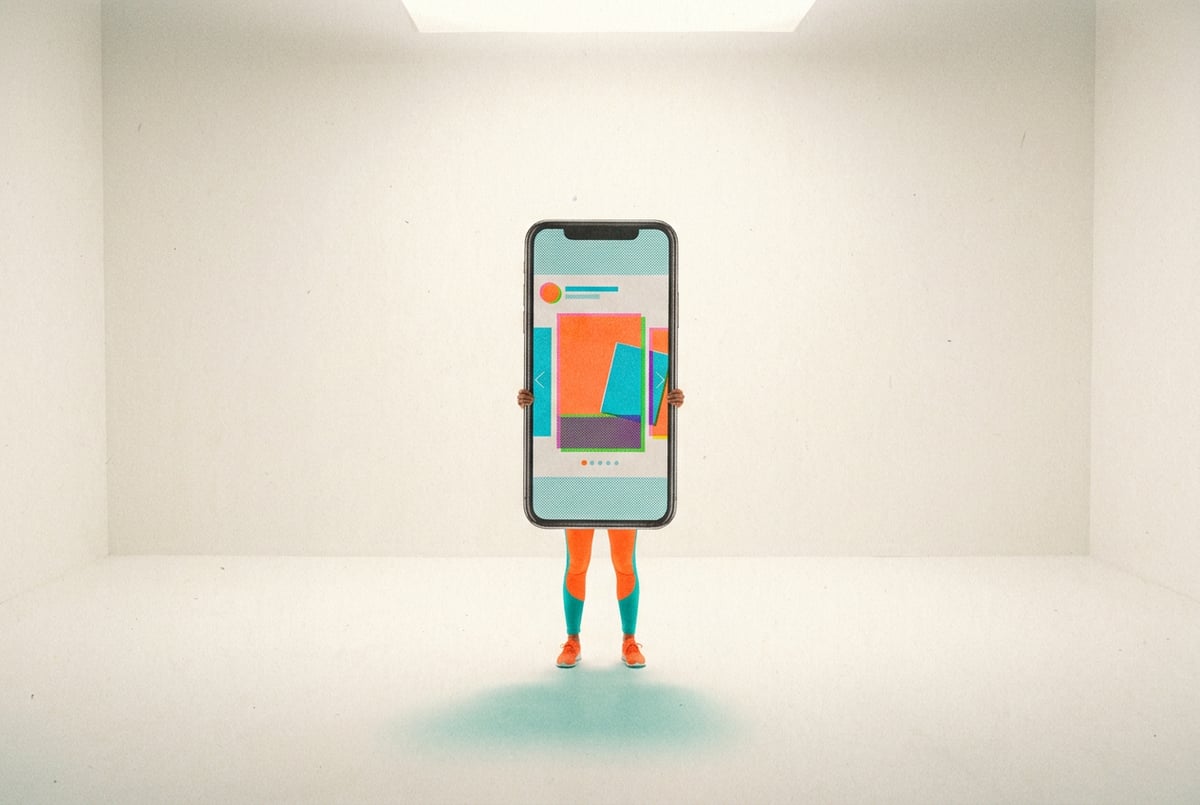
Social media teams spend an enormous amount of time producing visual content. A single Instagram carousel can take a designer two to three hours. A month of quote cards? Easily a full week of work. And a 30-day content calendar with matching visuals? That used to require a team.
AI image generation changes the math. With the right setup, you can produce carousels, quote cards, and full content calendars in a fraction of the time — without sacrificing quality or brand consistency. This guide shows you exactly how to do it, including which prompts work, how to structure your workflows, and where to plug in automation.
Whether you’re a solo creator, a social media manager, or a marketing team looking to scale output, AI image generation for social media is one of the highest-leverage skills you can build right now.
Why Visual Content Is Hard to Scale (and Why AI Changes That)
The core problem with social media content production isn’t ideation — it’s execution. Most marketers have more ideas than they have bandwidth to produce.
Visual content consistently outperforms text-only posts across platforms. Research from HubSpot shows that posts with images generate significantly more engagement than plain text, and carousel posts on Instagram routinely outperform single-image posts in reach and saves.
One coffee. One working app.
You bring the idea. Remy manages the project.

But producing that content manually creates a bottleneck. Every carousel needs individual slides. Every quote card needs typography, layout, and brand colors. Every calendar needs planning, asset creation, and consistency checks. For small teams, that pipeline breaks down fast.
AI image models — particularly diffusion-based models like FLUX, Stable Diffusion, and DALL-E 3 — are now capable enough to produce polished, platform-ready visuals from text prompts. Combined with workflow automation, you can chain together the entire process: ideation, image generation, copy, and scheduling.
Understanding the Types of Social Media Visuals You Can Generate
Before writing your first prompt, it helps to understand what each content type needs from an image model.
Instagram and LinkedIn Carousels
Carousels are multi-slide posts that tell a story or walk through a concept step by step. Each slide needs to be visually consistent — same fonts, same color palette, same layout logic — while still being distinct enough to hold attention as the viewer swipes.
For AI generation, the challenge is consistency. You’re not generating one image; you’re generating a sequence. Your prompts need to anchor the visual style so slides feel like they belong together.
Key requirements:
- Consistent background treatment (solid colors, gradients, or textures that repeat)
- Clear hierarchy — one main point per slide
- Aspect ratio discipline — 1:1 for Instagram grid, 4:5 for feed carousels, 9:16 for Reels covers
Quote Cards
Quote cards are simpler but more unforgiving. The image is usually minimal — a background, maybe a texture or abstract element — and the text carries the weight. Bad typography kills a quote card.
Because AI models aren’t great at rendering readable text (yet), the best workflow is to generate the background image separately and overlay text in a design tool like Canva, Figma, or Adobe Express.
Key requirements:
- Atmospheric or abstract backgrounds that don’t compete with text
- Consistent brand feel — muted vs. vibrant, editorial vs. playful
- Space for text — your prompt should leave visual “breathing room”
Content Calendars with Visual Themes
A 30-day content calendar isn’t just a schedule — it’s a visual plan. Each week or content pillar should have a distinct look so followers can recognize your content type at a glance without even reading the caption.
For this type of workflow, AI helps you define a visual language for each content category, then generate template-style assets that can be reused and adapted throughout the month.
How to Prompt AI Image Models for Social Media Content
Prompt quality is the biggest variable in AI image generation. Vague prompts produce generic results. Specific, structured prompts produce usable, on-brand assets.
The Anatomy of a Strong Social Media Image Prompt
A good prompt for social media visuals typically includes these components:
- Subject — What is the main visual element?
- Style — Photography, illustration, flat design, 3D render, abstract?
- Color palette — Specific colors or general mood (warm, cool, monochrome)
- Composition — Where should the focal point sit? Any negative space needed?
- Aspect ratio — Specify the format
- Platform context — What will this be used for?
Example prompt for a LinkedIn carousel slide background:
“Minimalist abstract background, soft navy blue and warm gold gradient, geometric subtle texture, clean composition with large empty center for text overlay, professional corporate feel, 4:5 aspect ratio, flat design”
Example prompt for an Instagram quote card background:
“Soft watercolor wash, muted sage green and cream tones, loose brushstroke texture in bottom corner, high contrast white space in upper two-thirds for text placement, square format, editorial lifestyle aesthetic”
Style Consistency Across a Series
When generating a carousel, run all slides through the same base prompt — just vary the content-specific elements. Think of the shared prompt elements as your visual template.
You can also use style references if your image model supports them. FLUX and Stable Diffusion variants support LoRA models that lock in a visual style, which is useful for maintaining brand consistency at scale.
For teams that need strict brand consistency, generating a “master style prompt” and saving it as a reusable snippet is a practical approach. Write it once, paste it into every new prompt.
What to Avoid in Social Media Image Prompts
- Don’t include text in the prompt if you need readable copy on the image. AI models struggle with readable text — let the design tool handle typography.
- Don’t over-describe. Long, contradictory prompts often produce muddled results. Priority order matters.
- Don’t skip the aspect ratio. Most models default to square. Specify your format upfront.
Step-by-Step: Creating an AI-Generated Instagram Carousel
Here’s a repeatable process for producing a complete carousel from scratch.
Step 1: Define Your Topic and Slide Structure
Before generating anything, outline your carousel. A strong 7-slide Instagram carousel typically follows this structure:
- Slide 1: Hook — a bold claim, question, or surprising stat
- Slides 2–6: One idea per slide, each building on the last
- Slide 7: Call to action or summary
Write your copy for each slide first. This keeps the visual work focused.
Step 2: Generate Your Visual Style
Pick a single background style and generate one test image. Evaluate it for:
- Color accuracy against your brand palette
- Appropriate negative space for text
- Overall polish and professionalism
Adjust your prompt until this reference image looks right. This is your visual template.
Step 3: Generate Slide Backgrounds at Scale
Once your reference image is approved, run the same base prompt for all slides. You can vary minor elements — slightly different texture placement, subtle gradient shifts — to add visual interest while keeping coherence.
Generate 2–3 variants per slide and select the best. Don’t overthink it; small variations matter less than you’d think.
Step 4: Assemble in a Design Tool
Import your AI-generated backgrounds into Canva, Figma, or Adobe Express. Add your text, check contrast ratios for readability, and apply any brand elements (logo placement, font choices).
This hybrid approach — AI for images, design tool for typography — produces the cleanest results.
Step 5: Export and Schedule
Export each slide at the correct resolution (1080×1350px for 4:5, 1080×1080px for square). Batch upload to your scheduling tool.
Total time for a 7-slide carousel using this workflow: 45–90 minutes, depending on how much prompt iteration you need.
Step-by-Step: Building a 30-Day Content Calendar with AI Visuals
Remy doesn't build the plumbing. It inherits it.
Other agents wire up auth, databases, models, and integrations from scratch every time you ask them to build something.
Remy ships with all of it from MindStudio — so every cycle goes into the app you actually want.
A content calendar is more than a list of dates. A good one maps out content pillars, visual themes, and posting cadence — all coordinated so the overall profile looks intentional.
Step 1: Define Your Content Pillars
Most social strategies run on 3–5 content pillars. For example:
- Educational — tips, how-tos, stats
- Inspirational — quotes, stories, wins
- Promotional — offers, product highlights
- Community — reposts, engagement questions, polls
- Behind-the-scenes — process, team, culture
Each pillar gets its own visual identity. This is where AI image generation becomes especially useful — you can define a distinct visual style for each pillar and generate a batch of background assets for the whole month in one session.
Step 2: Assign Visual Themes to Each Pillar
Map your content pillars to visual styles:
| Pillar | Visual Style | Color Palette |
|---|---|---|
| Educational | Clean, flat, minimal | White + brand accent |
| Inspirational | Soft texture, atmospheric | Warm neutrals |
| Promotional | Bold, graphic | Full brand colors |
| Community | Friendly, photo-adjacent | Light and airy |
| Behind-the-scenes | Casual, candid texture | Muted earth tones |
Write a base prompt for each pillar. These are your visual templates.
Step 3: Generate Assets in Batches
For a 30-day calendar with daily posts, you’ll need roughly:
- 30 background images (more if you want variety within a pillar)
- Any supporting graphic elements (icons, dividers, frames)
Generate 8–10 images per pillar style. That gives you a library to draw from, with enough variety to avoid repetition.
Step 4: Plan the Calendar
Use a spreadsheet or a tool like Notion or Airtable to map out the 30 days. For each post, assign:
- Date
- Content pillar
- Copy (headline + caption)
- Visual asset from your generated library
You can use an AI writing tool to draft caption copy in bulk — feed it your pillar descriptions and it’ll produce 30 captions in minutes. Pair each caption with the corresponding visual.
Step 5: Schedule Everything at Once
Import your content calendar into a scheduling tool (Buffer, Later, Publer, etc.) and schedule all 30 days at once. Monthly batch sessions are dramatically more efficient than daily posting.
Generating Quote Cards That Actually Look Good
Quote cards are everywhere on social media — which means mediocre ones get ignored. Here’s how to make AI-generated quote card backgrounds that stand out.
Choose Your Visual Direction First
Quote cards tend to fall into a few visual categories:
- Editorial — clean, minimal, high contrast (works for business/thought leadership)
- Lifestyle — soft colors, organic textures, natural light feel (works for wellness, coaching, lifestyle brands)
- Bold graphic — high saturation, strong geometric elements (works for youth brands, entertainment)
- Abstract art — painterly, expressive backgrounds (works for creative industries)
Pick one direction and stay consistent. Brand recognition on social media comes from repetition.
Writing Prompts for Quote Card Backgrounds
The key is leaving space for text. Your prompt should explicitly call for negative space in the right area.
Editorial style:
“Minimal off-white linen texture background, subtle paper grain, clean empty center and top third for text overlay, soft warm light from upper right, square format, sophisticated editorial photography aesthetic, no text, no people”
Lifestyle style:
“Soft blurred bokeh background, warm afternoon light, muted terracotta and cream tones, shallow depth of field, gentle light leak in upper corner, 1:1 format, lifestyle photography feel, empty center for text”
Remy is new. The platform isn't.
Remy is the latest expression of years of platform work. Not a hastily wrapped LLM.
Abstract art style:
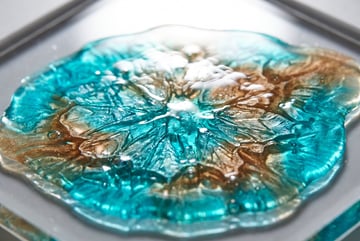
“Abstract acrylic pour painting texture, deep indigo and copper metallic tones, flowing organic movement, high contrast areas with lighter space at top center for text, square format, contemporary art aesthetic”
A/B Test Your Visual Styles
Generate 3–4 different background styles and test them with your audience. Track saves and shares — those metrics indicate whether the visual resonated beyond a passive scroll-by.
Common Mistakes to Avoid
Even with good tools and prompts, a few recurring mistakes will undermine your results.
Generating text in image prompts. AI models render text poorly — letters get distorted, words become unreadable. Always add text in a design tool after generating the base image. Include “no text” in your prompt to be safe.
Inconsistent aspect ratios. Different platforms have different optimal dimensions. Generating everything at 1:1 and then cropping for Stories or LinkedIn banners leads to awkward compositions. Set the correct ratio upfront.
Over-relying on one model. Different image models have different strengths. FLUX models tend to produce cleaner, more controllable outputs for graphic design use cases. DALL-E 3 handles conceptual prompts well. Experiment with a few to find what works for your brand style.
Skipping the review step. AI images often have subtle artifacts — strange shadows, distorted edges, odd proportions. Always QC your outputs before publishing. A few seconds of review saves you from posting something embarrassing.
Not saving your style prompts. Your best prompts are assets. Save them in a shared doc or prompt library so your whole team can use them consistently.
Frequently Asked Questions
Can AI image generators create text-on-image social posts directly?
Not reliably. Current AI image models struggle to render legible, correctly spelled text in images. The best workflow is to generate the background image with AI and add text using a design tool like Canva or Figma. Some newer models are improving at this, but for anything where readability matters, handle typography separately.
Which AI image model is best for social media content?
It depends on your style. FLUX.1 is widely regarded as one of the best for clean, controllable graphic design outputs and prompt adherence. DALL-E 3 handles creative and conceptual prompts well. Stable Diffusion with custom LoRAs gives the most flexibility for brand-specific styles. Most teams benefit from experimenting with two or three models and picking the one that fits their visual direction.
How do I maintain brand consistency across AI-generated images?
Write a detailed “master style prompt” that encodes your brand’s visual elements — color palette, mood, texture preference, composition rules. Reuse this prompt as a base for every new image generation session. For maximum consistency, explore LoRA models trained on your brand’s existing visuals, available through platforms like CivitAI.
How many images do I need for a 30-day content calendar?
A practical approach: generate 8–12 background images per content pillar (3–5 pillars = 30–60 total assets). Having a library larger than your immediate need gives you flexibility and avoids visible repetition. Generate in batches at the start of each month.
Other agents ship a demo. Remy ships an app.
Real backend. Real database. Real auth. Real plumbing. Remy has it all.
Is AI-generated social media content effective, or does it look fake?
Quality varies significantly by prompt quality and model choice. Well-prompted AI images are routinely indistinguishable from stock photography or professional design work. The “AI look” — oversaturated, overly smooth, slightly surreal — is a result of poor prompting, not an inherent limitation of the technology. Specific, well-structured prompts produce professional results.
What’s the fastest way to go from zero to a month of AI-generated social content?
The fastest path is:
- Define 3–5 content pillars
- Write one master style prompt per pillar
- Use an AI writing tool to generate 30 captions in bulk
- Generate batches of background images for each pillar
- Assemble and schedule everything in one session
With a well-designed workflow — especially if automated through a platform like MindStudio — a solo creator can complete this in a single afternoon.
Key Takeaways
- AI image generation for social media is most effective when you define a visual style first and use consistent, reusable prompts across a content series.
- The best workflow for carousels and quote cards is hybrid: AI generates backgrounds, design tools handle typography and final assembly.
- A 30-day content calendar becomes manageable when you batch your content by pillar and generate image assets in bulk at the start of each month.
- Never try to render readable text inside an AI image prompt — always add copy in a separate design step.
- Automating the image generation pipeline with a tool like MindStudio dramatically reduces the time investment, especially for teams producing content at scale.
If you’re spending more than a few hours a week on social media graphics, it’s worth building a proper AI-powered workflow. The initial setup pays for itself quickly — and you can start building one free at mindstudio.ai.