Weekly Multi-Newsletter Digest
Automatically extracts and organizes news stories from multiple newsletters into a single, easy-to-read weekly digest.

About This Agent
Agent type: Email Triggered + Scheduled
Purpose: Automatically extracts and organizes news stories from multiple newsletters into a single, easy-to-read weekly digest.
Expected Outcomes: Expand your subscription list with quality creators in a fraction of the time. Discover channels you didn’t know existed, find fresh perspectives on topics you care about, and never run out of great content to watch.
Average Run Cost: $0.03 per newsletter submitted & $0.10 per digest
How to Install & Setup This Agent
Step 1: Login to MindStudio
If you don’t have an account you can signup for an account here: create a free MindStudio account
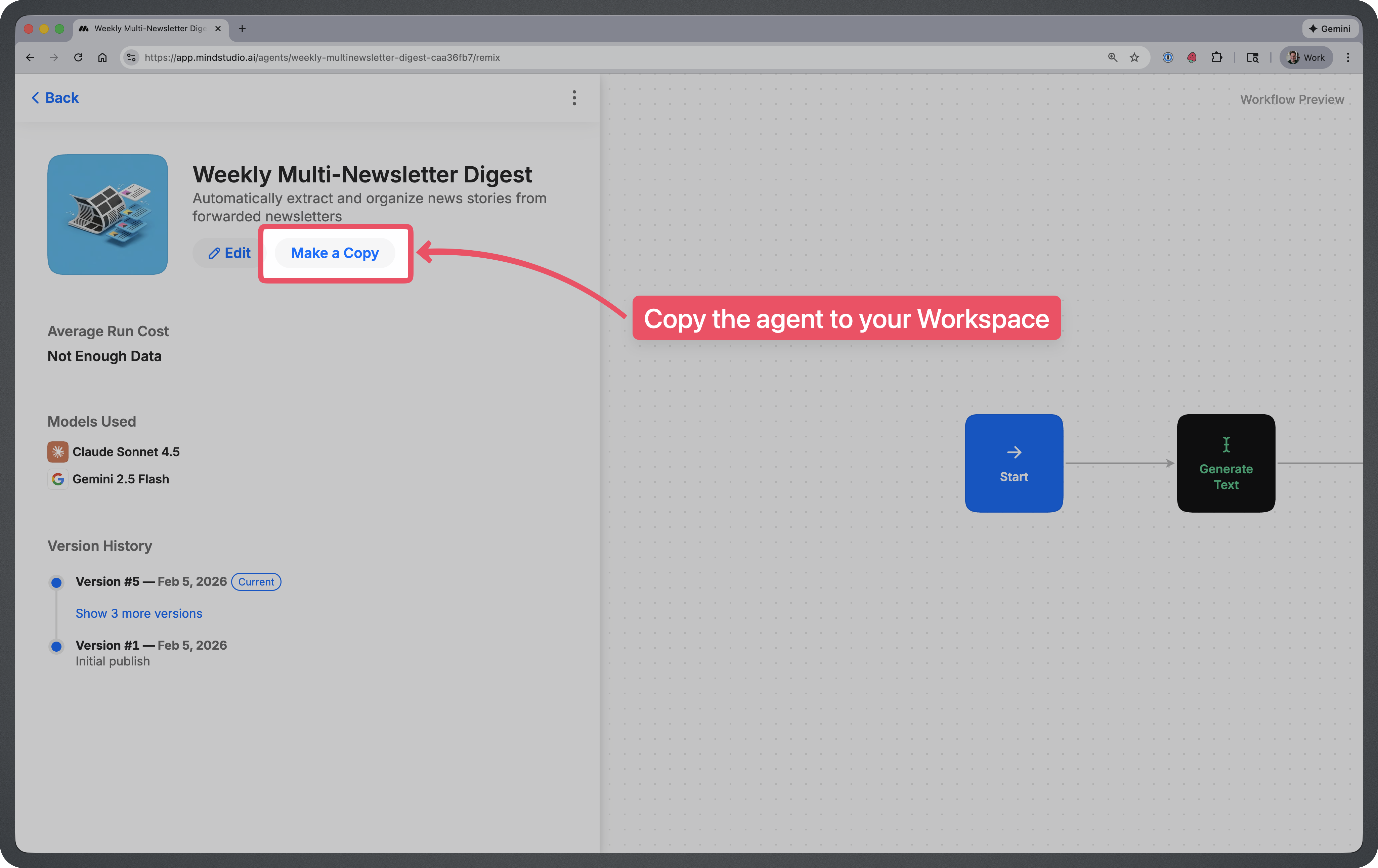
Step 2: Remix the Agent
Remix this agent in MindStudio
This will make a copy of the AI Agent into your MindStudio workspace.
Step 3: Set the Schedule
This agent will scan the competitor website on a regular interval.
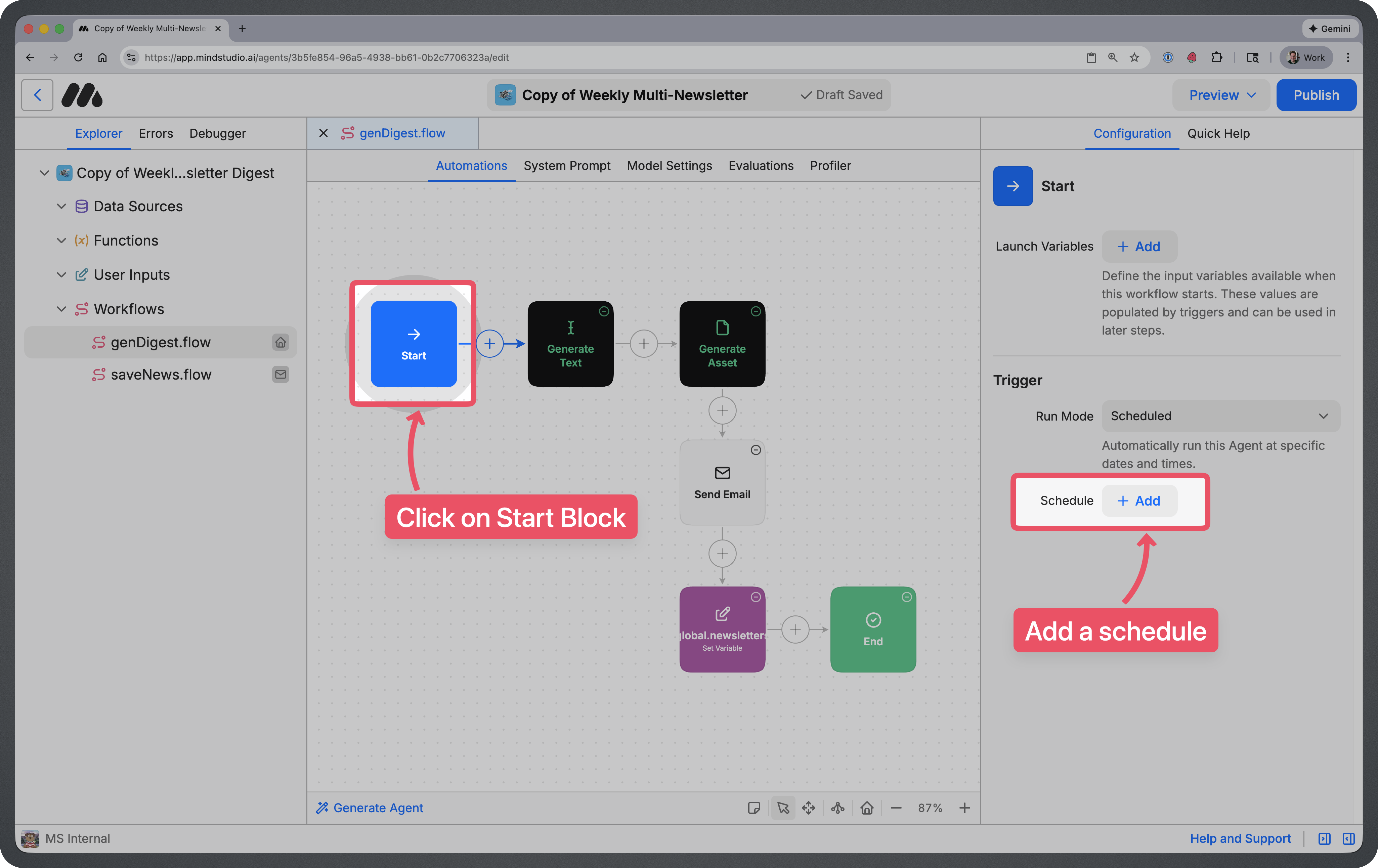
- Click on the Start Block.
- In the configuration panel on the right, click on “+ Add” button next to the Schedule setting.
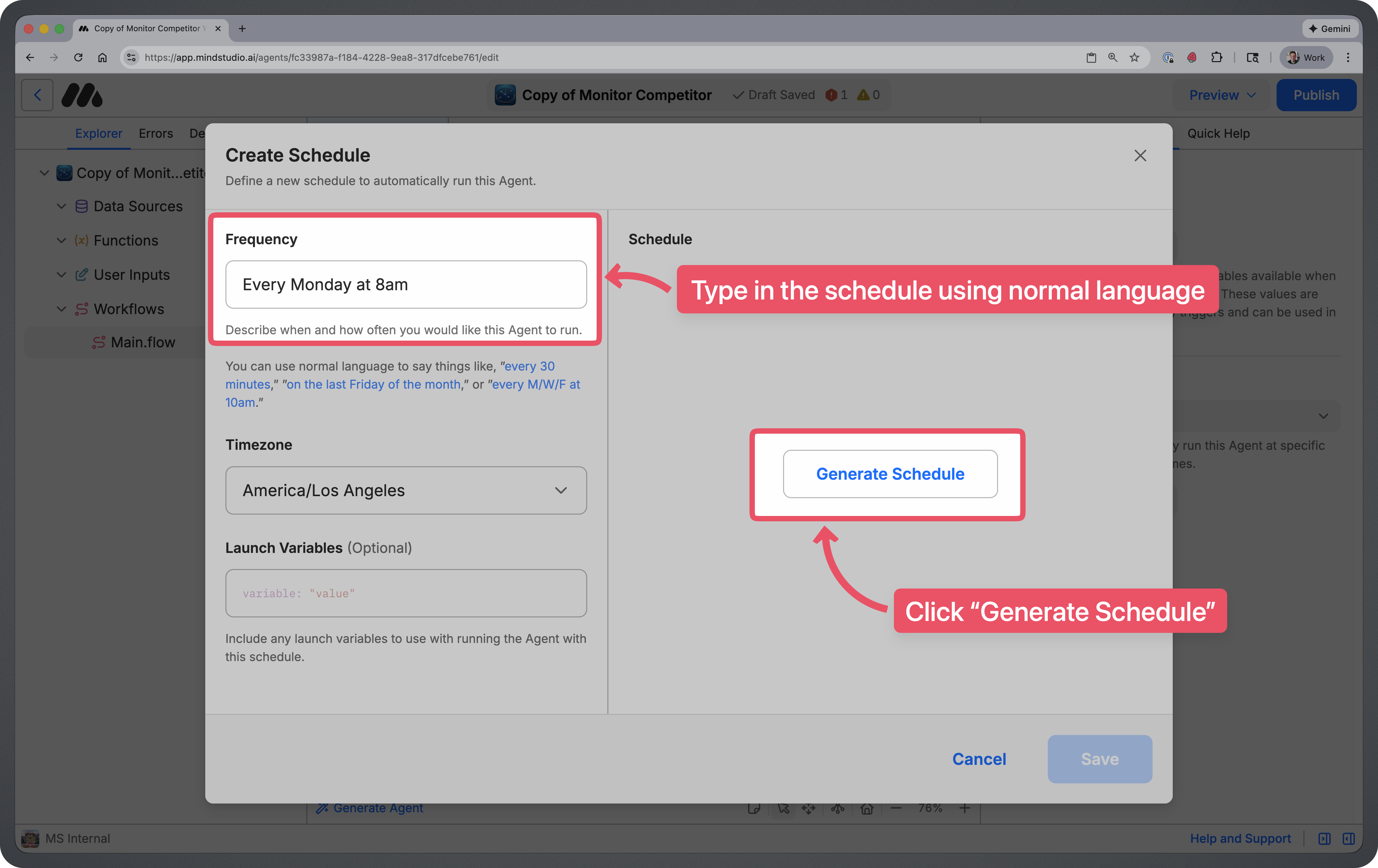
This will open up a modal where you can add a schedule using natural language. Type in a schedule using normal language (Ex: “Every Monday at 8am”), then click “Generate Schedule”. Once the schedule is generated, click on the “Save” button at the bottom right.
Step 4: Connect Your Email
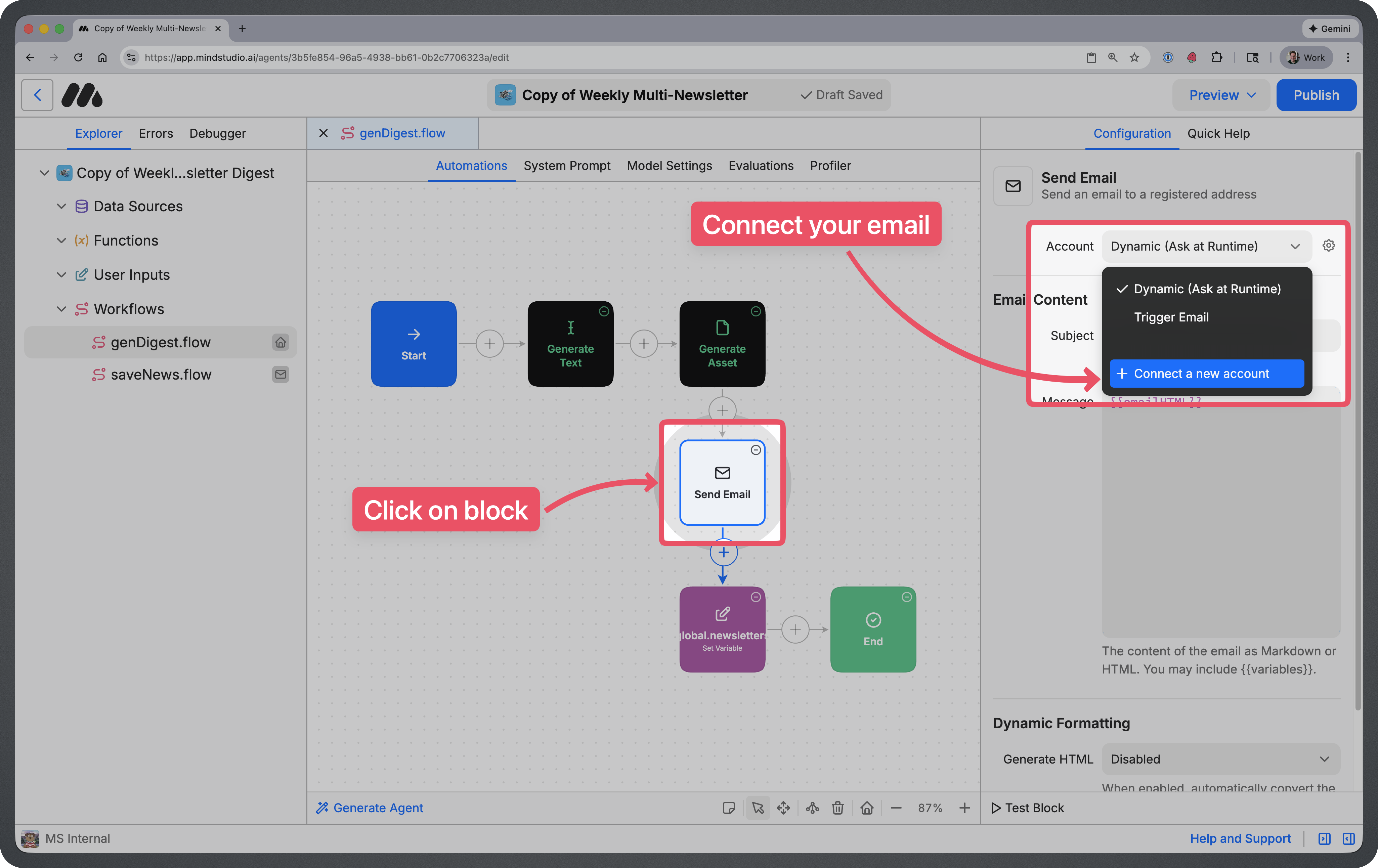
In order to get an email sent to you when changes are detected, you will need to connect your email address. Click on the “Send Email” block, then click on “+ Connect a new account” to add your email.
Step 5: Get Your Agent’s Trigger Email Address
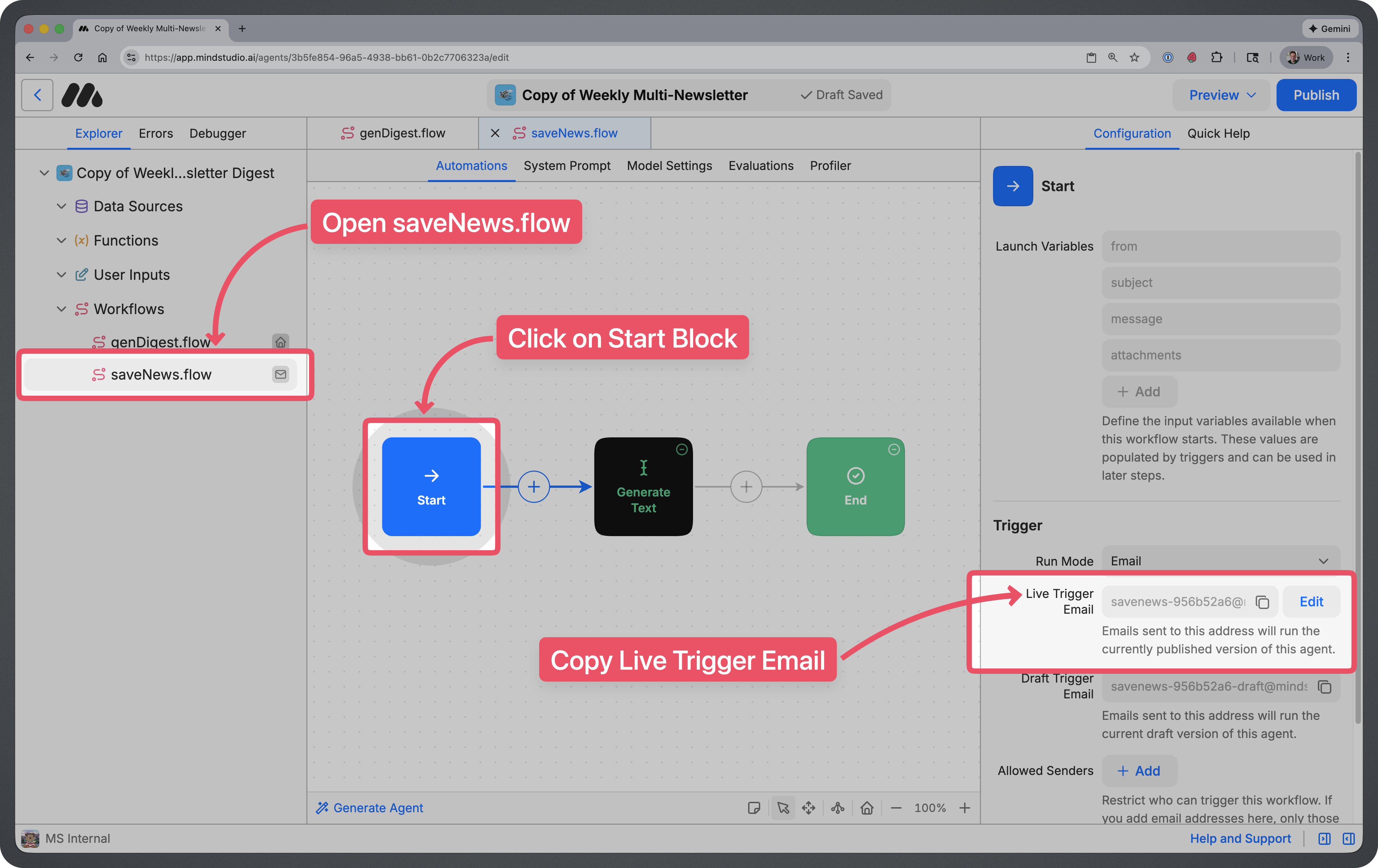
In your workflows folder on the left, open the saveNews.flow workflow, then click on the Start Block.
In the configuration panel on the right, copy the “Live Trigger Email” address.
This is a unique email that collects the info for each newsletter you send to it.
(Optional) Setup Automatic forwarding to this AI Agent in Gmail
If you have newsletters already in your inbox, you can setup your Gmail to automatically forward newsletters to your Agent’s trigger email address.
👉 Check out this guide on how to set this up
Step 6: Rename the Agent
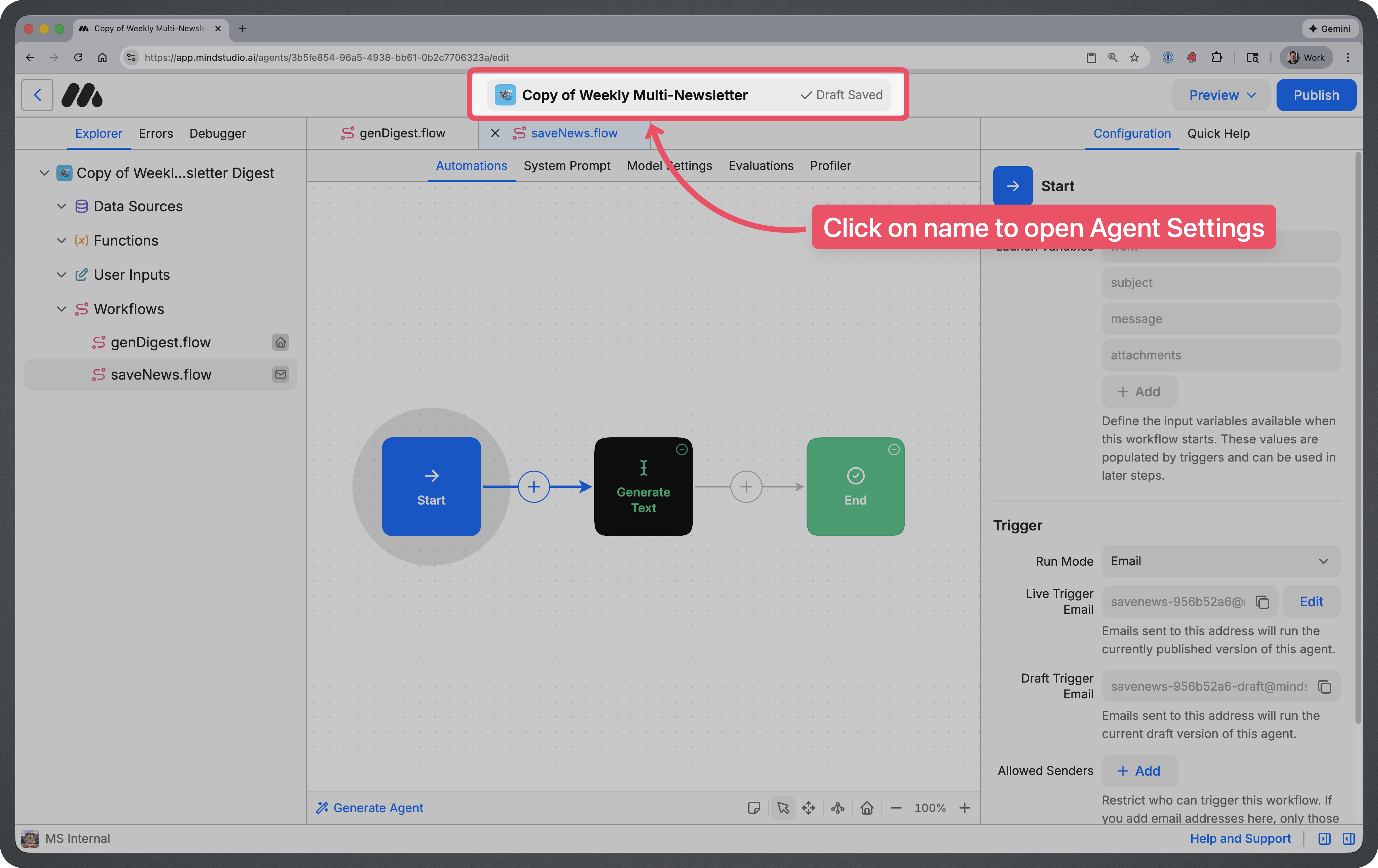
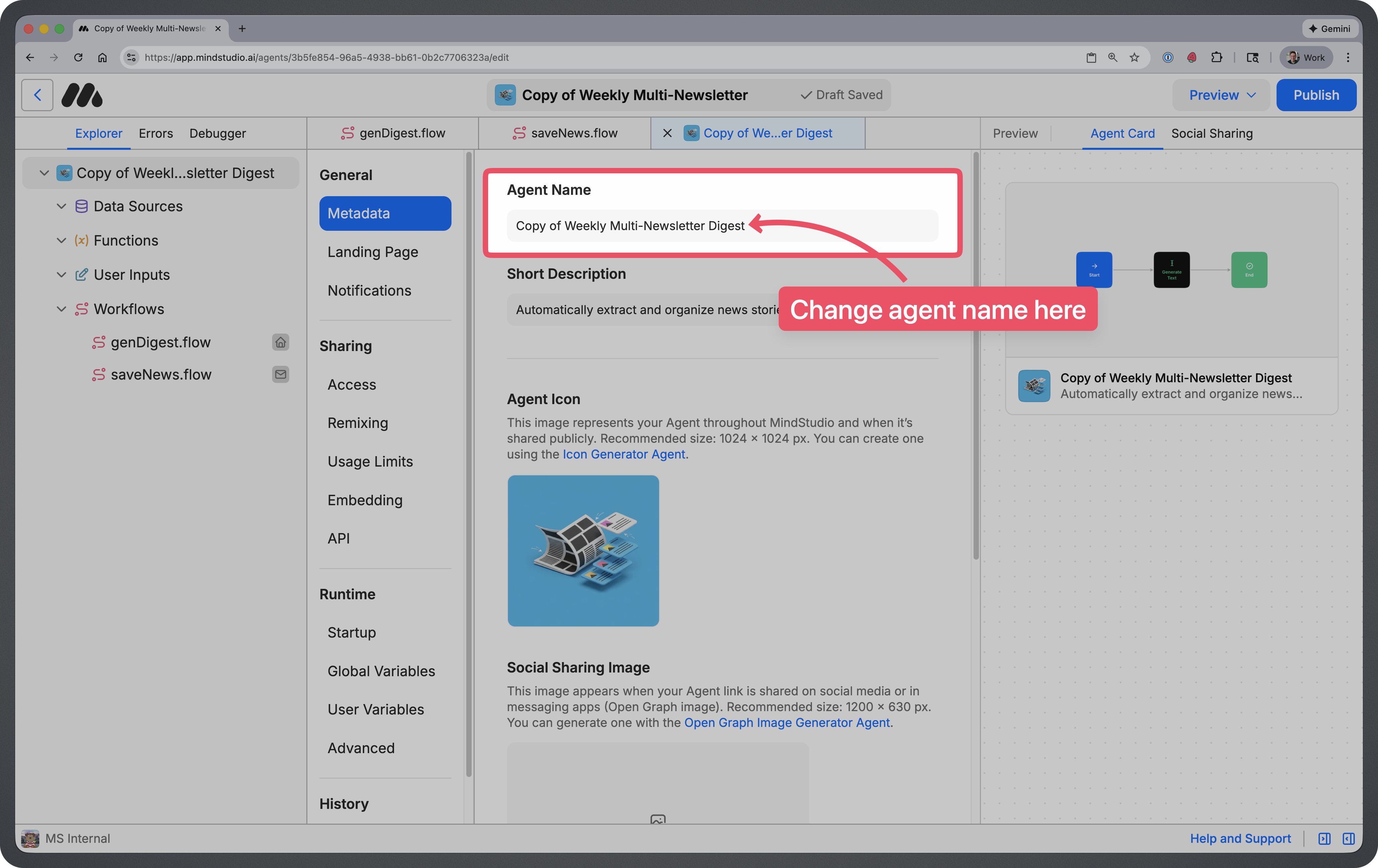
Click on the name at the top of the screen. This will take you to your agent settings where you can update the name of your agent.
You can name your agent whatever you’d like, but most people just remove the “Copy of” text.
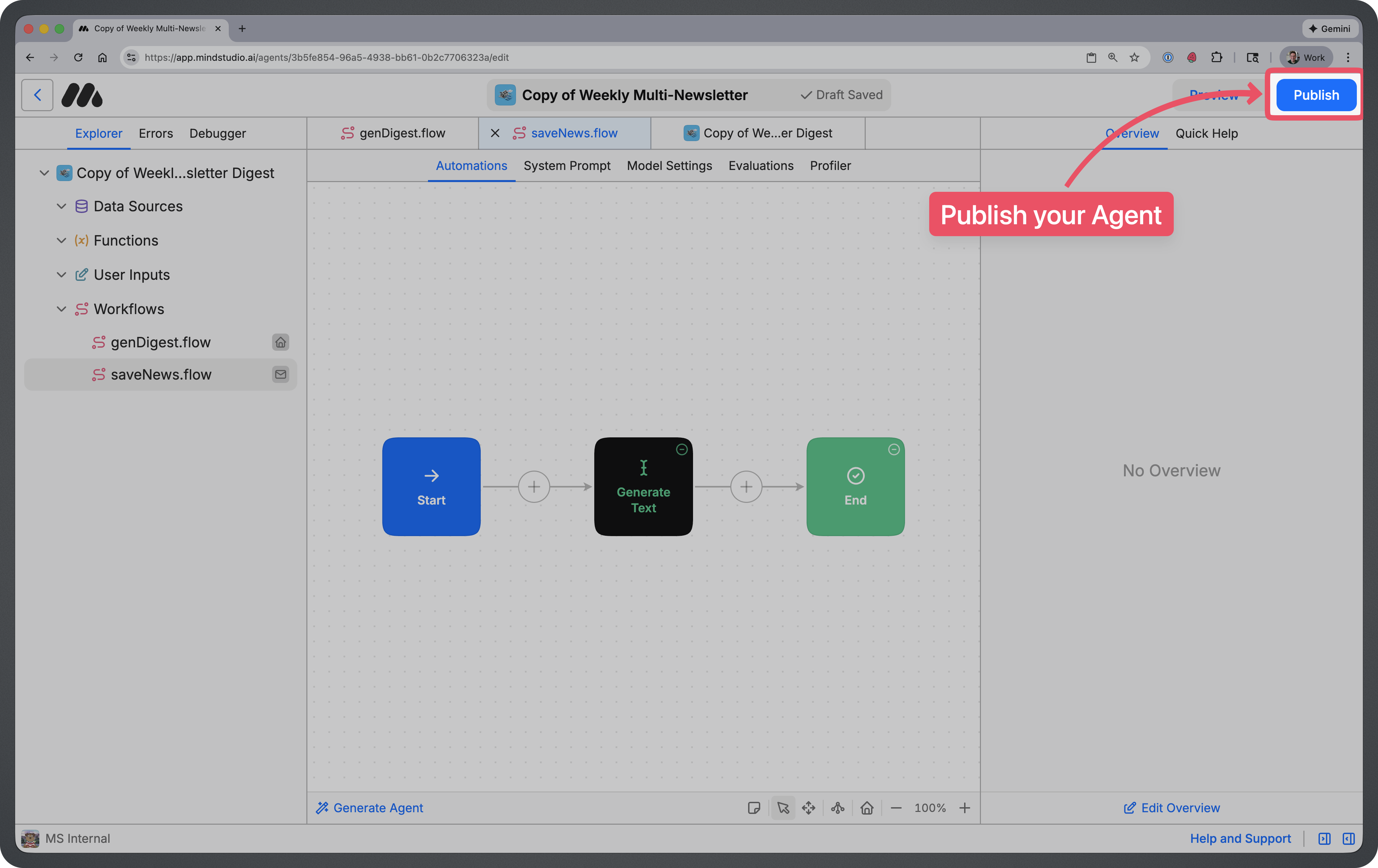
Step 7: Publish Your Agent
Once you’ve renamed your agent, you can click on the blue “Publish” button at the top right to publish your Agent.
How to Use This Agent
You can run this agent from the MindStudio Chrome extension while browsing any website.
Step 1: Forward all Newsletters to the Agent Trigger Email
Each newsletter will be saved until the digest is generated and sent to you.
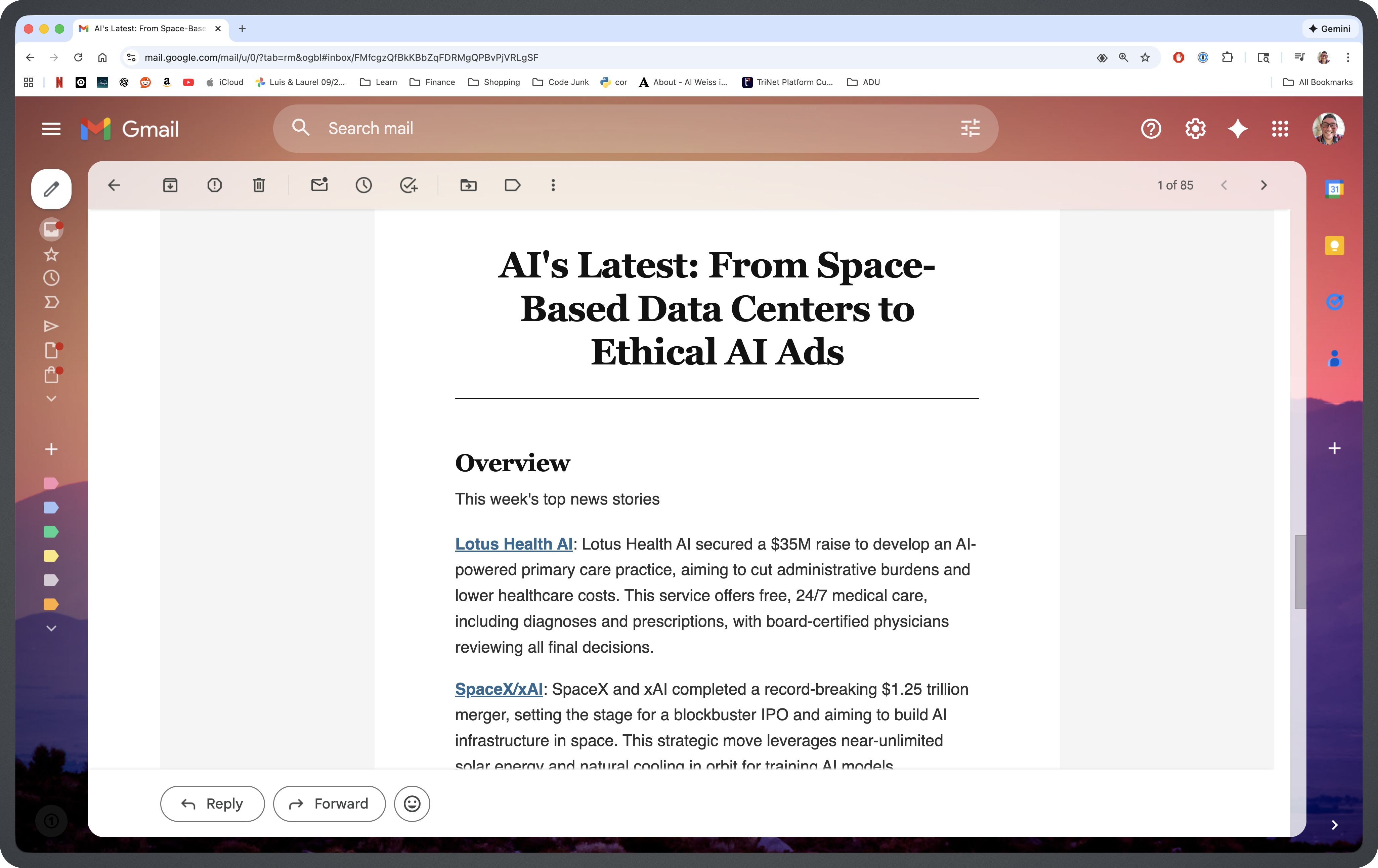
Step 2: Agent will send you a digest on the specified schedule
Email will highlight the most important stories you should know about.
Tips for Using This Agent
- Forward newsletters consistently. The more newsletters you send to your agent’s trigger email, the richer and more comprehensive your digest will be. Make it a habit to forward as they arrive or set up automatic forwarding.
- Set up automatic forwarding for hands-off convenience. Use Gmail’s filtering and forwarding rules to automatically route newsletters to your agent. Once configured, you won’t have to think about it again.
- Choose a schedule that matches your reading habits. If you prefer catching up on weekends, schedule your digest for Saturday morning. If you like starting the week informed, try Monday at 8am.
- Curate which newsletters you forward. Not every newsletter needs to be in your digest. Focus on the ones that provide the most value—industry news, competitor updates, or thought leadership you actually want to read.
- Use it to tame inbox overload. Instead of newsletters piling up unread in your inbox, let them flow to the agent and get a single, digestible summary on your schedule.
Frequently Asked Questions
How does the agent create the digest?
The agent collects all newsletters sent to its trigger email address, analyzes the content, identifies the most important stories and themes across all of them, and compiles a single summary highlighting what you need to know.
How many newsletters can I forward to the agent?
There’s no strict limit, but the digest works best with a manageable number of newsletters. If you’re forwarding dozens, the summary may become more general. Start with your most important 5–10 newsletters and adjust from there.
Remy doesn't write the code. It manages the agents who do.
Remy runs the project. The specialists do the work. You work with the PM, not the implementers.

What happens if I don’t forward any newsletters before the scheduled digest?
If no newsletters have been received since the last digest, the agent may send an empty or minimal digest, or skip sending entirely depending on the configuration.
Can I forward newsletters from any email provider?
Yes, you can manually forward newsletters from any email provider. Automatic forwarding setup may vary depending on your email service—the guide provided covers Gmail specifically.
Will the digest include the full newsletter content?
The digest provides a summary of the key points and highlights, not the full text of each newsletter. This lets you quickly scan what matters and decide if you want to read the original.
Can I customize what the digest focuses on?
Yes, you can modify the agent’s prompts in MindStudio to prioritize certain topics, industries, or types of information in your summaries.
Is my email data stored or shared?
The agent processes newsletter content to generate your digest. Your data is NOT shared or used for AI Model Training.