How to Use Seed Audio as a Reference for Seedance Video Generation
Generating audio first with Seed Audio and using it as a Seedance reference produces better voice acting and ambient sound while reducing expensive re-rolls.
Why Audio-First Is the Smarter Way to Generate Video
Most people approach AI video generation the same way: write a prompt, generate a clip, then figure out the audio afterward. That order made sense when audio was bolted on — but it’s backwards when your goal is cohesive, polished output.
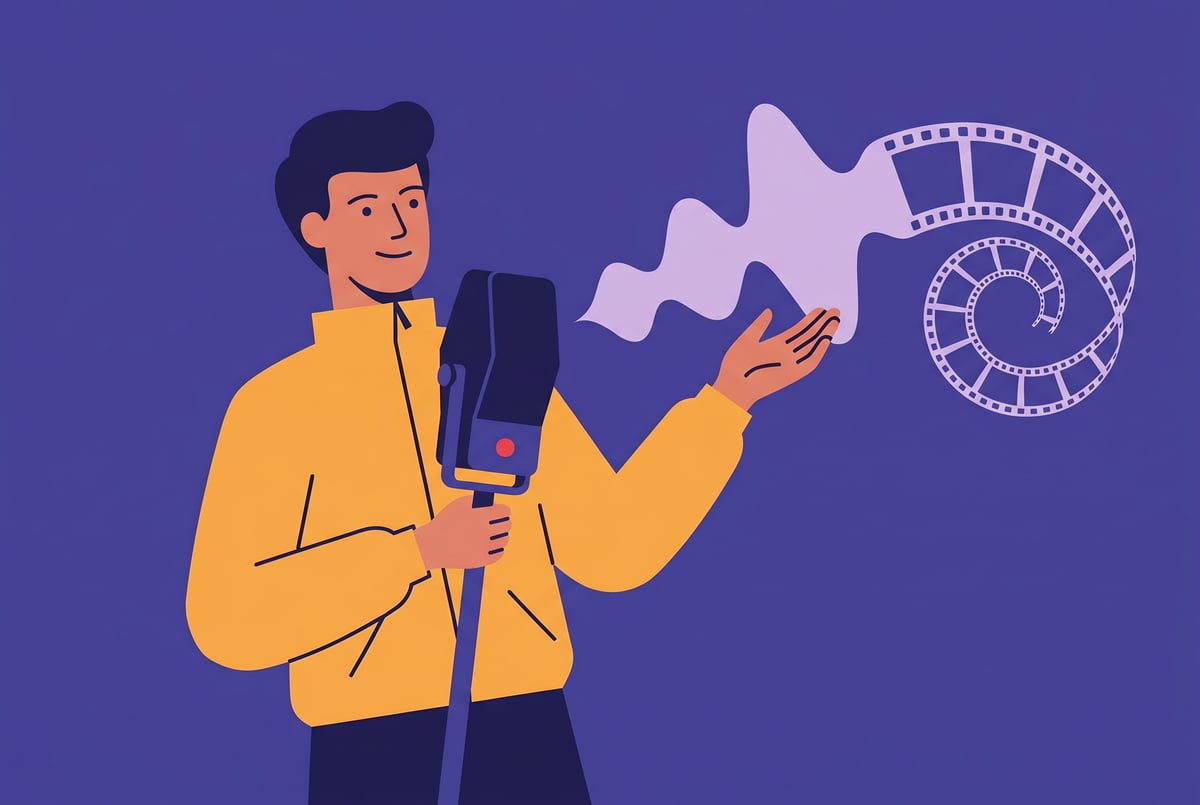
Seedance video generation supports audio-conditioned workflows, which means you can generate your audio track first using Seed Audio, then use that audio file as a reference when generating the video. The result is better lip sync, more natural voice performance, ambient sound that matches the scene, and far fewer expensive re-rolls.
This guide walks through the full workflow — from creating a Seed Audio reference track to feeding it into Seedance — along with the reasoning behind each step so you can adapt it to your specific projects.
What Seed Audio Does (and Why It Matters for Video)
Seed Audio is ByteDance’s audio generation system, part of the broader Seed model family. It’s designed to produce high-quality speech, voice acting, and ambient audio from text prompts and voice references.
Key capabilities include:
- Text-to-speech with emotional control — You can specify not just what a character says, but how they say it: urgency, warmth, hesitation, excitement.
- Voice cloning and consistency — Provide a reference voice sample and Seed Audio will generate new lines in that voice.
- Ambient and environmental audio — Crowd noise, rain, footsteps, mechanical hum — Seed Audio handles non-speech audio too.
- Prosody and pacing control — Adjust speech rhythm, emphasis, and timing before the video is ever generated.
Everyone else built a construction worker.
We built the contractor.
One file at a time.
UI, API, database, deploy.

The reason this matters for Seedance specifically: video models respond to audio conditioning by aligning mouth movements, character gestures, and scene energy to the audio waveform. If you give Seedance a finished audio track, it has a concrete signal to work from — not an abstract description of one.
What Seedance Uses Audio References For
Seedance is ByteDance’s video generation model built for cinematic, character-driven content. When you supply an audio reference, it uses that file in several ways:
- Phoneme-level lip sync — The model can analyze speech phonemes in your audio and generate matching mouth shapes and jaw movement in the video.
- Emotional and gestural alignment — Tone of voice influences how a character moves. A tense, clipped delivery produces different gestures than a relaxed, conversational one.
- Scene atmosphere — Background audio like rain or crowd noise can shape scene composition and environmental details.
- Timing and scene length — Audio duration gives the model a concrete target duration, which reduces awkward cutoffs or dead space.
Without an audio reference, Seedance is working from text alone. That’s workable, but you’re asking the model to simultaneously invent the performance and the visuals — and that’s where inconsistency creeps in.
Prerequisites Before You Start
Before walking through the steps, make sure you have:
- Access to Seed Audio — Available through ByteDance’s developer API or compatible platforms that have integrated the model.
- Access to Seedance — Either via ByteDance’s own interface or a third-party platform that exposes the model.
- A clear script or scene description — The more specific your dialogue, pacing notes, and emotional beats, the better your audio reference will be.
- A voice reference sample (optional but recommended) — Even a 10–30 second clip of your target voice dramatically improves consistency.
- Basic audio editing software — Something like Audacity or even a browser-based editor is sufficient for trimming and reviewing your audio before use.
Step-by-Step: Generating Audio First with Seed Audio
Step 1: Write Your Script with Performance Notes
Don’t just write the dialogue. Write how it should be delivered.
Bad: “I need to get out of here.”
Better: “[tense, low voice, slightly rushed] I need to get out of here.”
The more specific your performance notes, the better your audio reference will match what you actually want the video character to convey. Think of this like writing stage directions — tone, pace, volume, and emotional state all matter.
For ambient audio, describe the soundscape specifically:
“Quiet office at night — HVAC hum, distant traffic, occasional keyboard clicks.”
Step 2: Generate Your Seed Audio Track
With your script and performance notes ready, generate your audio in Seed Audio.
A few things to optimize here:
- Use a voice reference if you have one. Voice consistency across a multi-clip project depends on this. Without a reference, the model picks a default voice that may not match your visual character design.
- Generate multiple takes for key lines. Audio generation is cheaper than video generation by a significant margin. Create 3–5 variations of emotionally complex lines and pick the best one before moving to video.
- Check pacing before export. Play the audio back and note any lines that feel rushed or drag. You can regenerate specific segments without redoing the whole track.
- Export as WAV or high-quality MP3. Compressed audio can confuse lip sync alignment. Use the highest quality format the platform supports.


Step 3: Review and Edit the Audio Track
This step gets skipped too often.
Before you use your audio as a Seedance reference, listen critically:
- Does the emotional delivery match your scene? A subtle mismatch here becomes obvious on screen.
- Are there any artifacts, clipping, or unnatural pauses? These can cause alignment issues in video generation.
- Is the pacing right for your visual concept? A 12-second audio clip will drive a 12-second video. Make sure that’s what you want.
- Does the ambient audio feel appropriate for the setting? Background sound sets expectations about the visual environment.
Trim silence from the start and end of the clip. Most audio editors have a simple trim function. Clean audio edges produce cleaner video output.
Step 4: Upload the Audio Reference to Seedance
In Seedance’s generation interface, look for the audio reference or audio conditioning input field. The location varies slightly depending on which platform or API you’re using, but it’s typically labeled clearly.
Upload your Seed Audio file and confirm the waveform preview looks correct — this is a good sanity check that the file uploaded properly.
At this stage, you’ll also provide your visual prompt. A few notes:
- Your visual prompt should complement the audio, not contradict it. If your audio is of a calm conversation, don’t prompt for a high-energy action scene.
- Describe your character’s position relative to speaking. “Medium close-up, facing camera” gives Seedance a better frame for lip sync than “a character in a room.”
- Include lighting and atmosphere cues that match your audio’s implied environment. Audio of a thunderstorm calls for a visual prompt that includes overcast skies, rain-slicked surfaces, and dim light.
Step 5: Configure Generation Settings
Before you run generation, review these settings:
- Duration — Set this to match your audio length exactly, or enable auto-match if the platform supports it.
- Character consistency — If you have a character reference image, upload it here. This combined with audio conditioning gives Seedance the most complete picture of what to generate.
- Lip sync strength — Some implementations let you weight how strongly the video aligns to audio phonemes versus general visual quality. Start at the default and adjust after reviewing your first output.
- Seed value — Save your seed number. If you get a strong output you want to iterate on, a fixed seed lets you make small changes without losing the overall composition.
Step 6: Generate and Evaluate
Run your first generation and evaluate it against these specific criteria:
- Lip sync accuracy — Do mouth movements align with the speech? Minor drift is common; significant desync suggests the audio wasn’t conditioned properly.
- Emotional matching — Does the character’s expression and energy match the vocal performance?
- Ambient sound integration — Does the visual environment feel consistent with any background audio?
- Temporal accuracy — Does the clip end cleanly at your intended endpoint?
Other agents ship a demo. Remy ships an app.
Real backend. Real database. Real auth. Real plumbing. Remy has it all.
If lip sync is off, the most common fixes are: re-uploading the audio in a different format, trimming leading silence from the audio file, or adjusting the lip sync weight if that’s exposed in your interface.
Common Mistakes and How to Avoid Them
Using compressed or low-quality audio. MP3 at 128kbps introduces artifacts that can confuse lip sync models. Export at 320kbps minimum, or use WAV/FLAC.
Mismatching audio and visual scene energy. If your audio is intimate and quiet but your visual prompt describes sweeping cinematography, the model has to pick one — and the result usually satisfies neither.
Not iterating on audio before video. Generate 5 audio takes, pick the best one, then generate video. One good video is worth more than ten mediocre ones.
Ignoring ambient audio. Even subtle background sound in your audio reference influences environmental detail in the generated scene. A completely silent audio track with voice-only doesn’t tell the model anything about the setting.
Generating video without a character reference image. Audio conditioning works best when combined with a visual character anchor. Without one, different video generations of the same audio may produce inconsistent characters.
Advanced Techniques for Better Results
Layering Speech and Ambient Audio
You can mix speech and ambient sound in your Seed Audio output before using it as a reference. Generate your dialogue track and your ambient soundscape separately, then combine them in a DAW or basic audio editor.
This gives Seedance more environmental context while keeping your speech performance clean in the mix. Use the speech at full volume and lower the ambient layer to around 20–30% — enough to signal environment without muddying the phoneme data.
Using Multiple Short Audio References for Long-Form Video
For longer projects, avoid generating one long audio clip and expecting clean video output. Break your project into scene units, each with its own Seed Audio reference and corresponding Seedance generation. Then merge the clips.
This approach gives you more precise control over each scene’s performance and environment, and it’s much easier to re-roll a single 8-second scene than a 60-second sequence.
Voice Consistency Across a Project
If your project involves a recurring character across multiple scenes, create a “voice reference library” early. Generate 5–10 sample lines in that character’s voice using Seed Audio, pick the 2–3 that best capture the character, and use those as your reference inputs across all subsequent generations.
Consistent voice reference inputs produce consistent character voice outputs — which makes the video character feel more coherent even if the visual style shifts between scenes.
Iterating Without Re-Rolling Everything
When a generated clip is 90% right but has one problem (lip sync on a specific line, one wrong gesture), don’t re-roll the entire clip. Instead:
- Identify the exact timestamp where the issue occurs.
- Re-generate just that segment with a more specific audio reference or adjusted prompt.
- Merge the corrected segment with the parts that worked.
This saves generation credits and keeps your good output intact.
How MindStudio Streamlines the Audio-to-Video Pipeline
Running this workflow manually — generate audio, review it, edit it, upload to video generation, evaluate output, iterate — involves a lot of switching between tools and copying files. That’s friction that adds up, especially on longer projects.
MindStudio’s AI Media Workbench gives you access to audio and video generation models in one environment, without separate accounts or API key setup. You can chain Seed Audio generation into a Seedance video generation step as part of an automated workflow — so the audio output from step one feeds directly into step two without manual file handling.
Practically, this means you can build a workflow that:
- Takes a script as input
- Generates an audio reference track via Seed Audio
- Passes that audio file automatically to Seedance along with your visual prompt
- Returns the completed video to a specified output destination (Google Drive, Slack, Airtable — whatever fits your production pipeline)
The Media Workbench also includes clip merging, subtitle generation, and upscaling tools, so you can handle post-production steps in the same environment rather than exporting to yet another tool.
For teams doing consistent video production — social content, training videos, product demos — building this as a reusable MindStudio workflow cuts per-video production time significantly. You define the pipeline once and run it as many times as needed.
You can try MindStudio free at mindstudio.ai.
Frequently Asked Questions
Does Seedance require audio conditioning, or is it optional?
Audio conditioning is optional — you can generate video from a text prompt alone. But providing an audio reference gives the model concrete data on speech timing, emotional tone, and scene atmosphere, which consistently produces more accurate lip sync and better character performance alignment. For any scene involving dialogue, using a Seed Audio reference is worth the extra step.
What audio format works best as a Seedance reference?
WAV files at 44.1kHz or higher are generally the most reliable. High-quality MP3 (320kbps) usually works well too. Avoid heavily compressed formats or anything below 128kbps — the artifacts can interfere with phoneme detection and lip sync accuracy.
Can I use audio generated outside of Seed Audio as a reference?
Yes, in most implementations Seedance accepts any audio file as a reference — it doesn’t require the audio to have been generated by Seed Audio specifically. That said, Seed Audio is optimized to produce clean, artifact-free speech that works well for video conditioning. Human-recorded audio also works well as long as it’s clean and properly trimmed.
Why does my lip sync look off even when using an audio reference?
The most common causes are: leading or trailing silence in the audio file (trim it), compressed audio with artifacts (re-export at higher quality), or a mismatched duration setting (make sure your target video duration matches your audio length). Some platforms also have a lip sync weight setting — try increasing it if desync persists.
How long should my audio reference be for best results?
Most video generation models produce best results with clips under 30 seconds. For longer content, break your project into shorter scene units, each with its own audio reference. This gives you more control per scene and makes re-rolls much less expensive when something needs fixing.
Does ambient audio in the reference affect the visual output?
Yes. Background sound in your audio reference can influence the visual environment Seedance generates — rain sounds may trigger overcast lighting and wet surfaces, crowd noise may produce busier backgrounds, mechanical hum may suggest industrial or office settings. This effect is often subtle, but it’s worth being intentional about what’s in your audio reference.
Key Takeaways
- Generate audio before video, not after. Seed Audio lets you lock in voice performance, pacing, and emotional tone before spending credits on video generation.
- Audio conditioning in Seedance uses your reference track for lip sync, gestural alignment, and scene atmosphere — all of which improve with a quality audio input.
- Iterate on audio cheaply. Generate multiple audio takes and choose the best before committing to video generation. Audio re-rolls cost a fraction of video re-rolls.
- Match your visual prompt to your audio. Scene energy, environment, and character framing should be consistent with the audio reference you’re providing.
- Build the workflow once, run it repeatedly. Tools like MindStudio let you automate the audio-to-video pipeline so you’re not manually handling files between each generation step.
If you’re doing regular video production with AI, the audio-first approach is one of the highest-leverage workflow changes you can make. Start with a clean Seed Audio reference, and the video quality follows.