How to Run Qwen3.8-27B Locally with Ollama, LM Studio, and llama.cpp
Install Qwen3.8-27B GGUF quantizations locally with LM Studio, Ollama, and llama.cpp, plus VRAM comparisons and quantization guidance.
Qwen3.8-27B is a 27 billion parameter, 64-layer multimodal model you can run on a single consumer or workstation GPU using a GGUF quantization, served through LM Studio, Ollama, or llama.cpp. Each tool downloads the same quantized weights but differs in setup friction, VRAM overhead, and how much control you get over context size and KV cache, which matters more than raw model size once you’re picking a serving stack.
TL;DR
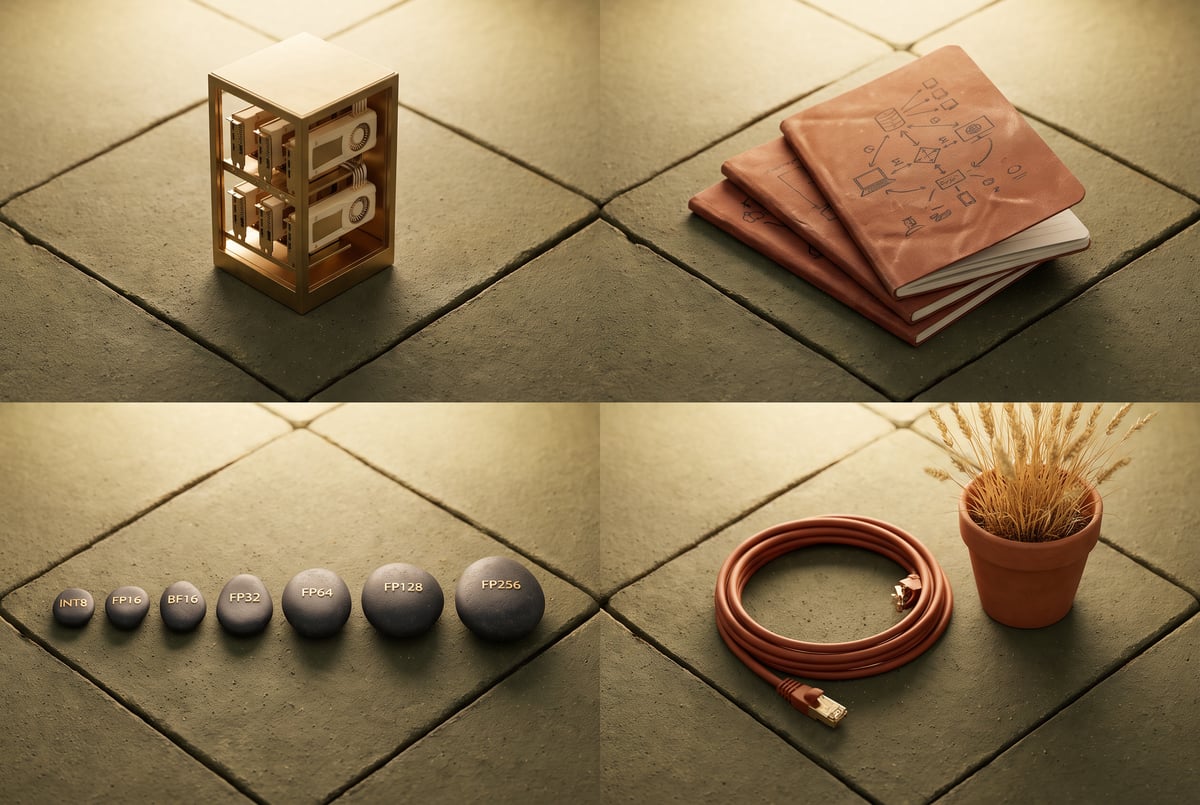
- Qwen3.8-27B ships as GGUF quantizations ranging from small IQ2 variants up through Q3, Q4, Q5, Q6, Q8, and full BF16, letting you trade file size and accuracy against available VRAM.
- Q4_K_M is the common home setup, landing around 20GB, while Q8_0 is the recommended choice if you’re deploying toward anything production-like rather than just testing.
- Ollama installs and pulls fastest of the three tools in practical use, but its default KV cache settings can push VRAM consumption noticeably higher than the other two options.
- LM Studio gives you a GUI model browser where you pick the quantization directly from a dropdown, though downloads through it can lag behind Ollama’s pull speed.
- llama.cpp sits in the middle on VRAM and gives the most direct control over context window size, which is the main lever for cutting memory use further.
- The model handles vision and long context natively, reading images and reconstructing partially obscured text, and its architecture supports a 262,000 token context that can stretch to a million.
- Coding and reasoning performance held up at Q4_K_M in informal testing, including agentic tool use and generating self-contained HTML/CSS output, despite that being a lower quantization than the Q8 recommended for production.
Built like a system. Not vibe-coded.
Remy manages the project — every layer architected, not stitched together at the last second.

What is Qwen3.8-27B and why does the GGUF version matter?
Qwen3.8-27B is a 27 billion parameter model built on 64 stacked processing layers. Its architecture leans on a lightweight attention mechanism (referred to as “gated delta” in community coverage) for most tokens, and only brings in full, heavier attention every fourth block. That design is what lets it hold a 262,000 token context window without the memory cost exploding, with the ability to stretch further toward a million tokens. The model is natively multimodal, meaning it accepts images and video alongside text, and it ships under an Apache 2.0 license with “thinking” mode enabled by default.
The GGUF format matters because it’s what makes a 27B model practical to run on a single GPU at home or in a small workstation. GGUF quantizations compress the original full-precision (BF16) weights down to smaller integer or mixed-precision formats. Unsloth’s GGUF build of Qwen3.8-27B on Hugging Face lists a wide spread of quantization options, from very small IQ2 variants (IQ2_M, IQ2_XXS) up through IQ3, IQ4, Q3_K, Q4_K, Q5_K, Q6_K, Q8_0, and the full BF16 weights split across multiple files. That range exists because different users have different VRAM budgets, and the right choice depends on what you’re optimizing for: file size, inference speed, or output quality.
How do you install Qwen3.8-27B in LM Studio?
LM Studio installation is a straightforward download-and-run process: get the executable from LM Studio’s website for your operating system, install it, and open the app. From there:
- Open the model search panel on the left side of the app.
- Search for the GGUF build of Qwen3.8-27B.
- Select a quantization level from the options shown on the right, such as Q4_K_M (around 20GB) or Q8_0.
- Click download and wait.
Q4_K_M is the quantization most people reach for to try the model at home. For anything closer to production use, Q8_0 is the safer choice since it stays closer to the accuracy of the original weights. Once downloaded, the model can be loaded into LM Studio’s chat interface directly, and it can also be ejected from memory when you’re done, freeing VRAM for another tool.
One practical note from hands-on testing: LM Studio’s downloads were noticeably slower than Ollama’s pull speed for the same quantized file, even though the install and setup process itself is simple.
How do you install Qwen3.8-27B with Ollama?
Ollama’s installation is a single command from its website (a one-line shell script), after which you pull the model with a straightforward command referencing the model name and tag. At the time of testing, Ollama’s model library carried Q4_K_M as the quantization available for the 27B version. Pulling the model was fast compared to LM Studio’s download of the same size class.
Once pulled, you can either run Ollama as a background service (for example, via systemd on Linux) or launch it directly with a run command that loads the model and drops you into an interactive session. Thinking mode is on by default; it can be turned off with a “no think” setting if you want faster, more direct responses without the visible reasoning trace.
The tradeoff: Ollama’s default configuration tends to reserve more VRAM than the other two tools because of how it allocates KV cache. In one test run, VRAM consumption sat above 35GB with default settings. That number can be brought down by adjusting the context window and KV cache parameters in Ollama’s configuration.
How do you serve Qwen3.8-27B with llama.cpp?
llama.cpp is the lower-level option: you serve the model directly rather than through a GUI or a wrapper service. The basic flow is to download the GGUF file (if not already cached from another tool) and start the standard llama.cpp server command pointing at that file. Since all three tools can read the same downloaded GGUF weights, you don’t need to redownload the model for each one if you already have it locally.
In testing, llama.cpp served the Q4_K_M quantization at just over 31GB of VRAM, with a large default context window (65,000+ tokens) contributing heavily to that footprint. Reducing the context window size drops VRAM usage substantially. Because llama.cpp exposes this control directly rather than through a wrapper’s defaults, it’s the option that gives the most predictable memory management, which is why it’s often the preferred choice for anyone tuning a setup closely to their hardware limits.
Which quantization and tool should you actually pick?
For casual local use, Q4_K_M is the practical default across all three tools. It’s small enough to fit on a single high-end consumer or workstation GPU (in the 20 to 24GB range depending on context settings) and still produced strong results on vision, translation, and coding tasks in testing, including correctly reconstructing partially obscured text in a photographed sign and providing an art-historical explanation of a painting with only a minor factual slip on the title.
For production or accuracy-sensitive use, Q8_0 is the safer choice. It sits much closer to the original BF16 weights in fidelity, at the cost of a larger file and higher VRAM requirement. The Unsloth GGUF repository also includes Q5_K and Q6_K variants as middle ground options, along with “UD” (dynamic quantization) versions like UD-Q4_K_XL and UD-Q8_K_XL for users who want a tuned balance between size and quality.
On tool choice: if you want the fastest path to a working chat interface, Ollama’s pull speed and simple run command are hard to beat, but budget extra VRAM for its default KV cache behavior. LM Studio is the friendliest for browsing and comparing quantizations visually. llama.cpp is the most VRAM-efficient once you tune the context window, which makes it the better fit if you’re trying to squeeze the model onto tighter hardware or run it alongside other processes.
Frequently Asked Questions
How much VRAM does Qwen3.8-27B need to run locally?
One coffee. One working app.
You bring the idea. Remy manages the project.
It depends on quantization and context window size. The Q4_K_M quantization ran in roughly the 20 to 24GB range depending on the serving tool and KV cache settings, while a larger default context window in llama.cpp pushed usage above 31GB. Reducing the context window is the most direct way to cut VRAM use further.
What’s the difference between Q4_K_M and Q8_0 quantizations?
Q4_K_M compresses the model weights more aggressively, producing a smaller file (around 20GB) that’s fine for personal use and testing. Q8_0 keeps more precision from the original weights, resulting in a larger file but better fidelity, which is the recommended choice for production-oriented use.
Does Qwen3.8-27B support images and long context?
Yes. It’s natively multimodal, reading images and video in addition to text, and its architecture supports a 262,000 token context window that can extend toward a million tokens, thanks to an attention design that only applies full heavyweight attention every fourth block.
Which is faster to set up, Ollama or LM Studio?
In practical testing, Ollama’s model pull was notably faster than LM Studio’s download for the same quantized file, though both installations themselves are simple: a one-line install script for Ollama versus a downloadable executable for LM Studio.
Do I need to download the model separately for each tool?
No. Since LM Studio, Ollama, and llama.cpp all work with the same GGUF file format, a model downloaded once can be reused across tools rather than redownloaded for each one, as long as you point the tool at the existing file.