How to Use ChatGPT in PowerPoint: Build, Update, Polish, and Understand Slides
OpenAI's free ChatGPT add-in for PowerPoint lets you build full decks from files, add slides, and refine copy without leaving the app. Here's how.
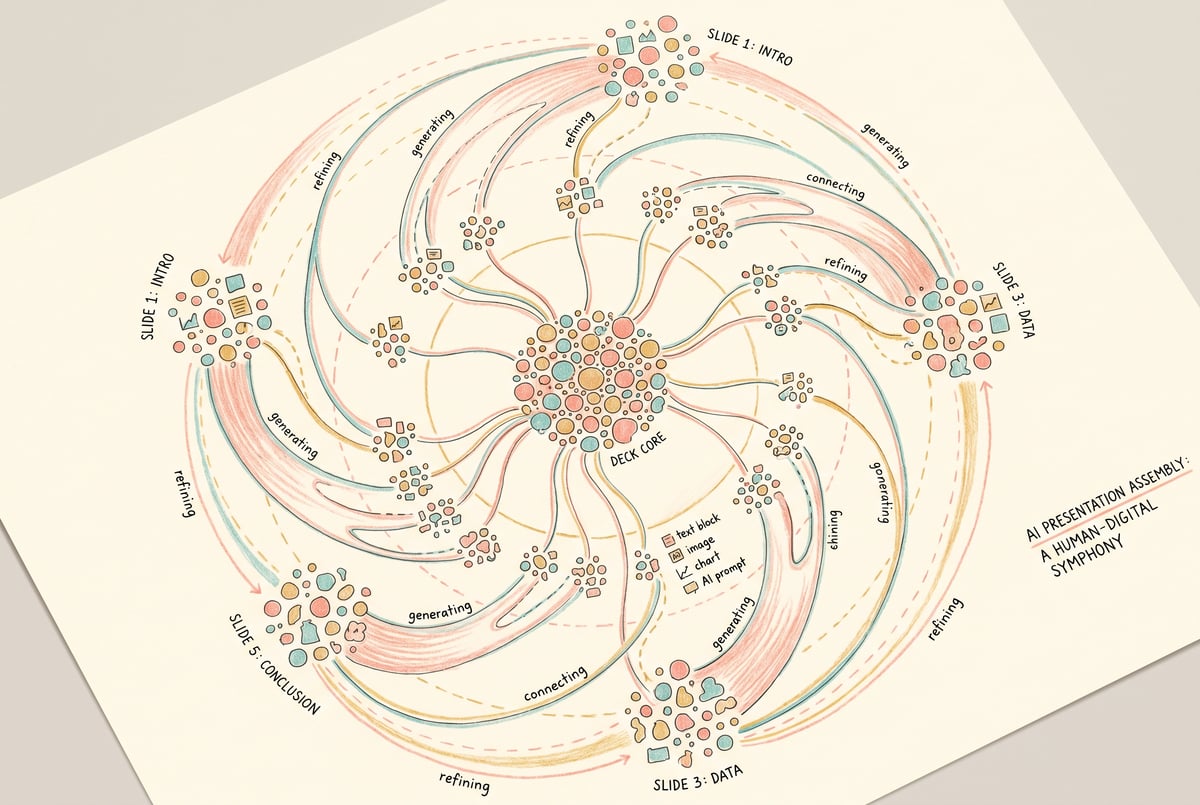
What the ChatGPT Add-In for PowerPoint Actually Does
If you’ve been manually building slide decks from scratch, there’s a faster path. OpenAI’s free ChatGPT add-in for Microsoft PowerPoint lets you generate slides, add content, rewrite copy, and even interrogate existing decks — all from a sidebar inside the app. No tab-switching, no copy-pasting from a browser.
This guide covers how to use ChatGPT in PowerPoint from installation through practical workflows: building full decks from files, adding or updating slides, polishing language, and using it to understand content you didn’t write.
How to Install the ChatGPT Add-In for PowerPoint
The add-in is free and available through Microsoft’s AppSource. You need a Microsoft 365 account (personal, business, or education) and a ChatGPT account — either free or Plus.
Step 1: Open the Add-ins Panel
In PowerPoint, go to the Home tab and look for the Add-ins button in the ribbon. Click it to open the Office Add-ins store. If you don’t see it, try Insert → Get Add-ins.
Step 2: Search for ChatGPT
In the search bar, type ChatGPT. Look for the add-in published by OpenAI — not third-party apps with similar names. Click Add and accept the permissions.
Step 3: Sign In to Your OpenAI Account
Once installed, a sidebar will appear on the right side of your PowerPoint window. Click Sign In and authenticate with your OpenAI credentials. The free tier works, though ChatGPT Plus users get access to more capable models.
Step 4: Start Using It
The sidebar stays docked while you work. You can open it anytime from the Home tab or via the add-in icon. From here, every interaction happens through a chat interface — type a prompt, and the add-in responds with generated content, revised text, or answers.
Build a Full Presentation from a File or Prompt
One of the most useful things the add-in can do is generate a complete slide deck — either from a text prompt or by uploading a document.
Building from a Prompt
Type a description of what you need. Be specific about:
- Topic and goal — “A 10-slide investor pitch for a SaaS startup focused on supply chain analytics”
- Audience — “For non-technical executives”
- Tone — “Professional but not stiff”
- Structure preferences — “Include a problem slide, solution slide, market size, competitive landscape, and team”
The more detail you provide, the more targeted the output. A vague prompt like “make me a sales deck” will produce a generic structure. A specific one will give you something closer to what you actually need.
After ChatGPT generates an outline or slide content in the sidebar, you can insert slides directly into your deck with a click or drag them in manually, depending on the version of the add-in you’re using.
Building from an Uploaded File
You can upload a PDF, Word document, or text file directly in the sidebar. ChatGPT will read the document and help you turn it into slides.
Useful prompts after uploading a file:
- “Turn this report into a 12-slide executive summary”
- “Create a deck based on this product brief — include a features overview and a competitive comparison”
- “Extract the key findings from this research paper and make one slide per finding”
This works well for quarterly reports, research documents, proposals, and briefing materials where you already have the content and just need it restructured for a presentation format.
Add and Update Individual Slides
You don’t have to generate a whole deck at once. The add-in is equally useful for working slide by slide.
Adding a New Slide
Click on the slide after which you want to insert a new one, then type a prompt like:
- “Add a slide about our pricing model — three tiers, monthly and annual options”
- “Create a timeline slide showing our product roadmap for 2024 and 2025”
- “Add a ‘What We Do’ slide in 3–4 bullet points for a general audience”
ChatGPT will generate the slide content in the sidebar. You can review it, ask for revisions, and then insert it.
Updating Existing Slide Content
Select a text box or an entire slide, and the add-in can recognize what’s selected. You can then prompt it to:
- Rewrite a slide’s bullet points in simpler language
- Expand a one-line bullet into a more detailed explanation
- Condense a text-heavy slide into three key takeaways
- Add a speaker notes draft based on the slide content
This is one of the quieter but more practical uses — instead of staring at a bullet that doesn’t quite land, you select it and ask for a better version.
Reordering and Restructuring Suggestions
Remy is new. The platform isn't.
Remy is the latest expression of years of platform work. Not a hastily wrapped LLM.

If you describe your current deck structure, ChatGPT can suggest a better narrative flow. For example: “My deck currently goes problem → team → solution → market. What’s a better order for a 5-minute pitch?” This won’t rearrange slides automatically, but it gives you a clear recommendation you can act on manually.
Polish and Refine Your Copy
Slide copy is its own discipline — too much text kills engagement, too little loses the message. ChatGPT is good at helping you find the right balance.
Tighten Verbose Bullets
Paste a long bullet or block of text and ask:
- “Shorten this to one clear sentence”
- “Rewrite as three tight bullets, max 8 words each”
- “Make this more direct — cut anything that doesn’t add meaning”
Match a Consistent Tone
If you’ve inherited a deck or merged content from different contributors, the tone often varies. Select sections and ask ChatGPT to unify them:
- “Rewrite this section to match the confident, direct tone of the rest of the deck”
- “This sounds too casual for a board presentation — make it more formal without being stiff”
Strengthen Headlines
Slide headlines do a lot of work — they’re often the only thing an audience reads. Good ones make a claim; weak ones just label a topic.
- “Market Overview” tells people nothing.
- “We’re entering a $40B market with no clear leader” gives them a reason to pay attention.
Ask ChatGPT to convert your topic-label headlines into claim-based headlines:
- “Rewrite these slide titles to make stronger claims instead of just naming topics”
Write Speaker Notes
This is underused. Select a slide and ask: “Write speaker notes for this slide — 3–4 sentences that expand on the bullets without just reading them aloud.” You get a draft you can edit rather than starting from nothing.
Use ChatGPT to Understand an Existing Deck
If you’ve been handed a deck you didn’t build — for a meeting, a client review, or a handoff — ChatGPT can help you get up to speed.
Summarize a Deck
Upload the file or paste the content and ask:
- “Summarize this deck in 5 bullet points”
- “What’s the main argument this presentation is making?”
- “What questions is this deck trying to answer?”
Identify Gaps
Ask: “What’s missing from this deck if the goal is to convince a CFO to approve a $500K budget?” You’ll get a list of gaps — missing financial data, lack of ROI framing, no risk slide — that you can then address.
Spot Inconsistencies
If a deck makes claims in different sections that contradict each other (or uses different numbers for the same metric), ChatGPT can catch them: “Are there any inconsistencies or contradictions in this presentation?”
Common Mistakes and How to Avoid Them
Expecting Finished Slides, Not a Starting Point
ChatGPT produces a draft. The content will often need editing for accuracy, specificity, and fit with your actual situation. Treat it as a writing assistant, not a final output machine.
Vague Prompts
“Make me a good presentation” is not a useful prompt. The more context you give — audience, goal, structure, tone, length — the more usable the output.
Ignoring What’s Already in Your Deck
- ✕a coding agent
- ✕no-code
- ✕vibe coding
- ✕a faster Cursor
The one that tells the coding agents what to build.
The add-in works best when you actively reference your existing content in prompts. Instead of “add a conclusion slide,” try “add a conclusion slide that ties back to the problem we defined on slide 2 and our three differentiators on slide 6.”
Using Generated Text Without Fact-Checking
ChatGPT can produce plausible-sounding statistics and claims that are wrong or outdated. Any numbers, citations, or factual claims in the generated content need to be verified before the deck goes to anyone who matters.
Overlooking Formatting
The add-in generates content — it doesn’t apply your template’s design. Text inserted via the sidebar may not automatically inherit your master slide fonts, colors, or layout. Plan to do a formatting pass after using it.
Taking Presentation Automation Further with MindStudio
The ChatGPT add-in handles a lot, but it still requires manual involvement — you’re prompting it one slide at a time, in one deck at a time, while sitting in PowerPoint.
If you need to generate decks programmatically — from live data, scheduled reports, or business tool outputs — that’s where a platform like MindStudio becomes relevant.
MindStudio is a no-code platform for building AI agents and automated workflows. You can build an agent that, for example:
- Pulls data from a connected source (Google Sheets, Airtable, Salesforce, HubSpot)
- Runs that data through a GPT or Claude model to generate structured slide content
- Outputs a formatted document or populates a template automatically
This is useful for teams that create recurring decks — weekly performance reports, monthly client updates, investor pipeline summaries — where the structure is consistent but the content changes. Instead of prompting ChatGPT manually each time, you build the workflow once and it runs on a schedule or trigger.
MindStudio connects to 1,000+ tools including the full Google Workspace suite, and supports 200+ AI models without requiring separate API keys. Most workflows take 15 minutes to an hour to build.
If you’re thinking about automating content creation workflows more broadly, MindStudio handles the end-to-end process rather than just a single step inside one app.
FAQ
Does the ChatGPT PowerPoint add-in cost anything?
The add-in itself is free to install. You need a Microsoft 365 account to use it in PowerPoint and a ChatGPT account (free tier works). ChatGPT Plus subscribers get access to more powerful models like GPT-4o, which produces better output for complex tasks.
Can ChatGPT create a PowerPoint from a PDF or Word document?
Yes. You can upload a file directly in the sidebar and prompt ChatGPT to convert it into slide content. This works well for reports, briefs, and research documents. The add-in reads the content and generates slide structures based on your instructions.
Does ChatGPT apply my PowerPoint template and design?
No. The add-in generates text content — it doesn’t automatically apply your template’s fonts, colors, or layouts. After inserting generated content, you’ll need to format it to match your master slide design.
Is the ChatGPT add-in available on Mac and Windows?
Yes, it works on both Mac and Windows versions of PowerPoint, as well as PowerPoint for the web (PowerPoint Online). Performance is generally the same across platforms.
How is ChatGPT in PowerPoint different from Microsoft Copilot?
Microsoft Copilot is built into Microsoft 365 and requires a Copilot license (currently $30/user/month for business plans). It’s deeply integrated into the Office suite and can access your organizational files and data. The ChatGPT add-in uses OpenAI’s models and works independently of Microsoft’s AI infrastructure. Copilot tends to have tighter integration with Office-specific features; the ChatGPT add-in is more straightforward to access for individual users without an enterprise license.
Can ChatGPT write speaker notes in PowerPoint?
Yes. Select a slide and ask it to write speaker notes based on the slide content. It produces a draft that expands on the bullets without just reading them aloud. You can refine the tone and length with follow-up prompts.
Key Takeaways
- The free ChatGPT add-in for PowerPoint installs from Microsoft AppSource and works from a docked sidebar inside the app.
- You can use it to generate full decks from prompts or uploaded files, add individual slides, rewrite copy, and strengthen headlines and speaker notes.
- It’s also useful for understanding decks you didn’t build — summarizing content, identifying gaps, and catching inconsistencies.
- Treat generated content as a draft: check facts, adjust tone, and apply your template formatting after inserting.
- For teams that need to generate recurring decks automatically from live data, MindStudio offers a no-code way to build that kind of automated workflow — connecting data sources, AI models, and document outputs without manual prompting each time.