Grokbot's New Features: Pages, Slides, Phone Apps, and Routines Explained
Grokbot added Notion-style pages, Google Slides-style output, phone app connections, and password manager integration. Here's what each feature does.
What new features has Grokbot added recently?
Grokbot recently rolled out phone app connections, a Notion-style “pages” feature for documents, a slides tool for presentation-style output, and a password manager integration through 1Password. None of these were announced with much fanfare (the slides feature in particular shipped without even a tweet), but they change what you can realistically delegate to a Grokbot setup. Combined with mobile shortcuts like the iPhone action button, the updates push Grokbot further toward being a general-purpose assistant you interact with from your phone, not just your desktop.
TL;DR
- Phone app connections now let Grokbot read and act on data from apps on your mobile device, including Apple Contacts and calendar, after you set it up through the mobile app rather than the desktop client.
- Pages function like a cross between a Word document and a Notion page: a markdown file that a bot can update automatically, useful for things like a running tracker of podcast appearances or recurring research notes.
- Slides arrived as an unannounced addition, giving Grokbot its own version of Google Slides so bots can generate presentation-ready output instead of just text or documents.
- 1Password integration lets you create a separate password vault just for a bot, so it can log into tools on its own browser without you handing over your personal credentials.
- The iPhone action button (and Samsung’s equivalent side button) can now be mapped to launch a voice chat with your main Grokbot, making it faster to talk to than opening an app and tapping around.
- Context is portable between AI systems: an import/export prompt lets you move memory and context from one assistant into Grokbot, or back out again, so switching tools doesn’t mean starting from zero.

How does the phone app connection actually work?
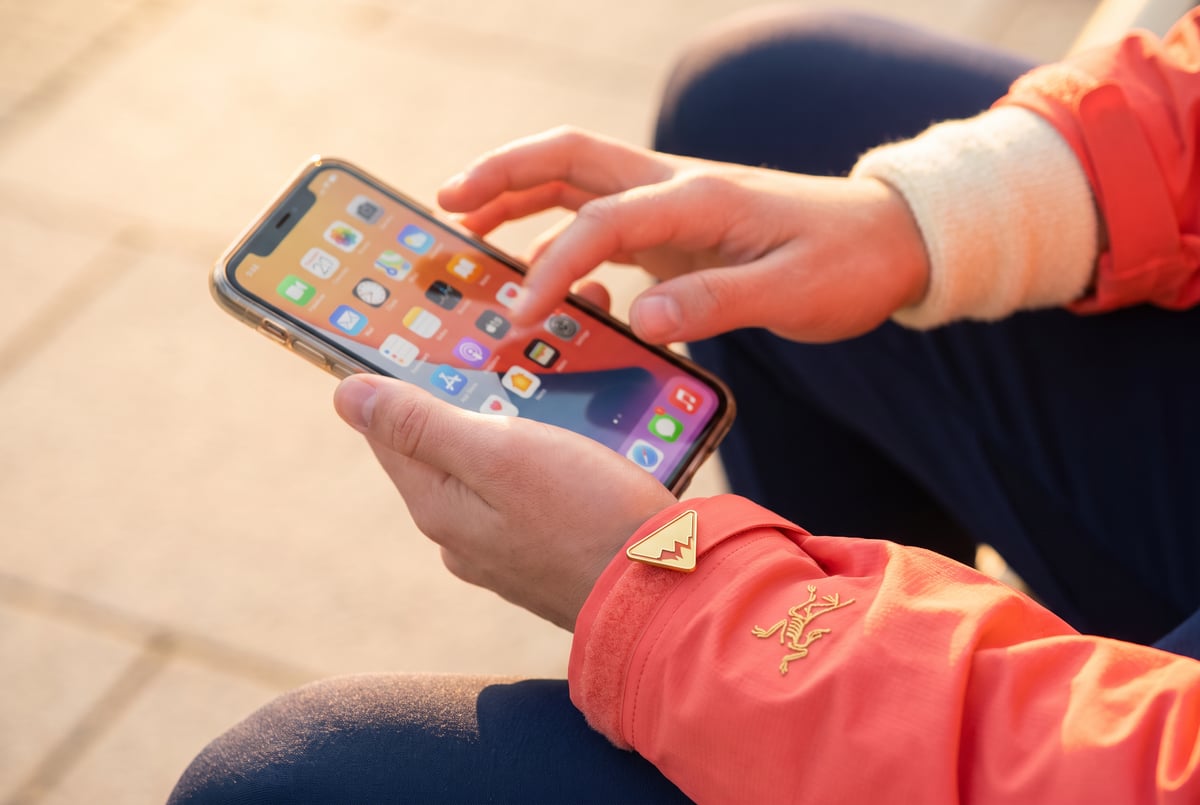
The feature has to be set up from Grokbot’s mobile app, not the desktop version. Once connected, bots can pull from apps like Apple Contacts and calendar, and in some configurations control smart home devices tied to your phone. This matters because a lot of useful personal context (who you know, what’s on your calendar, what’s connected to your home) lives on the phone rather than in a browser tab. Before this, a bot could only act on what you explicitly fed it through text or a handful of connected web apps. Now it can reach into the data sources most people actually use day to day.
The rollout pattern echoes what OpenAI has done with ChatGPT’s “dots” assistant, which also added a phone connection for messages, though that feature has been described as inconsistent in early use and still rolling out unevenly across account tiers.
What are Grokbot’s “pages” and why do they matter?
Pages are markdown-based documents that live inside a bot’s workspace, similar to a Notion page or a lightweight Word doc. Markdown is a plain-text format that AI models handle cleanly, which makes it a natural fit for anything a bot needs to read back, edit, or append to over time.
The practical use case is a running record that updates itself. One example: a bot set up specifically to monitor a calendar for new podcast appearances, then compile links and transcripts into a page that can be shared with a team. Instead of a one-off chat response, the page persists and grows, acting as a lightweight knowledge base tied to a single recurring task.
What do Grokbot’s new slides look like?
Grokbot added a slides feature that mimics Google Slides, letting a bot produce presentation-style output directly rather than just generating text you’d have to reformat yourself. This shipped quietly, without an official announcement, which means a lot of users may not know it exists yet. For anyone running a bot that handles reporting, research summaries, or recurring updates to stakeholders, having native slide output removes a manual formatting step that previously required exporting text into a separate tool.
Why connect a password manager to an AI bot?
Password managers like 1Password now integrate with Grokbot, and the reasoning is straightforward: bots with their own browser need a way to log into tools without you manually typing credentials or, worse, handing over your main password vault. The workaround is creating a separate vault specifically for a bot’s use, containing only the logins it needs. That vault is encrypted, and each stored password is unique, so even if something is compromised, the exposure is limited to what’s in that single vault rather than your entire digital life.

- Propellant load✓ Go
- Range safety✓ Go
- Weather✓ Go
- Final pollT–00:42
This also solves a practical problem with multi-bot setups. Since each bot operates on its own machine in the cloud with its own browser, it needs a way to authenticate into services on its own, especially for recurring tasks like checking a webmail account, logging into a CRM, or pulling data from a subscription-only source.
Are these features available to everyone right now?
Not entirely. Some updates, like phone connections, appear to be rolling out unevenly, and certain international phone numbers haven’t worked yet. The pages and slides features appear to be available more broadly since they don’t depend on device-level permissions. The 1Password connector is live and usable immediately for anyone with an existing password manager account. As with most AI product rollouts, feature availability by plan tier and region tends to lag behind announcements, so it’s worth checking the settings menu directly rather than assuming a feature is active just because it’s been covered somewhere.
Is it worth setting up routines and scheduled tasks in Grokbot?
For anyone running repeatable work, yes. The core value of Grokbot isn’t a single clever feature, it’s the ability to assign a narrow, well-defined job to a bot and let it run that job on a recurring basis without you remembering to trigger it. Pages give that recurring job a place to store its output. Phone connections give it more raw material to work with. Slides give it a way to present findings without manual reformatting. None of these are flashy on their own, but stacked together they turn a chat interface into something closer to a standing employee that does a specific task the same way every time.
The tradeoff is setup time. Each connector, page, or routine needs to be configured once, and most people report that the first version of any automation needs correcting before it reliably does what you want. That feedback loop (set something up, correct the output, let it improve) is consistently how these systems get useful rather than being useful on day one.
Frequently Asked Questions
What is Grokbot?
Grokbot is an AI assistant platform that lets users create multiple specialized bots, each with its own cloud-based workspace, that can be connected to apps, given recurring tasks, and set up to communicate with each other.
Do I need a paid plan to use the new features?
The transcript doesn’t specify exact pricing tiers for Grokbot’s pages, slides, or phone features. Availability has varied during rollout, so checking the app’s settings directly is the most reliable way to confirm access.
Can Grokbot read my phone’s contacts and calendar?
Yes, once you connect your phone through Grokbot’s mobile app, bots can access data like Apple Contacts and calendar entries, which the desktop version alone doesn’t provide.
Is the password manager integration safe to use?
The integration works by letting you create a separate, limited password vault just for a bot’s use, rather than giving it access to your full personal vault, which keeps exposure contained if anything goes wrong.
Can I move my data out of Grokbot if I switch tools later?
Yes. An import and export function lets you transfer memory and context between Grokbot and other AI assistants, so switching platforms doesn’t require rebuilding everything from scratch.