How to Export Google Stitch Designs to Google AI Studio for Full-Stack App Building
Learn how to design in Google Stitch, export to AI Studio, and build a working full-stack app from a single prompt using Gemini models.
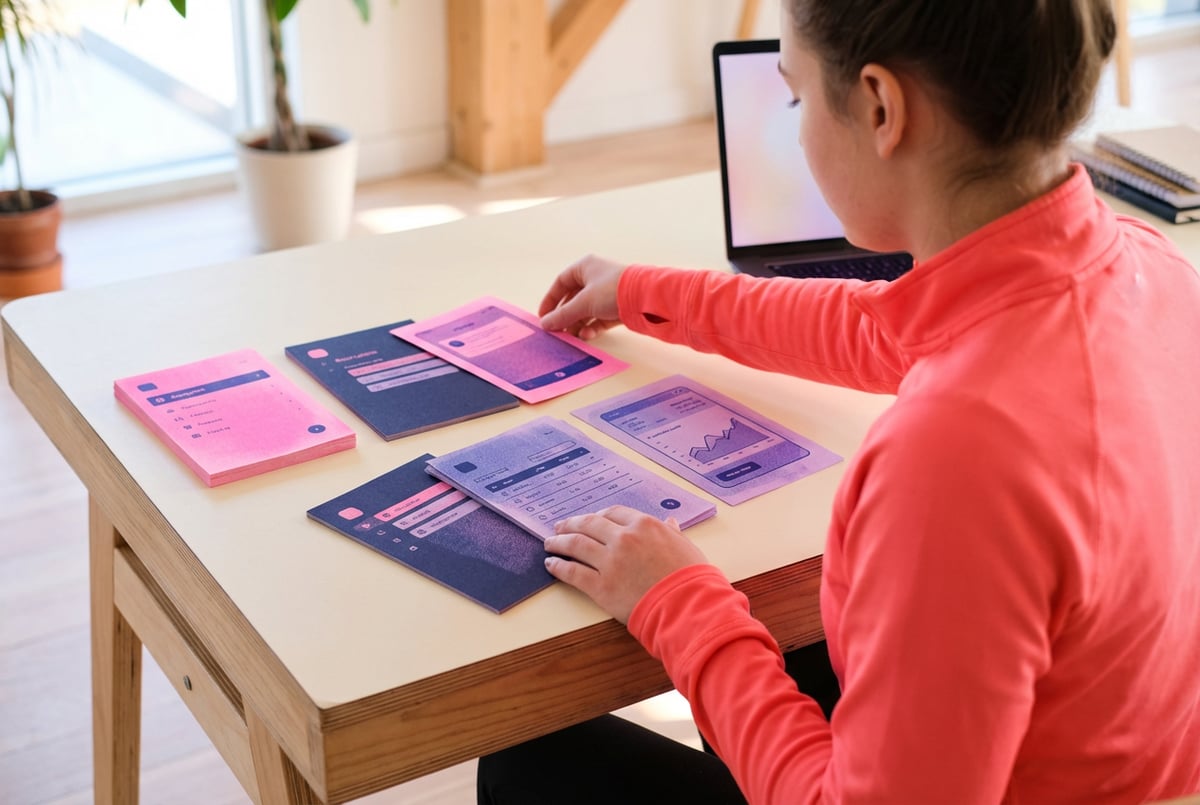
From Wireframe to Working App: The Google Stitch + AI Studio Workflow
Google Stitch generates polished UI designs from plain text descriptions. Google AI Studio turns those designs into running code using Gemini models. Together, they compress what used to be a multi-day design-and-build cycle into something that can happen in a single afternoon.
This workflow matters for anyone who has an app idea but hits friction at either end: designers who aren’t developers, developers who aren’t designers, or product people who need a working prototype before they can get buy-in. Describe what you want, get a visual design, export it, and let Gemini write the code.
This guide covers the full process from first prompt in Google Stitch to a deployed, functional full-stack app in Google AI Studio.
What Google Stitch Actually Does
Google Stitch is part of Google Labs — Google’s experimental product incubator. It’s a browser-based AI design tool that generates app UI mockups from natural language descriptions.
You type a description like “a project management dashboard with a collapsible sidebar, a Kanban board in the main area, and a top bar with search and user avatar” and Stitch produces a visual interface. No Figma experience required, no component libraries to configure, no design tokens to set up.
How Stitch Understands Design Intent
Most AI image generators respond to visual keywords. Stitch is oriented toward interface logic — it understands layout hierarchy, user interactions, and component relationships. You can describe a flow (“show a confirmation modal when the user clicks delete”) and Stitch reflects that in the design rather than just pattern-matching on keywords.
This makes it particularly useful early in a project, when you’re still figuring out what the product should do and how users should move through it.
What Stitch Produces
The output is a visual mockup — not a prototype in the Figma sense, but a clear, designed representation of your interface. You can iterate on it through follow-up prompts, adjust specific elements, and eventually export it for the next stage of the workflow.
What Google AI Studio Brings to the Table
Google AI Studio is a free, browser-based tool for building with Gemini models. Developers use it to generate code, test multimodal inputs, and prototype AI-powered features without any local setup.
For this workflow, the most important capability is image-to-code generation. You can upload a design mockup, describe how the app should behave, and Gemini produces working front-end code — HTML, CSS, and JavaScript — that you can preview immediately in the browser.
The Build Feature in AI Studio
AI Studio’s Build feature is the core of this workflow. It accepts image uploads as context, lets you specify stack preferences and behaviors in plain text, and generates a complete working app based on both.
The output is typically a single-file web app — everything in one HTML document — which you can preview, iterate on, and gradually break into components as the project matures.
Gemini Model Options
AI Studio gives you access to several Gemini models. For image-to-code generation:
- Gemini 2.0 Flash — Fast, lightweight, great for prototyping and quick iterations
- Gemini 1.5 Pro — Better at handling complex apps with long context requirements, multiple screens, or detailed specifications
For most prototypes, Flash is sufficient and noticeably quicker. Move to 1.5 Pro when your app grows in complexity or when you need to maintain a large codebase in context.
Prerequisites Before You Start
Here’s what you need before jumping in:
- A Google account — Required for both Stitch and AI Studio
- Access to Google Stitch — Available through Google Labs; some features may require joining a waitlist
- Google AI Studio access — Free at aistudio.google.com
- A clear app concept — The more specific your starting description, the better both tools perform
- A Gemini API key (optional for this workflow; required if you plan to deploy with the Gemini API) — Generate one for free inside AI Studio
No local environment, no package manager, no framework decisions required at this stage.
Step 1: Design Your App in Google Stitch
Open Stitch and start with a description of what you want to build. The quality of your prompt directly determines the quality of the design — and the quality of the design directly affects how good your generated code will be downstream.
Writing an Effective Stitch Prompt
Weak: “a dashboard for a SaaS app”
Remy doesn't write the code. It manages the agents who do.
Remy runs the project. The specialists do the work. You work with the PM, not the implementers.

Better: “a SaaS analytics dashboard with a dark collapsible sidebar listing navigation items (Overview, Reports, Users, Settings), a top bar with a search field and user avatar with dropdown, and a main content area with three KPI cards (total revenue, active users, conversion rate), a line chart below, and a paginated data table at the bottom”
The stronger version gives Stitch layout structure, named components, visual hierarchy, and specific UI elements to generate. That specificity carries forward into cleaner code when you export.
Iterating on the Design
Stitch is designed for iteration. After the first output, use follow-up prompts to refine:
- “Make the sidebar collapsible with a toggle button”
- “Add a status badge to each row in the table”
- “Change the chart area to support tab switching between line and bar views”
Spend 10–20 minutes here. Each iteration reduces the amount of correction work you’ll do later in AI Studio.
What to Finalize Before Exporting
Before moving on, review the design for:
- Layout structure — Does the hierarchy make sense for users?
- Component completeness — Are all the UI elements you’ll need present?
- Text labels — Placeholder copy in the design often carries into generated code; update it now if the labels matter
- Multi-screen flows — If your app has multiple views, make sure navigation states and screen transitions are represented
Step 2: Export Your Google Stitch Design
Once you’re satisfied, export the design from Stitch.
Export Options
Stitch offers a few paths depending on your account access:
- Export as image (PNG) — The most universally available option. You’ll upload this directly to AI Studio as visual context.
- Export to AI Studio — A direct integration that pre-loads your design into an AI Studio session with design context attached. When available, this is the faster path.
- Copy individual assets — Useful if you only want to use specific components from the design.
If the direct AI Studio integration is available, use it. It keeps the design context tighter and skips a manual upload step.
Tips for a Clean Export
- Export at the highest resolution available — low-resolution images cause Gemini to misread layout details
- If your design has multiple screens, export and upload them separately in sequence
- Note any interactions that won’t be visible in a static image (hover states, modal triggers, animation behaviors) — you’ll describe these in your AI Studio prompt rather than relying on the image to convey them
Step 3: Set Up Your Gemini Build Session in AI Studio
Open AI Studio and start a new session in the Build feature. Upload your exported design image.
Selecting a Model
Choose your Gemini model based on project complexity:
- Gemini 2.0 Flash for fast, simple prototypes
- Gemini 1.5 Pro for apps with multiple screens, complex state management, or a lot of specified behavior
You can switch models mid-session if you find the initial output too shallow or if iteration is taking too long.
Writing Your Build Prompt
Your build prompt is the second critical input in this workflow, after your Stitch design. Include:
- What the app is — One or two sentences on purpose and audience
- Stack preference — Default is HTML/CSS/JavaScript; specify React, Vue, or Next.js if you prefer
- Specific behaviors — Form handling, data filtering, modal triggers, client-side routing
- What should be real vs. mocked — Which data should be functional and which should use placeholder values
Example prompt:
“Here’s a UI design for a SaaS analytics dashboard. Build this as a single-file HTML/CSS/JavaScript app. The sidebar links should show and hide content sections without a page reload. KPI cards should display the values in the design. The line chart should use Chart.js with 12 months of sample revenue data. The activity table should show 10 sample rows. The search bar should filter the table rows in real time. The user avatar should show a dropdown with ‘Profile’ and ‘Sign out’ options.”
This level of specificity gets you a working app, not just a visual shell.
Step 4: Generate Code and Review the Output
Run the prompt. Gemini generates code in roughly 15–45 seconds depending on complexity.
What to Expect from the First Output
The initial generation will usually include:
- An HTML structure that mirrors your design’s layout
- CSS that approximates the visual style — colors, spacing, typography
- JavaScript for the interactivity you described
It won’t be pixel-perfect. Gemini interprets designs rather than reproducing them exactly. Common differences include:
- Font choices (Gemini defaults to system fonts or Google Fonts unless specified)
- Exact spacing values
- Icon rendering (open-source icon libraries are the default)
- Precise color hex values if your design uses custom brand colors
These are all fixable through follow-up prompts.
Reviewing the Preview
AI Studio shows the generated code alongside a live preview. Check:
- Does the layout match the Stitch design?
- Are all the listed components present and interactive?
- Does the specified behavior (routing, search, dropdowns) work correctly?
When something’s wrong, describe the problem directly: “The sidebar doesn’t toggle when the button is clicked. Fix the toggle JavaScript.” Iterating through 5–10 follow-up prompts before the frontend is solid is normal — it’s still faster than writing everything from scratch.
Step 5: Add Backend Logic and Data Connections
At this point you have a working frontend with mocked data. To make it a real app, you need real data and real behavior.
Option 1: Generate a Backend in AI Studio
Ask Gemini to produce a Node.js or Python backend alongside your frontend. Describe the data model and the API endpoints you need:
“Add a Node.js Express backend with endpoints for GET /users, POST /users, and DELETE /users/:id. Store data in memory for now. Connect the table in the frontend to these endpoints.”
This gives you a runnable full-stack prototype in a single session.
Option 2: Connect to an External API
If you’re integrating with an existing service, describe the integration:
“The activity table should fetch data from
https://api.example.com/activitywith an Authorization header using a Bearer token stored in localStorage.”
Gemini generates the fetch logic, handles the response structure, and wires it into the UI.
Option 3: Use Firebase or Supabase
For prototypes that need real persistence without building a custom backend, Firebase and Supabase are strong defaults. Both have free tiers, REST APIs, and real-time data features. Gemini’s training data includes both platforms extensively, so prompts like:
“Add Supabase authentication with email/password sign-in. After login, load the activity data from a Supabase table called ‘events’ where the user_id matches the logged-in user.”
Built like a system. Not vibe-coded.
Remy manages the project — every layer architected, not stitched together at the last second.
…produce working integration code reliably.
A Note on Authentication
If your app needs user login, specify it explicitly and test every auth state: initial login, session persistence, token refresh, and sign-out. AI-generated auth flows work in the happy path but often need manual fixes for edge cases. Don’t ship auth code to production without reviewing it.
Step 6: Deploy Your App
When you’re satisfied with the result, deploy it.
Deploying Static Front-Ends
If your app is frontend-only with API calls to external services:
- Drag your HTML file into Netlify Drop for instant hosting — no account required
- Push to GitHub and connect to Vercel or Cloudflare Pages for continuous deployment
- Use GitHub Pages for simple static hosting
Deploying Full-Stack Apps
If you have a backend component:
- Google Cloud Run — Native Google infrastructure, containers-based, scales to zero when idle
- Railway or Render — Faster to configure than Cloud Run, generous free tiers for prototypes
- Fly.io — Good option for low-latency global deployments
For apps using Firebase or Supabase, the backend infrastructure is already managed — you only need to deploy the frontend.
How MindStudio Extends This Workflow
The Stitch → AI Studio path is fast for getting an app built. Where it gets harder is when your app needs to do more than display data or make simple API calls — when it needs to reason, make decisions across multiple steps, or trigger actions in other systems.
That’s where MindStudio fits. MindStudio is a no-code platform for building AI agents and automated workflows. You can build the AI-powered logic layer of your app in MindStudio and expose it as a webhook or API endpoint that your AI Studio-generated frontend calls.
For example: your Stitch-designed app includes a form where users submit content for review. Instead of writing a multi-step AI pipeline in code, you build it in MindStudio — processing the submission through Gemini or another model, applying business rules, routing the result to Slack or HubSpot, and returning a response to the frontend. MindStudio handles rate limiting, retries, and model orchestration so you don’t have to.
If you’re building an app that’s AI-native from the start, MindStudio also supports AI-powered web apps with custom UIs — built directly in the platform without a separate design-to-code pipeline. Access to Gemini and 200+ other models is built in, no API key management required.
Developers extending this workflow with autonomous agents can use MindStudio’s Agent Skills Plugin — an npm SDK that gives any AI agent typed capabilities like agent.sendEmail(), agent.searchGoogle(), and agent.runWorkflow() as simple method calls.
You can try MindStudio free at mindstudio.ai.
Common Mistakes and How to Avoid Them
Exporting a Low-Resolution Image
A small or compressed export causes Gemini to misread the layout. Always use the highest available export resolution and verify that labels in the design are legible at full size.
Under-Specifying the Build Prompt
Seven tools to build an app. Or just Remy.
Editor, preview, AI agents, deploy — all in one tab. Nothing to install.
“Build this app” generates code that runs but doesn’t actually do anything. Every interactive element, data connection, and behavior you want needs to be named explicitly in the prompt. The more precise the prompt, the more useful the first output.
Skipping the Review Step Before Building On Top
Bugs in the initial generated output compound quickly when you add features on top of them. Review the preview thoroughly before treating the first output as your foundation.
Treating the AI Studio Output as Production-Ready
AI-generated code is excellent for prototyping. It needs review before production — especially for apps handling user data, authentication, or payments. Common issues include missing input validation, insecure API key handling, and XSS vulnerabilities.
Trying to Fix Everything in One Prompt
Long correction prompts that try to fix five things at once often produce inconsistent results. Fix one issue at a time. It takes slightly more back-and-forth but produces more reliable code.
Frequently Asked Questions
Is Google Stitch free to use?
Google Stitch is available through Google Labs and is free to access with a Google account. Some features may require joining a waitlist. It’s a separate experimental product from Google Workspace and Google One subscriptions.
Can I use this workflow without any coding experience?
The core workflow — describing a design, exporting it, and writing a plain-text build prompt in AI Studio — doesn’t require coding knowledge. Understanding code becomes more useful when you need to debug specific issues or customize generated output beyond what prompting can fix. But getting to a working prototype is accessible to non-developers.
What types of apps work best with this approach?
Front-end web apps work well: dashboards, admin panels, landing pages, multi-step forms, data tables with filtering. Full-stack apps are possible with the right prompting. Native mobile apps aren’t a direct output — the generated code is web-based, though it can be wrapped in a webview for mobile deployment.
How close does the generated code match the Stitch design?
Layout structure and component presence are usually close. Exact visual details — specific hex colors, precise spacing, custom fonts — typically need adjustment. Treat the first generated output as a rough translation, not a pixel-perfect copy. A few follow-up prompts usually close the gap.
Can Gemini generate code in React or another framework?
Yes. Specify your preferred stack in the build prompt. AI Studio can produce React, Vue, Next.js, and other common frameworks. For component-based frameworks, ask Gemini to structure the output as separate files from the start — refactoring a single-file app into components later is more work.
What’s the difference between using AI Studio and using a tool like v0 or Lovable?
AI Studio is Google’s developer platform with direct access to Gemini models across their full range of capabilities. Tools like v0 (Vercel) and Lovable are purpose-built for app generation with tighter framework opinions (Next.js, React) and more opinionated deployment paths. AI Studio gives you more model flexibility and is part of Google’s broader developer ecosystem, which is an advantage if you’re planning to use other Google Cloud services.
Key Takeaways
- Google Stitch generates UI designs from plain text descriptions, removing the need for manual design work early in a project
- Exporting to Google AI Studio — either directly or via image — gives Gemini the visual context needed to generate working front-end code
- The build prompt in AI Studio is as important as the design itself; specific behaviors, stack preferences, and data expectations should all be included
- The first generated output is a starting point — expect 5–10 follow-up prompts before the app is functionally solid
- For apps that need multi-step AI logic, workflow automation, or agent-based behavior, MindStudio handles that layer and exposes it as an API your app can call
Remy is new. The platform isn't.
Remy is the latest expression of years of platform work. Not a hastily wrapped LLM.
The Stitch → AI Studio workflow removes the gap between “I have an idea” and “I have something running in a browser” — which is often where projects stall. Whether you’re a designer prototyping without a developer, a developer sketching without a designer, or a product manager trying to show a working concept, this workflow gets you there faster.
For everything beyond the frontend — AI pipelines, automated workflows, and multi-model integrations — MindStudio is worth exploring. Start free and build your first workflow in minutes.