How to Use Google Gemini Omni to Generate Video from a Sketched Camera Path
Gemini Omni can turn a hand-drawn map route or camera path into a driving or drone POV video. Here's how filmmakers and creators are using this feature.
What “Omni” Actually Means for Video Creation
Gemini’s multimodal capabilities — often referred to as its “omni” approach — let the model read text, interpret images, analyze audio, and process video all in the same context window. That matters for video production because it changes what counts as a valid prompt.
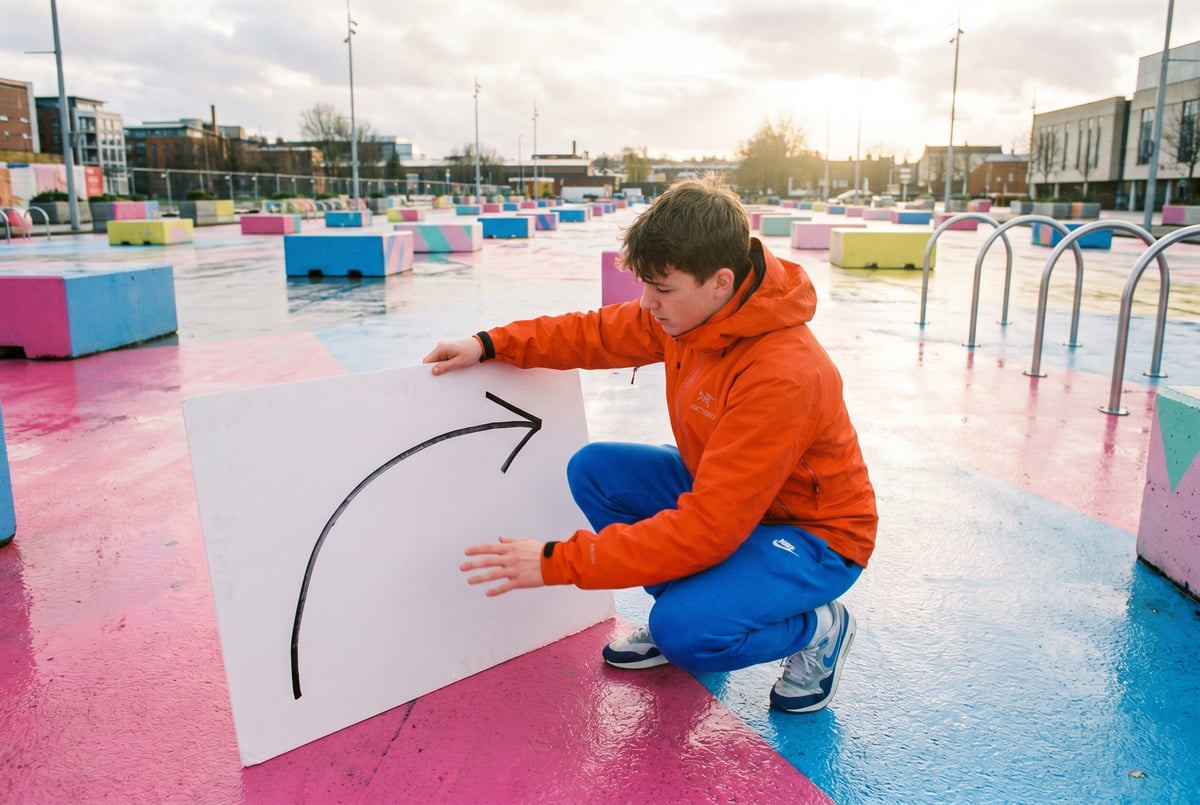
Instead of describing a camera movement in words and hoping the model interprets it correctly, you can show it. Draw a route on a map. Sketch a curved arc with arrows. Drop a rough top-down diagram of a scene and mark where the camera starts, where it travels, and where it ends. Gemini can read that sketch as a spatial instruction, translate it into a camera movement description, and pass that downstream to a video generation model like Veo.
The result is a driving POV clip, a drone flythrough, or a cinematic dolly shot — generated from a drawing that took you 30 seconds to make.
This guide explains how that pipeline works, how to set it up, and where filmmakers and content creators are already applying it.
How the Sketch-to-Video Pipeline Works
The Three-Stage Process
The workflow has three distinct stages, each handled by a different capability in Google’s AI stack:
- Sketch interpretation — Gemini reads your drawn input and extracts spatial intent: camera position, movement direction, speed cues, altitude (for drone shots), and key waypoints.
- Prompt translation — The model converts that spatial interpretation into a structured camera movement description, either as a natural language prompt or as a set of control parameters.
- Video generation — The translated description feeds into Veo (Google’s video generation model), which renders the actual footage based on the movement instruction.
You’re not writing a script. You’re drawing a path and letting the model figure out what that means cinematically.
Why Sketches Work Better Than Text for Camera Paths
Describing camera movement in text is hard. “Pan left, then arc upward while moving forward, then tilt back down as the camera decelerates” is technically correct but awkward to write and easy to get wrong. A sketch captures the same information in seconds — and captures spatial relationships that text describes poorly.
Gemini’s vision capabilities are trained on a wide range of visual inputs, including diagrams, maps, and annotated drawings. A hand-drawn curve with an arrow is legible to the model. So is a top-down map route with a highlighted path, a napkin sketch of a building with a dotted flight path around it, or a simple X-marks-the-spot with directional indicators.
Setting Up Your Workflow
What You’ll Need
Before you generate anything, get these pieces in place:
- A Google account with access to Gemini (Gemini Advanced or the API via Google AI Studio)
- Access to Veo through Google’s Vertex AI or a platform that exposes the model
- A sketch or camera path image — this can be hand-drawn and photographed, created in a drawing app, or exported from mapping software
- Optional: A reference image of the scene or environment you want the camera to move through
The sketch doesn’t need to be polished. Rough works fine. What matters is that the directional intent is clear.
Preparing Your Sketch
The most effective sketches for this workflow include:
- A clear starting point — mark it with a circle, S, or “start” label
- Directional arrows — show which way the camera moves along the path
- An endpoint — mark where the shot ends
- Speed or altitude cues if relevant — “slow,” “fast,” “rise,” “descend” written alongside the path
For drone shots, a top-down view works best. For ground-level driving or walking POV, a side-view or map-style overhead sketch is easier for the model to interpret correctly.
If you’re working from a real location, screenshotting a map route and annotating it (even with a stylus or marker on your phone screen) is a fast way to generate a usable input.
Step-by-Step: Generating a Driving or Drone POV Video
Step 1: Open Gemini and Upload Your Sketch
Open Gemini (via gemini.google.com or through Google AI Studio for API access). Start a new conversation and attach your sketch as an image.
If you’re using the Gemini API programmatically, pass the sketch as a base64-encoded image in the parts array of your request.
Step 2: Prompt Gemini to Interpret the Camera Path
Give Gemini a clear instruction about what the sketch represents and what you want it to extract. A prompt like this works well:
“This is a top-down sketch of a camera path for a drone shot. The path starts at the bottom-left marker and curves right, ascending gradually, then descends toward the building at the top-right. Please describe this camera movement in cinematic terms that could be used to generate a video clip — include direction, altitude change, speed, and any notable waypoints.”
Other agents start typing. Remy starts asking.
Scoping, trade-offs, edge cases — the real work. Before a line of code.

Adjust the framing based on your sketch type. For a driving POV:
“This is a hand-drawn map route. Interpret this as a first-person driving perspective and describe the camera movement: turns, straightaways, speed, and any notable points along the route.”
Gemini will return a structured description of the movement.
Step 3: Review and Refine the Description
Read the output. Ask yourself:
- Does the direction match what you drew?
- Did it pick up on speed or altitude cues?
- Is the pacing what you intended?
If something is off, correct it in the same conversation. “The ascent should happen earlier — the camera should be at maximum altitude by the midpoint, not the endpoint” is the kind of correction Gemini handles well in context.
You can also ask for variations: “Give me three different ways to describe this movement — one slow and cinematic, one fast and dynamic, one that emphasizes the final destination.”
Step 4: Pass the Description to Veo
Once you have a camera movement description you’re happy with, use it as your Veo prompt. Access Veo through:
- Google AI Studio — direct model access for experimentation
- Vertex AI — for production-grade API calls
- A platform like MindStudio — which gives you Veo access alongside 200+ other models without needing separate API keys or accounts
Veo accepts natural language prompts describing camera movement, scene content, and visual style. Pair the camera movement description with a scene description and any style guidance (e.g., “cinematic color grade,” “golden hour lighting,” “overcast urban environment”).
Step 5: Add a Reference Image (Optional but Recommended)
Veo supports image-conditioned generation, meaning you can supply a reference frame — a photo of the actual location, a concept art piece, or a rendered scene — and the model will try to match the visual environment while applying the camera movement.
For drone shots of real locations, a Google Maps satellite image of the area works well as a reference. For fictional or stylized environments, concept art or a rendered still gives the model a visual baseline.
Step 6: Generate, Review, and Iterate
Run the generation. Veo currently produces clips up to about 8 seconds at high quality. Review the output:
- Did the camera move in the right direction?
- Does the speed feel right?
- Is the visual environment close to what you wanted?
If the movement is right but the environment is off, adjust the scene description. If the environment is right but the camera path is wrong, go back and refine the Gemini interpretation in Step 2–3.
Iteration is normal. Most creators get a usable result in 3–5 attempts.
Use Cases: Who’s Using This and Why
Filmmakers Scouting Locations
Pre-production traditionally involves visiting locations in person or relying on photographs and imagination. With this workflow, a director can sketch the intended camera movement for a scene on a map of the real location and generate a rough visual approximation — enough to communicate intent to a DP or production designer without a site visit.
- ✕a coding agent
- ✕no-code
- ✕vibe coding
- ✕a faster Cursor
The one that tells the coding agents what to build.
It’s not a finished product. It’s a visual shorthand for “this is what I’m going for.”
Content Creators Building Travel Videos
Travel creators who can’t afford drone operators or stabilized camera rigs are using sketch-to-video to fill sequences. A rough approximation of a flythrough over a landmark, a winding coastal road drive, or a path through a market — these establish motion and place even when real footage is limited.
The key is pairing the generated clip with real footage of the location so the final edit feels grounded.
Game Designers and World Builders
For interactive media, sketch-to-video is useful for previsualization — generating a quick cinematic pass through a game environment before committing to full rendering. A sketched camera path through a level layout produces a rough cutscene proxy that communicates pacing and spatial flow to the rest of the team.
Real Estate and Architecture
Architects and real estate marketers are generating walkthrough videos from floor plan sketches. Upload a floor plan, mark the camera entry point and movement path, and get a rough interior flythrough. It’s faster than commissioning a 3D render for every iteration.
Tips for Better Results
Keep Sketches Unambiguous
The most common source of errors is an ambiguous sketch — a path that curves back on itself, overlapping arrows, or an unclear starting point. If you’re second-guessing what the sketch means, so will the model.
When in doubt, add labels directly to the sketch: “start,” “turn left,” “rise,” “slow down,” “end.”
Use Cinematic Reference Terms in Your Prompt
When asking Gemini to translate the sketch, using cinematic language helps the output land closer to what Veo expects. Reference terms like:
- Dolly (forward/backward movement along an axis)
- Truck (sideways movement)
- Pan (horizontal rotation)
- Tilt (vertical rotation)
- Crane/jib shot (vertical movement)
- Orbit or arc shot (circular movement around a subject)
- Boom (upward/downward movement)
If your sketch shows a circular path around a central point, saying “interpret this as an orbit shot around the central subject” gives Gemini a clear framework.
Chain Multiple Sketches for Longer Sequences
Veo clips are short. For longer sequences, break your camera path into segments and sketch each one separately. Generate each clip individually, then stitch them together in post. The transitions between segments are where the edit lives — you don’t need seamless generation to get a coherent sequence.
Match the Style Description to the Shot Type
For drone shots, add descriptive terms like “aerial,” “bird’s eye,” “atmospheric haze,” “wide angle lens.” For driving POV, try “dashboard cam perspective,” “motion blur on periphery,” “shallow depth of field.” These style terms help Veo render something that looks like the camera type you intended.
Frequently Asked Questions
What is Gemini Omni and how does it differ from standard Gemini?
“Omni” refers to Gemini’s multimodal design — the ability to process and generate across multiple content types (text, images, audio, video) within a single model. Unlike earlier AI systems that required separate models for each modality, Gemini’s architecture handles them natively in the same context. This matters for camera path generation because it means Gemini can read a hand-drawn sketch and produce a text description of camera movement without you needing to run the image through a separate OCR or image analysis tool first.
Can I use a photo of a real location as the basis for a sketch-to-video workflow?
Yes. A map screenshot, satellite image, or photograph of a real location can serve as the visual input instead of a hand-drawn sketch. Annotate it with directional arrows and waypoints using any image editing app, then upload the annotated image to Gemini. The model will interpret the annotations as camera instructions in the context of the location shown.
How long can the generated video clips be?
Veo currently generates clips up to approximately 8 seconds at high quality in its standard configuration. Longer sequences require chaining multiple clips together in post-production. Google has indicated that clip length limits are increasing as the model matures, so this constraint may ease over time. For now, planning your camera paths in 5–8 second segments is the practical approach.
Does the sketch need to be professional or precise?
No. Rough sketches work. The model is interpreting directional intent, not measuring exact angles. What matters is that the start point, direction of movement, and endpoint are clear. If you’re uncertain whether your sketch is legible, add text labels directly on the image — “camera starts here,” “curves right,” “ascends to rooftop level” — and those will reinforce the visual cues.
Can I control the visual style of the generated video, not just the camera movement?
Yes. When you pass the camera movement description to Veo, you can include scene and style details alongside it. Specifying the time of day, lighting conditions, lens type, color palette, and visual mood all influence the final output. A prompt that combines camera movement with a strong visual style description tends to produce more intentional results than a movement-only prompt.
Is this workflow suitable for professional production, or just experimentation?
Currently, it sits somewhere in between. The output quality from Veo is high enough to be usable in final cuts for online content — social media, YouTube, digital advertising, and similar formats. For broadcast or theatrical work, it’s better suited to previsualization and concept approval rather than final delivery. As model quality improves, that boundary is shifting. Filmmakers using this now are primarily treating it as a fast, low-cost way to test and communicate ideas before committing to production resources.
Key Takeaways
- Gemini’s multimodal (omni) capabilities let it read sketches as spatial instructions, making hand-drawn camera paths a viable video prompt format.
- The pipeline works in three stages: sketch interpretation with Gemini, prompt translation, and video generation with Veo.
- Effective sketches include a clear start point, directional arrows, and labeled waypoints — rough is fine.
- Useful applications include film previsualization, travel content creation, game design, architecture walkthroughs, and real estate marketing.
- For repeatable production use, building this as an automated workflow in MindStudio eliminates the manual handoff between tools and adds post-production capabilities in the same pipeline.