What Is Google Stitch's Design.md File? How AI Design Systems Work
Google Stitch's design.md file stores your brand's color palette, fonts, and styling rules so every AI-generated design stays consistent.
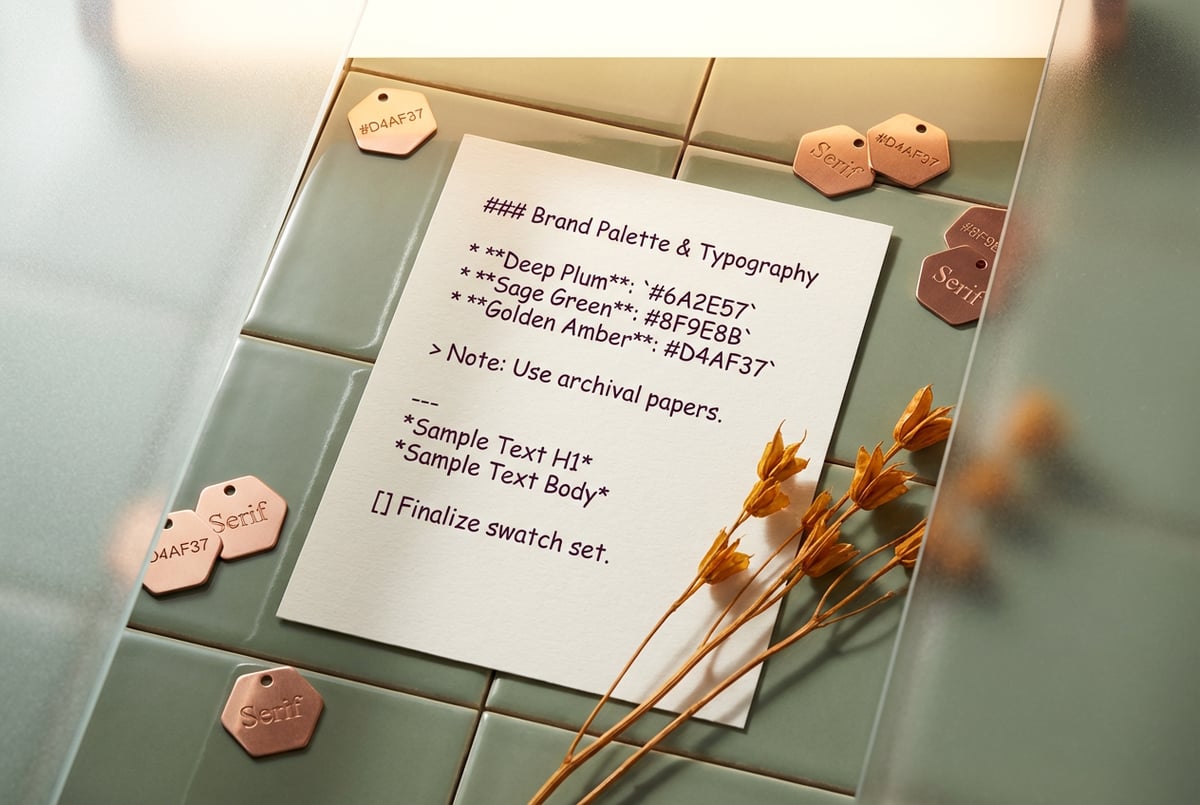
The File That Keeps AI Designs Consistent
Google Stitch’s design.md file sounds simple on the surface — it’s just a markdown document. But it solves one of the most persistent problems with AI design tools: inconsistency.
Every time you prompt Stitch to generate a new screen or component, it reads design.md first. That file contains your brand’s color palette, fonts, spacing rules, and component styles — all in one place. Gemini, the model powering Stitch, uses that context to generate designs that look like they belong to your product, not a generic template.
If you’ve ever wondered why Stitch “remembered” your color palette without you re-specifying it, or how it knew to use Inter at 16px for body text — that’s design.md doing its job.
This article covers what the design.md file actually contains, how it works with Gemini during generation, how to edit and maintain it, and why this pattern of persistent context files for AI is becoming a standard approach across design tooling.
What Google Stitch Is
Stitch is an AI-powered design tool from Google. You describe a UI in natural language — “a settings page with a notification preference section” — and Stitch generates the design along with corresponding frontend code (React, HTML/CSS, or other formats depending on your project setup).
Seven tools to build an app. Or just Remy.
Editor, preview, AI agents, deploy — all in one tab. Nothing to install.

It’s built on Gemini and aimed at product designers and frontend developers who need to move fast on UI prototyping. It’s not a Figma replacement or a full design-to-code pipeline — it’s more useful as an accelerator for early-stage UI work or rapid iteration.
What differentiates Stitch from generic code generators is its focus on UI specifically, and design.md is central to that specialization.
What the design.md File Actually Is
Design.md is a plain markdown file stored inside your Stitch project. It functions as a design system manifest — the machine-readable version of your brand’s visual rules.
Think of it as the brief you’d give a designer before they start work. Not “make it look clean” but “our primary color is #1A73E8, we use Inter for all text, buttons have 8px border-radius, and card borders are 1px solid #E8EAED.” That level of specificity is what the file holds.
The file is both machine-readable and human-readable. You can open it in any text editor, edit it directly, commit it to a Git repository, and share it with your team. Stitch loads it automatically when generating anything in your project.
What Goes Inside design.md
A typical design.md file covers these categories:
Color palette
- Primary, secondary, and accent colors with exact hex values
- Semantic color tokens: success, warning, error, neutral
- Surface and background values
- Text color hierarchy (primary, secondary, disabled)
Typography
- Font families with fallbacks
- Type scale: heading sizes, body, captions
- Font weights used throughout
- Line height and letter spacing where relevant
Spacing and layout
- Base spacing unit (4px or 8px grid)
- Common spacing values
- Container widths and breakpoints
Component styles
- Border radius values for buttons, cards, inputs
- Shadow definitions and elevation levels
- Border styles and weights
Design voice (optional)
- Some teams add brief notes on accessibility requirements or UI copy tone
Here’s a minimal example of what the file looks like in practice:
## Colors

- Primary: #1A73E8
- Primary Dark: #1557B0
- Secondary: #34A853
- Background: #FFFFFF
- Surface: #F8F9FA
- Error: #EA4335
- Text Primary: #202124
- Text Secondary: #5F6368

## Typography

- Font Family: Inter, sans-serif
- Heading 1: 32px, 700 weight
- Heading 2: 24px, 600 weight
- Body: 16px, 400 weight
- Caption: 12px, 400 weight

## Spacing

- Base unit: 8px
- Values in use: 4, 8, 16, 24, 32, 48px

## Components

- Button border radius: 8px
- Card border radius: 12px
- Card shadow: 0 1px 3px rgba(0,0,0,0.12)
- Input border: 1px solid #DADCE0
When Stitch reads this before generating, Gemini has everything it needs to apply your brand’s visual language without you prompting it each time.
How design.md Works During Generation
When you submit a prompt to Stitch, it doesn’t pass just your prompt to Gemini. It passes your prompt plus the full contents of design.md as context. Gemini treats the design file as a set of constraints it must follow.
Instead of picking arbitrary colors, it uses your hex values. Instead of defaulting to whatever border-radius feels reasonable, it applies your defined tokens. The result is generated design and code that match your brand — not because the AI guessed well, but because it had explicit rules to follow.
Remy doesn't write the code. It manages the agents who do.
Remy runs the project. The specialists do the work. You work with the PM, not the implementers.
This matters in practice. Most complaints about AI design tools come down to one thing: the outputs look nothing like the actual product. Design.md directly addresses this by making your visual rules persistent across every generation.
Auto-Generation vs. Manual Editing
Stitch can generate an initial design.md file from a descriptive prompt (“our brand is minimalist, blue and white, uses Inter, clean card layouts”). It can also update the file when you decide to change something — new color, adjusted type scale, different component style.
But manual editing is fully supported and often preferable. If you already have design tokens defined in Figma, a Tailwind config, or a style guide document, translating them into design.md format is straightforward. It’s plain markdown — no proprietary schema to learn.
Because it’s a text file, it fits naturally into Git workflows. Teams can track changes to design tokens through commit history and review updates through pull requests, the same way they handle code changes.
Why Constrained AI Produces Better Design Output
Design.md isn’t just a helpful feature — it represents a principle worth understanding: constrained AI produces more consistent, useful output than unconstrained AI.
Give a language model complete freedom over a UI and you get complete variance. Outputs might be creative, but they won’t be consistent. And consistency is a non-negotiable requirement for product design — users need interfaces that feel coherent, not arbitrary.
By encoding your design system into a context file that the AI reads before every generation, you give the model rules to follow while still letting it handle the complex decisions: layout structure, component hierarchy, responsive behavior, visual balance.
This is the same thinking behind Material Design’s token-based architecture — defining discrete, reusable design values that can be applied consistently across a product at scale. The difference is that design.md applies that thinking to AI-generated output, not hand-coded components.
The pattern generalizes. Any time you use AI to generate creative output — designs, marketing copy, visual assets, branded templates — giving it explicit, persistent rules in a structured context file produces more useful results than relying on prompt engineering alone.
design.md vs. a Full Design System
Design.md is not a design system. This distinction matters.
A design system answers questions like: “When should we use a primary button instead of a secondary button?” and “What does our empty state look like?” Those require UX judgment, documented rationale, and human decision-making.
Design.md answers token-level questions: “What is our primary button color?” and “What border-radius do inputs use?” Those are discrete, specific values an AI can apply mechanically.
Traditional design systems — maintained in Figma, Storybook, or coded component libraries — are comprehensive. They’re built for teams of designers and developers to consult during their work. Design.md is the distilled, executable subset of those rules: just what the AI needs to make consistent visual decisions quickly.
For teams with an existing design system, design.md is a translation layer — the parts of your system expressed in a format Stitch can consume. For teams without a formal design system yet, design.md can be a useful starting point for codifying your visual rules.
How to Maintain Your design.md Over Time
- ✕a coding agent
- ✕no-code
- ✕vibe coding
- ✕a faster Cursor
The one that tells the coding agents what to build.
Like any design artifact, design.md drifts out of date if you don’t maintain it. Here’s a practical approach to keeping it useful.
When to update it:
- You change brand colors or typography
- You add a new product or sub-brand with its own palette
- You adjust component styles (e.g., sharper corners to rounder ones)
- You want to enforce new spacing or layout conventions
What makes a good design.md entry:
- Specific values, not vague descriptions. “#1A73E8” not “a blue that feels trustworthy.”
- Semantic names. Don’t just list hex codes — name them (Primary, Error, Surface) so intent is clear.
- Just the tokens. Long philosophical sections about brand values don’t help the AI generate better buttons.
What to avoid:
- Don’t try to include everything from your full design system. Brevity makes the file more useful, not less.
- Don’t leave it stale. An outdated design.md generates off-brand output — wrong colors, old type styles, deprecated component patterns.
- Don’t use ambiguous language. The file is parsed by a model that requires precision, not prose.
Treat it like a configuration file. Keep it in version control, update it deliberately, and review changes before merging.
How This Pattern Shows Up Across AI Design Tools
Google Stitch isn’t alone in using persistent brand context to constrain AI design output. The concept appears across the AI design tool landscape in different forms.
Figma’s AI features use your existing component library as implicit context — the AI references your components when suggesting layouts. Adobe Firefly allows brand kit uploads so generated images match your brand palette and style. Framer’s AI generates new page sections using your existing site’s design as reference context.
What’s distinct about Stitch’s approach is transparency. You can see exactly what context the AI receives, because it’s a file you own and can edit directly. Other tools often do brand learning in the background through opaque processes — you can’t see what they’ve absorbed or correct it.
Transparent, editable context files are easier to debug (“why did it use the wrong blue?”), easier to update (“add our new success green”), and easier to audit for brand governance.
The markdown format also matters. JSON and YAML design token files — like those outlined in the W3C Design Tokens Community Group format — are machine-readable but not human-friendly. Markdown is both, which means designers and developers can read, edit, and discuss design.md without needing to understand a technical schema.
Building Brand-Consistent AI Workflows Beyond Stitch
The design.md approach works well inside Stitch, but the underlying pattern — persistent brand context that constrains AI generation — applies far beyond UI design.
If you’re running AI-generated content at scale (marketing copy, email templates, product descriptions, image generation prompts), you face the same core problem. How do you keep AI output consistent with your brand when you’re running hundreds of generations across different prompts and tasks?
MindStudio is a no-code platform for building AI workflows and agents, and it’s directly useful here. You can build workflows that load your brand guidelines or design token file as persistent context, then use that context to constrain AI output across any generation task.
Plans first. Then code.
Remy writes the spec, manages the build, and ships the app.
For example, a MindStudio workflow could:
- Read your brand guidelines from a stored markdown file
- Accept a prompt for new copy, a design brief, or a visual asset description
- Generate output through Gemini, Claude, or GPT — all available in MindStudio without separate API keys — with your brand rules baked in as context
- Return consistent, on-brand output ready for review or downstream use
MindStudio gives you access to Gemini (the same model that powers Stitch) alongside 200+ other AI models, in a visual workflow builder that doesn’t require code. Whether you’re building AI agents with Gemini, automating branded content creation at scale, or connecting AI output to business tools without writing backend code, the platform handles the infrastructure layer so you can focus on the workflow logic.
If you want to apply the design.md principle to content pipelines, marketing automation, or any AI workflow that needs brand consistency, it’s worth exploring what MindStudio can automate.
Frequently Asked Questions
What is Google Stitch’s design.md file?
Design.md is a plain markdown file inside a Google Stitch project that stores your brand’s visual design rules — color palette, typography, spacing, and component styles. Stitch reads this file every time it generates a UI component or screen, so the output stays consistent with your brand without you re-specifying those details in each prompt.
How does design.md affect AI-generated designs?
When you submit a prompt, Stitch passes both your prompt and the full contents of design.md to Gemini as context. The model uses the design rules in the file to constrain its output — applying your specific hex values, fonts, and spacing tokens instead of making arbitrary decisions. The result is generated designs and code that match your brand, not a generic template.
Can I edit design.md manually?
Yes. Design.md is a standard markdown file you can edit in any text editor. You can also commit it to version control with Git and review changes through pull requests, the same way you’d handle configuration files in a codebase. Stitch can generate or update the file for you, but manual editing is fully supported and often preferable for teams with existing design systems.
What should I put in my design.md file?
Focus on specific design tokens: primary and secondary colors with exact hex values, semantic color names (Error, Success, Neutral), font families and type scale, spacing values, border radius, and shadow definitions. Keep it concise and numeric — “8px” is useful, “rounded corners” is not. The goal is a file containing every discrete visual decision the AI needs to make.
Is design.md a replacement for a design system?
No. A design system is comprehensive — it covers component usage guidelines, accessibility decisions, interaction patterns, and design rationale. Design.md captures only the token-level rules the AI can apply mechanically at generation time. It works best as a companion to a full design system, not a replacement.
Does the design.md concept work outside of Google Stitch?
The specific file format is Stitch-specific, but the concept is portable. Any AI tool that accepts custom instructions or system prompts can use a brand context file to constrain output. You can apply the same principle to workflows built in platforms like MindStudio, providing your brand rules as persistent context for Gemini or other models to follow during content or design generation tasks.
Key Takeaways
- Google Stitch’s design.md file is a plain markdown document that stores brand design tokens — colors, typography, spacing, and component styles — as persistent context for Gemini-powered UI generation.
- Every prompt you send to Stitch is paired with design.md before reaching the model, so generated output reflects your brand without you specifying design rules each time.
- The file is human-readable, version-controllable, and manually editable — it integrates naturally into developer and design team workflows.
- Design.md is not a full design system. It’s the token-level subset that an AI can consume and apply mechanically during generation.
- The underlying pattern — persistent brand context files for AI — applies equally to content, copy, and any AI workflow that needs consistent output.
- Platforms like MindStudio let you apply this same principle to broader AI pipelines, with Gemini and 200+ other models available without any setup overhead.